
Importing custom attributes and tags using Google Sheets
ChartMogul’s Google Sheets app is a non-technical method for adding custom attributes and tags to your customer records to gain deeper insights with segmentation.
To add custom attributes to contacts, subscriptions, or opportunities, use an alternative import method.
What You Need Before You Start
- To set up the Google Sheets app, create an API key, install the app, and connect it to ChartMogul. Learn more.
- Before importing custom attributes or tags, ensure you’ve imported customer records.
- Identify the source you’d like to use before importing. It’s possible to import custom attributes or tags to customer records in a source that is not Google Sheets (ex: Stripe). However, this data may be lost when applying changes to source-level settings.
- Learn about working with custom attributes and tags.
How to Import Custom Attributes and Tags
- Create a new Google Sheet and navigate to Extensions > ChartMogul Google Sheets integration > Open app.
- In the Google Sheets app, navigate to Enrichment and click Insert template. This adds a formatted template to the sheet. Learn more.
- To import custom attributes or tags, replace the template data with the data you want to import into ChartMogul:
- Email or External ID – Enter the customer's email address or their External ID (the unique identifier ChartMogul uses to match records) as it appears in ChartMogul
- Attribute – Enter the attribute name (for custom attributes) or tag (for tags)
- Value – Specify the data point for the custom attribute or tag
- Type – Select the attribute type from the drop-down
Attribute names and tags are case sensitive. If you send the same attribute or tag with different capitalization, ChartMogul creates duplicates.
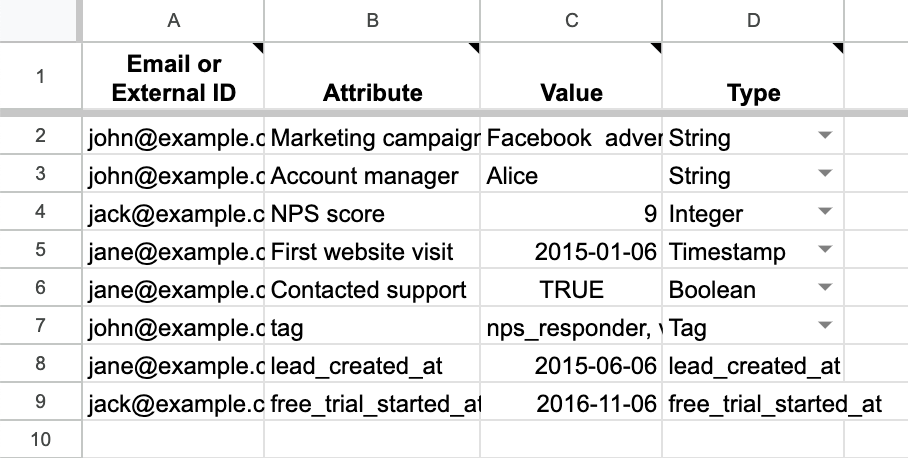
- Click Send attributes to ChartMogul to update your customer records in ChartMogul with custom attributes and tags from your Google Sheet.
Available attribute types
Select the following attribute types in the Type column:
| Type | Description | Examples |
|---|---|---|
| String | A custom attribute that’s a sequence of letters, numbers or symbols | Account manager name, marketing campaign name |
| Integer | A custom attribute that’s a whole number | NPS score, CSAT score, number of emails opened, number of site visits |
| Timestamp | A custom attribute that’s date and time | First website visit date, support ticket creation date, upgrade date from a free plan |
| Boolean | A custom attribute that’s either True or False | Signed up for the newsletter, contacted support, contacted regarding upsell |
| Tag | A tag (a sequence of letters, numbers or symbols) | Managed account, at risk |
Importing 500 attributes takes about 5 minutes. Keep the Google Sheet open during the import — closing the app or the sheet cancels it.
Successfully imported rows turn green. Failed rows turn red, and the app shows the reason for the failure when it's available.

- Confirm the import worked by navigating to Customers and opening a customer record to check for your new attributes and tags.
What to Do Next
Use the Google Sheets app to: