
Zendesk integration
Before you start: You'll need to be a Staff, Admin, or Owner in ChartMogul and an Admin in Zendesk.
The ChartMogul Zendesk integration is a widget that displays a customer's subscription and revenue data directly inside Zendesk, so your support team can see billing context without leaving a ticket.

-
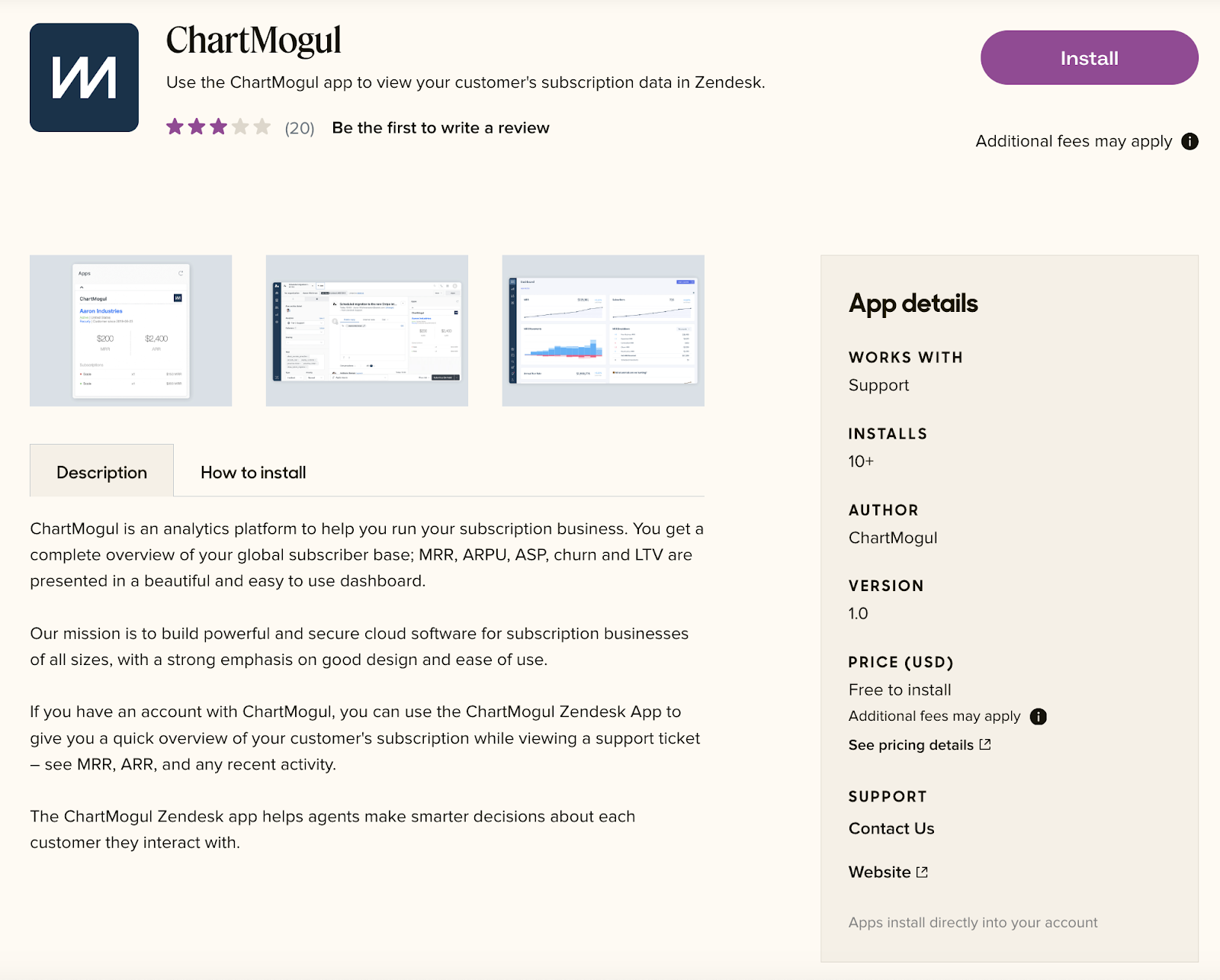
Visit the Zendesk App Marketplace and install the ChartMogul app.
- Create a new read-only API key — a credential that lets Zendesk read your ChartMogul data without write access.
-
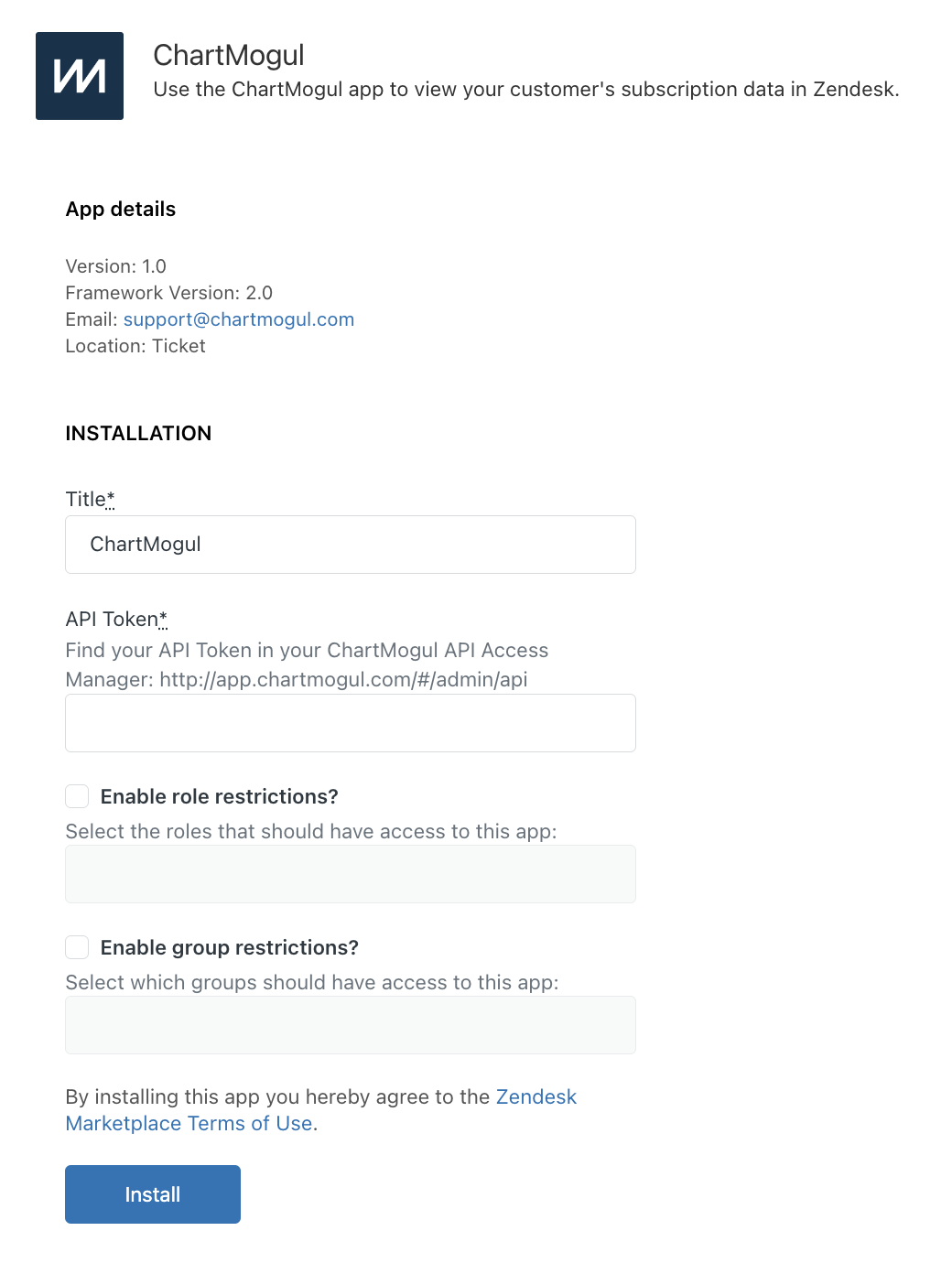
Copy your API key and paste it into the API Token field on the app installation page in Zendesk. You can also enable role and group restrictions to control who sees the app. Click Install.
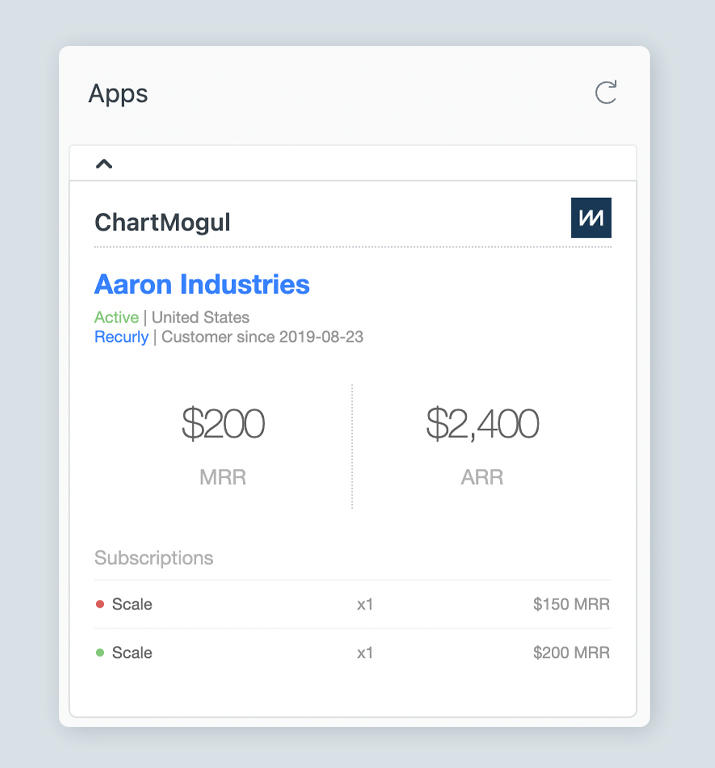
Open a ticket in Zendesk. You'll see the ChartMogul app on the right-hand side. If a customer's email in the ticket matches one in your ChartMogul account, Zendesk pulls their data automatically. This includes their name, status, country, billing system, customer since date, MRR (Monthly Recurring Revenue), ARR (Annual Recurring Revenue), and subscriptions.
For further assistance, please contact support.