
Exporting customers and metrics to Google Sheets
The ChartMogul Google Sheets app lets you export your customer data and subscription metrics from ChartMogul directly into a Google Sheet — so you can analyze and share your data in a familiar spreadsheet format.
Here’s what we cover in this article:
What You Need Before You Start
- Read our guide to getting started with the Google Sheets app.
- Learn more about customers and customer records in ChartMogul.
How to Export Customers to Google Sheets
To export your customers from ChartMogul to a Google Sheet:
- From an empty Google Sheet, navigate to Extensions > ChartMogul Google Sheets integration > Open app.
-
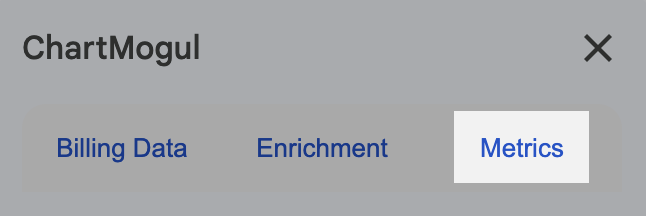
Switch to the Metrics tab in the Google Sheets app.
-
Click Import customers to Google Sheet.
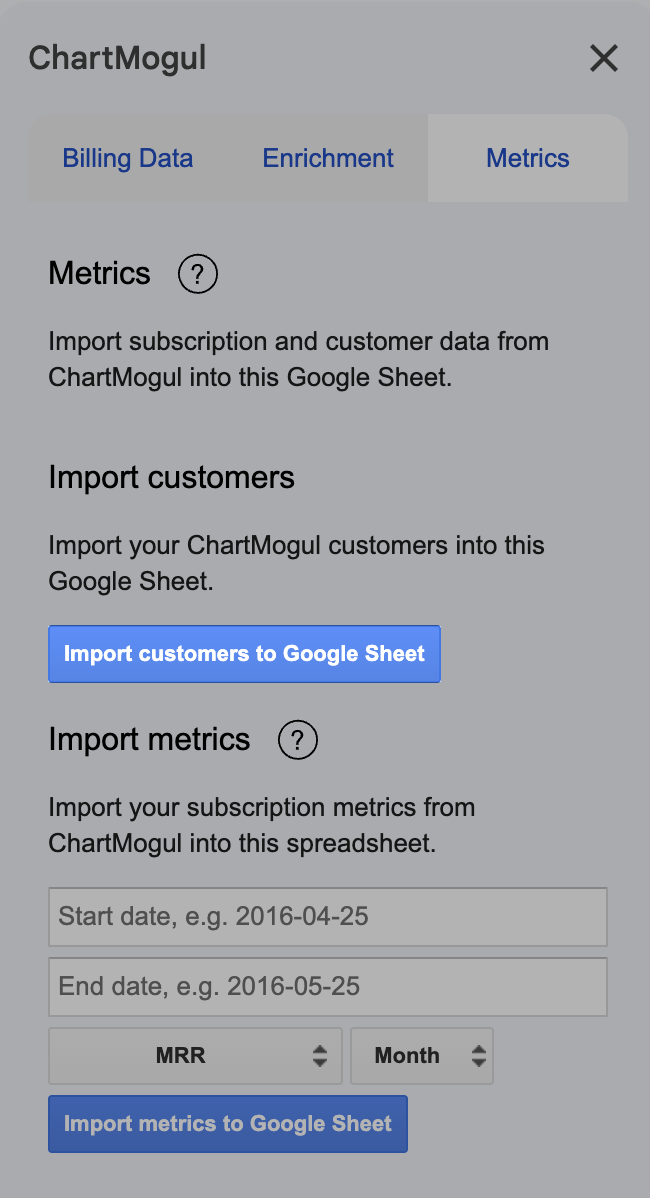
The export contains data and metrics for all customers, including custom attributes and tags. The Google Sheet app notifies you when the data transfer is complete.

- Exporting 1,000 customers takes about 5 minutes.
- Keep the Google Sheet open while the export runs — closing the app or the sheet cancels the export.
How to Export Metrics to Google Sheets
To export your ChartMogul metrics to a Google Sheet:
- From an empty Google Sheet, navigate to Extensions > ChartMogul Google Sheets integration > Open app.
- Switch to the Metrics tab in the Google Sheets app.
- Under Import metrics, enter the start and end dates for the export in the following format: YYYY-MM-DD. For example, 2023-01-01 and 2023-12-31.
- Choose from the following metrics:
- MRR (Monthly Recurring Revenue) — the total recurring revenue normalized to a monthly value
- ARR (Annual Run Rate) — MRR multiplied by 12
- Active Customer Count — the number of customers with an active subscription
- ARPA (Average Revenue Per Account) — average MRR across all active customers
- ASP (Average Sale Price) — the average MRR of new subscriptions in a given period
- LTV (Customer Lifetime Value) — the predicted total revenue from a customer over their lifetime
- Customer Churn Rate — the percentage of customers who cancelled in a given period
- MRR Churn Rate — the percentage of MRR lost to cancellations and downgrades in a given period
- Choose from the following time intervals:
- Month
- Week
- Day
- Quarter
- Click Import metrics to Google Sheet.

Exporting 1,000 data points (for example, MRR values for 1,000 days) takes about 5 minutes. Leave the Google Sheet open while the app is exporting metrics. Closing the app or the Google Sheet will cancel the export.
The export contains values for your chosen metric, broken down by the interval you selected (day, week, month, or quarter), within your specified date range. The Google Sheets app notifies you when the export is complete.

What to Do Next
Use the Google Sheets app to: