
Setting up two-factor authentication (2FA)
Two-factor authentication (2FA) is a login security feature in ChartMogul that requires a second verification step — a one-time code from an authenticator app — after you enter your password. Use this guide to enable 2FA on your account, or require it for your entire team.
We strongly recommend enabling 2FA — it's the standard way to protect your account from unauthorized access.
Here’s what we cover in this article:
- Before you begin
- How it works
- Setting up 2FA
- Requiring 2FA for all team members
- How requiring 2FA impacts team members
- Resetting 2FA for a team member
Resources and further reading:
What You Need Before You Begin
Review these details before you start.
- You’ll need to be an Admin or Owner to require two-factor authentication for all account team members.
- ChartMogul does not allow Lite, Read-only, and Staff team members (roles with limited permissions) to disable 2FA when it's required by their account admin.
- ChartMogul does not offer SMS as a 2FA option because it’s much less secure than using an authenticator app.
- Download an authenticator app on your smartphone. We recommend Google Authenticator for Android or iOS.
- When 2FA is turned on, team members logging in with an email address and password and those signing in with Google must use 2FA.
How 2FA Works
When 2FA is on, ChartMogul asks for a one-time code from your authenticator app — in addition to your email and password, or your Google sign-in. If your password is ever compromised, the second factor stops attackers from getting in.
When 2FA is enabled, ChartMogul requires an authenticator code when team members:
- Log in from a new device
- Log out and then log in
- Have been logged in for three weeks
Setting up 2FA
When ChartMogul prompts you to set up 2FA, this is because it’s required by your account admin. Follow the steps below, starting at step 3. You must complete 2FA setup to access your account.
To set up two-factor authentication:
- Navigate to Profile > View Profile.
-
Under Sign In & Security > Two-factor authentication, click Turn on.
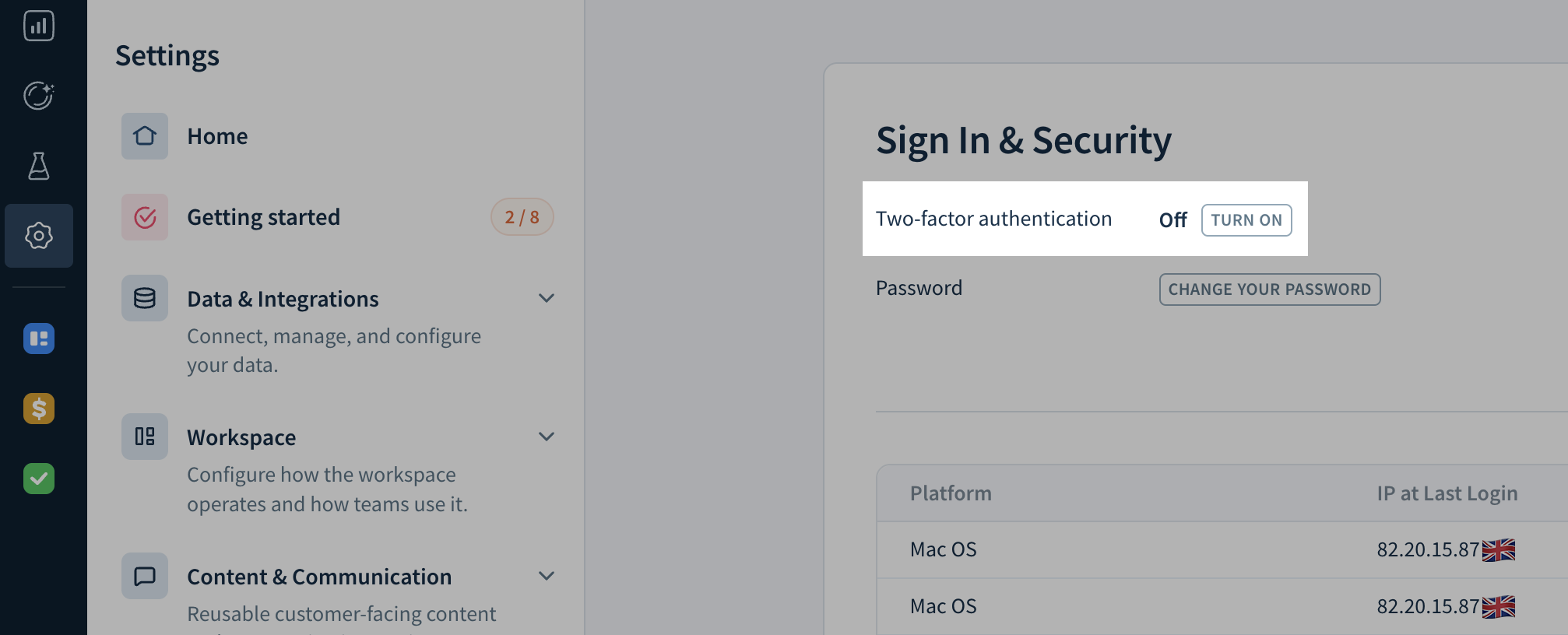
- Scan the QR code with your authenticator app and enter the authenticator code.
- Click Verify to set up 2FA. If 2FA isn’t required by your account admin, click Cancel to exit the screen without enabling 2FA.
Requiring 2FA for all team members
You’ll need to be an Admin or Owner to require all team members set up 2FA.
To require two-factor authentication for all team members on your account:
- Navigate to Settings > Admin > Security.
- Set Require team members to set up two-factor authentication (2FA) to On.
After you save, ChartMogul immediately requires 2FA for your account. All team members must complete 2FA setup before they can log in.
How Requiring 2FA Affects Your Team
Here’s how changing the Require team members to set up two-factor authentication (2FA) setting impacts team members:
| Scenario | Impact |
| An admin turns 2FA ON while team members are logged out. | ChartMogul prompts team members to set up 2FA the next time they log in. |
| An admin turns 2FA ON while team members are logged in. | ChartMogul immediately prompts team members to set up 2FA. |
| New team members are invited to a ChartMogul account which has 2FA turned ON. | After a team member confirms their email address, ChartMogul immediately prompts them to set up 2FA. |
| An admin turns 2FA OFF. | 2FA is not required, however, team members can turn it on for themselves. |
How to Reset 2FA for a Team Member
You'll need to be an Admin or Owner to reset 2FA for a team member. We recommend granting Admin privileges to more than one person. If you're the only Admin or Owner and you lose your 2FA device, contact support — we'll verify your identity over a video call and reset 2FA for you.
If a team member loses the device they use for 2FA, they won’t be able to access their ChartMogul account. To reset 2FA for such a team member:
- Navigate to Settings > Admin > Team Members.
- Locate the team member in the table and click Reset in the 2FA column.
- Click OK to confirm.
ChartMogul emails the team member to confirm the reset. On their next login, they can set up 2FA on their new device. If 2FA is required for all team members, they won't be able to log in until they complete setup.