
Activity log
The Activity Log shows a record of key changes made in your ChartMogul account, including who made each change and when. It covers actions such as creating or deleting API keys, changing data settings, updating automations, generating exports and merging customers in bulk.
Use it to audit changes to your account, troubleshoot unexpected behavior, or find out who changed something. For example, you can see who changed your churn recognition settings, deleted an API key or exported customer data.
You'll need to be an Owner or Admin to view the activity log.
Here's what we cover in this article:
- Opening the activity log
- Understanding activity log entries
- Searching and filtering the activity log
- Events recorded in the activity log
Opening the activity log
To open the activity log, go to Settings > Security & Access > Activity Log.
The most recent events also appear under Recent activity on the Settings home page. Click View all to open the full activity log.
Understanding activity log entries
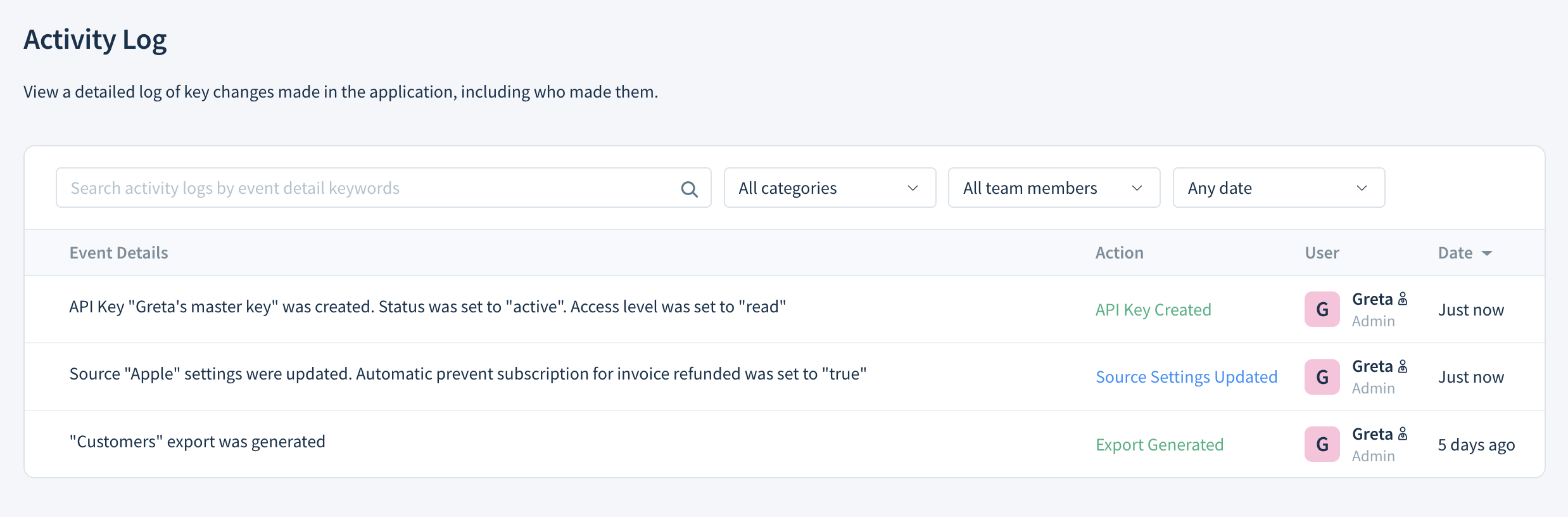
Events are listed with the most recent first, 20 per page. Each entry shows the following details:
- Event Details – A description of the change, such as
"Customers" export was generatedorAutomation "90 day renewal alert" was deleted. - Action – The type of change, such as API Key Deleted or Automation Updated. Actions are color-coded: green for things created, added or started, blue for updates, and red for deletions.
- User – The team member who made the change, and their role.
- Date – When the change was made. Events from the past week show how long ago they happened, such as 8 hours ago. Older events show the full date and time, such as Sep 25, 2026 (2:27 am).
Click the Date column header to change the sort order.
Searching and filtering the activity log
Use the search bar and filters above the table to narrow down the list. You can combine the search bar with any of the filters.
Searching by keyword
Enter a keyword in the Search activity logs by event detail keywords box to find events whose details contain it. For example, search for the name of an automation, an API key or an export.
Filtering by category
Select an action from the All categories drop-down to show only events of that type, such as API Key Created or Bulk merge customers. See Events recorded in the activity log for all actions.
Filtering by team member
Select a name from the All team members drop-down to show only changes made by that team member. Select Me to show your own changes.
Filtering by date
Select a period from the Any date drop-down to show events from that period:
- Any date (default)
- This week
- This month
- This quarter
- This year
- Last week
- Last month
- Last quarter
- Last year
Events recorded in the activity log
ChartMogul records the following actions:
| Area | Actions |
|---|---|
| Security | Admin Reset 2FA, API Key Created, API Key Updated, API Key Deleted |
| Team members | Invite Sent, User Invitation Accepted, User Updated, User Deactivated, User Reactivated, Owner Updated |
| Data settings | Churn Formula Updated, Churn Recognition Updated, Delinquent Subscriptions Updated, Data Source Delinquent Subscriptions Updated, Free Customer Handling Updated, General Data Settings Updated, Reclassification Updated, Refund Handling Updated |
| Data sources | Source Created, Source Settings Updated, Source Deleted, Source Reimport Initiated, Source Reprocess Initiated |
| Destinations | Data Destination Created, Data Destination Updated, Data Destination Deleted |
| Automations | Automation Created, Automation Updated, Automation Deleted |
| Customers | Bulk merge customers |
| Segments and tags | Segment Deleted, Tag Updated, Tag Deleted |
| Email Account Connected, Email Blocklist Added | |
| Exports | Export Generated |
Next steps
- Learn about roles and permissions in ChartMogul.
- Configure your data settings and track changes to them in the activity log.
- Merge duplicate customers in bulk and review completed merges in the activity log.