
Configuring Intercom as a destination
You’ll need to be a Staff, Admin or Owner in ChartMogul and an Admin in Intercom to complete the steps outlined in this article. Read more about roles and permissions.
Intercom as a destination in ChartMogul lets you automatically export customer data — subscription metrics, attributes, and tags — synced directly to your Intercom contacts so you can send personalized messages for marketing, onboarding, and retention. Set it up using ChartMogul’s standard destinations.
Here’s what we cover in this article:
Resources and further reading:
- How do I export data from ChartMogul?
- Send custom user attributes to Intercom
- Developer guide on destinations
- How up to date is data in ChartMogul
Before You Start
Read each section below before you start. It'll help you understand how ChartMogul integrates with Intercom and make the right configuration choices.
- Decide how ChartMogul should match customers with contacts in Intercom. You may need to check:
- How your customer data is populated in Intercom.
- The
External IDChartMogul has imported from your billing system, and whether any Intercom contact attributes store thatExternal ID.
- Decide which customer data elements you’d like ChartMogul to send to Intercom contacts.
How the Intercom Destination Works
Each day starting at 9:00 UTC, ChartMogul sends customer data to contacts in Intercom. Contacts are matched using either email address or External ID — the unique identifier (such as a Stripe customer ID) that ChartMogul imports from your billing system.
Sending data
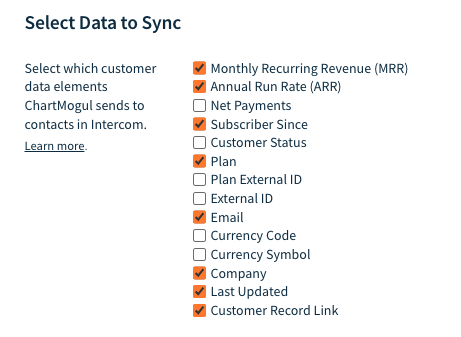
ChartMogul sends one or more of the following customer data elements to contacts in Intercom:
- Monthly Recurring Revenue (MRR) — The customer’s current monthly recurring revenue.
- Annual Run Rate (ARR) — The customer’s current annual run rate.
- Net Payments — The customer’s total amount of successful transactions.
- Subscriber Since — The date the customer became an Active Subscriber.
- Customer Status — The customer’s classification based on their subscription history (for example, Active, Cancelled, or Lead). See all statuses.
- Plan — The name of the plan the customer is subscribed to.
- Plan External ID — The unique identifier for the plan, typically from your billing system.
- External ID — The unique identifier for the customer, typically from your billing system.
- Email — The customer’s email address.
- Currency Code — The ISO code for the customer’s billing currency, e.g., USD or EUR.
- Currency Symbol — The customer’s billing currency sign, e.g., $ or €.
- Company — The name of the customer’s company.
- Last Updated — The date the customer was last updated in ChartMogul.
- Customer Record Link — A URL to the customer’s record in ChartMogul.
Contact matching
Review the following information carefully, as it’s not possible to reconfigure how contacts are matched after setup (without deleting and creating a new destination).
When multiple ChartMogul customers match the same Intercom contact, only one customer’s data is stored at a time. ChartMogul uses a “last write wins” approach — the most recent sync overwrites any previous data on that contact. You won’t see an aggregated view across multiple customers at the user level. A single ChartMogul customer can still update multiple Intercom contacts.
ChartMogul matches customers to contacts in Intercom using either:
- Email — ChartMogul matches customers with contacts using the customer’s email address. A match occurs when a contact in Intercom has the same email address as a customer in ChartMogul.
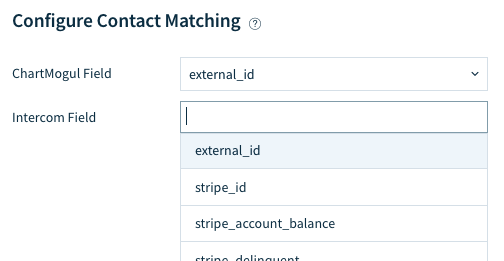
- External ID — ChartMogul matches customers with contacts using the customer’s External ID. Choosing
External IDin the ChartMogul Field allows you to select one or more attributes in the Intercom Field for contact matching. A match occurs when any of a contact’s attributes in Intercom is the same as any of a customer’sExternal ID(s) in ChartMogul.
Adding Intercom as a destination
- Navigate to Settings > Destinations.
- Click ADD DESTINATION.
-
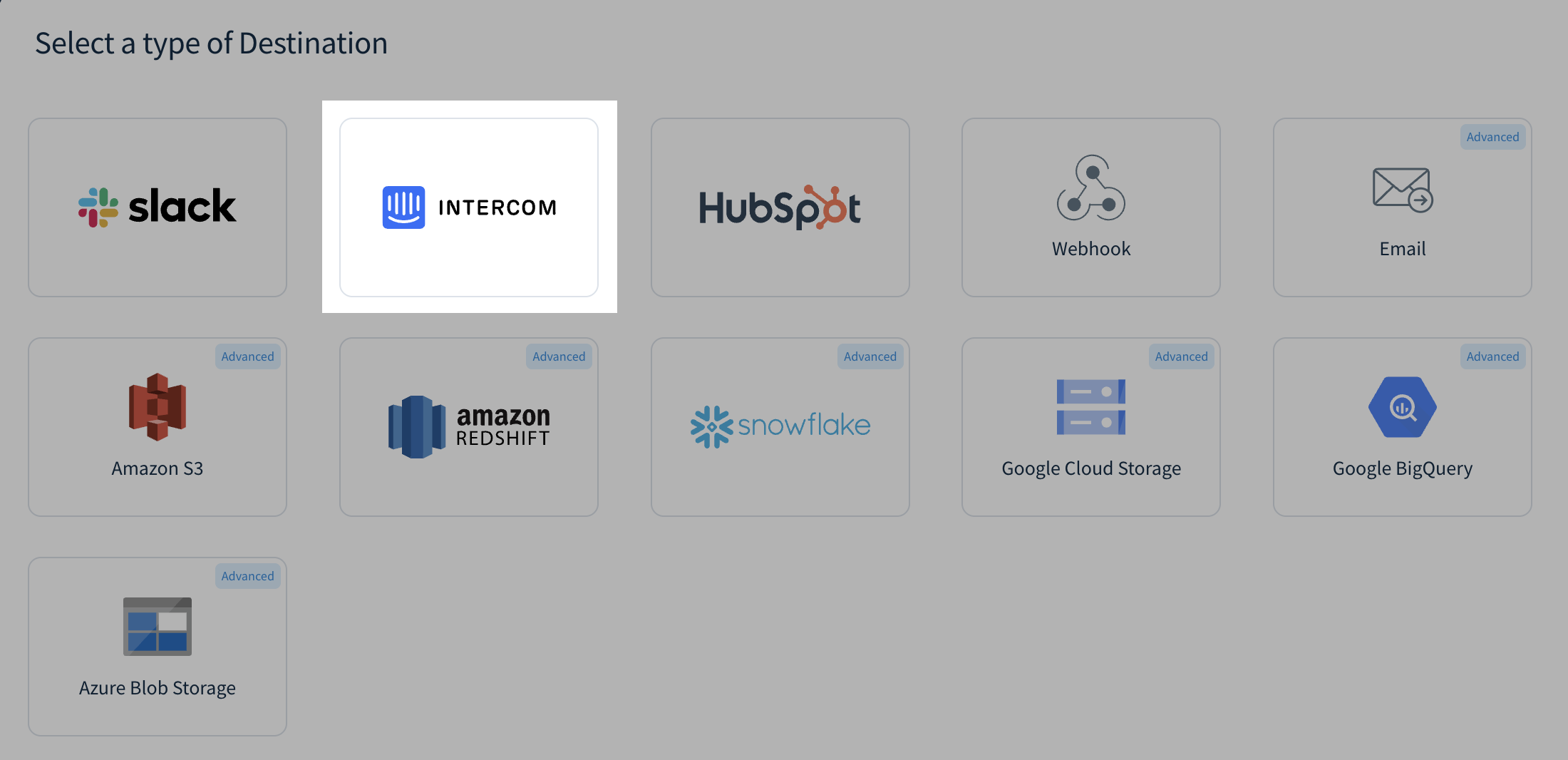
Select Intercom.
- Enter a unique name for your destination in the Name field, then click Next.
-
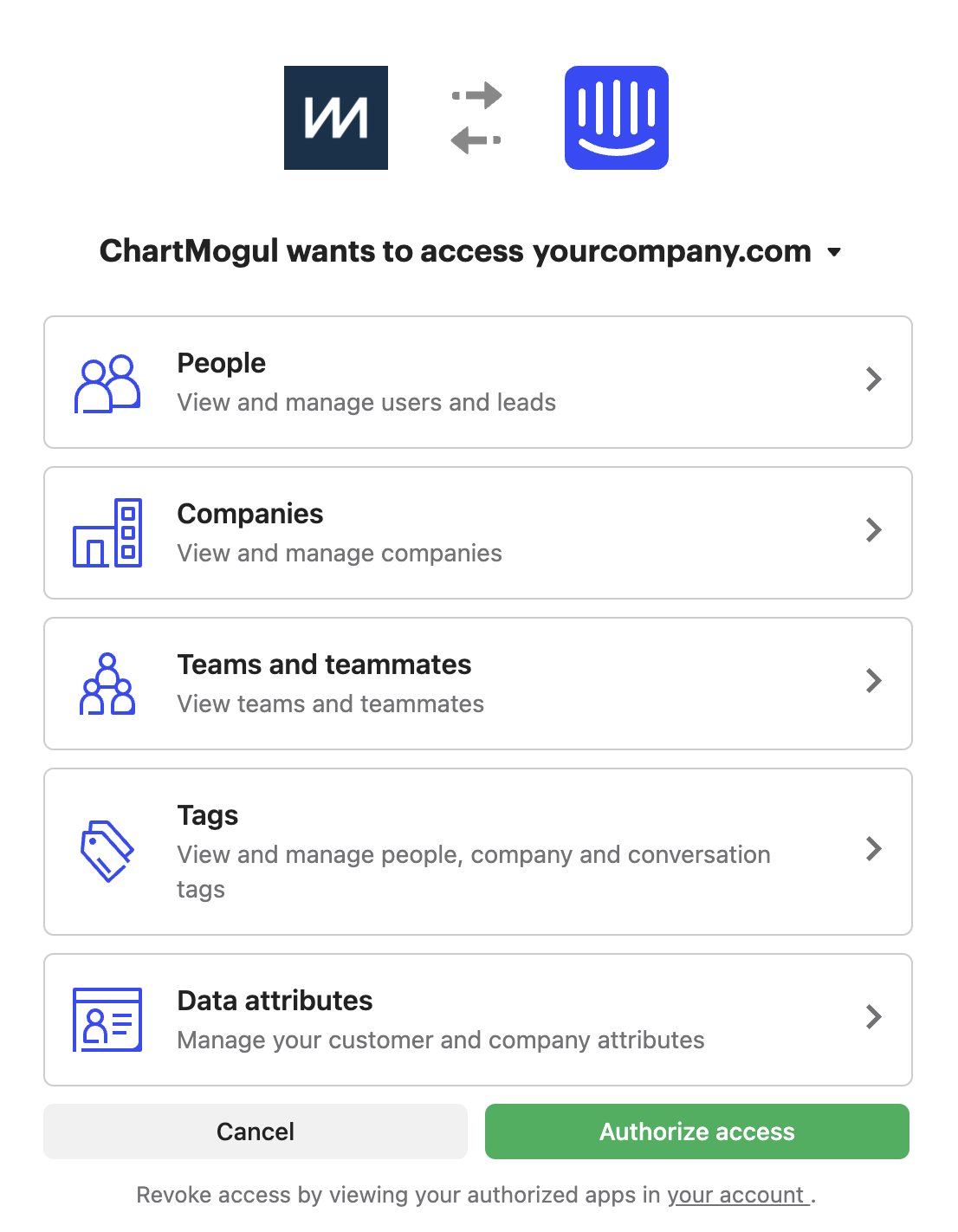
Authenticate by clicking CONNECT WITH INTERCOM. You’ll then be redirected to your Intercom account, where you’ll be asked to Authorize access.
-
Next, under Configure Contact Matching, select the data elements ChartMogul should use to match customers with contacts using the ChartMogul Field and the Intercom Field.
-
Under Select Data to Sync, select the data elements you’d like ChartMogul to send to each contact it matches in Intercom.
- Click SAVE.
Each day starting at 9:00 UTC, ChartMogul sends the customer data elements you’ve selected to matching contacts in Intercom.