
Exporting CSV reports from customer lists
ChartMogul lets you export customer, subscription, and MRR data from customer lists — saved or filtered views of your customer data — to a CSV file. Use the export to analyze your data in external tools or share it with other teams.
To export your data:
- Navigate to Customers.
- Filter or segment your report or select a customer list. To export all data, go to step 3.
- Click the Export as CSV icon.
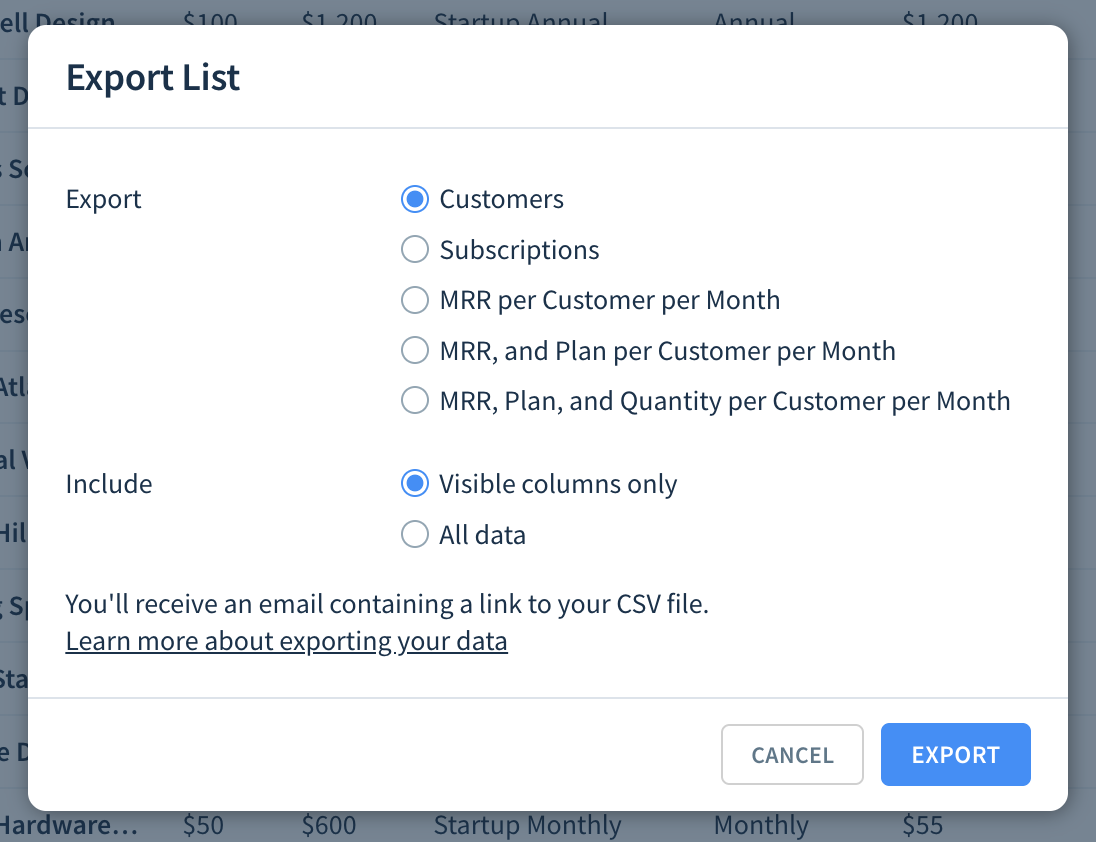
ChartMogul gives you five export options:
- Customers — customer records, with optional custom attributes
- Subscriptions — a fixed set of subscription attributes
- MRR per Customer per Month — one row per customer per month
- MRR and Plan per Customer per Month — one row per plan per customer per month
- MRR, Plan, and Quantity per Customer per Month — adds subscription quantity to the above
Export customers
Customer exports can include custom attributes. Learn more about adding custom attributes.
If you choose to export customers, you can choose between:
- Visible columns only: Exports just the visible columns in the customer list table
- All data: Exports all available attributes for the customer (including custom attributes)
Once you’ve exported your customers using CSV, update them using flexible CSV import.
Export subscriptions
Subscriptions exports don't include custom attributes or customers with a lead status — contacts who haven't yet converted to paying customers.
ChartMogul always includes a fixed set of attributes when exporting subscriptions:
| Column | Description |
|---|---|
| customer_id | The customer’s unique identifier, imported by ChartMogul from an integration or which you’ve added manually using a custom source |
| customer_uuid | A unique identifier automatically generated by ChartMogul |
| customer_name | The customer’s name displayed in ChartMogul as per the preferred customer name setting |
| customer_email | The Contact info (legacy) email address. This field is blank for customer records that do not contain this field. |
| primary_contact_email | The email address for the first contact listed on the customer’s record or specified using the API. |
| customer_country | The customer’s country |
| customer_subscription_id | A unique identifier for the subscription automatically generated by ChartMogul or which you’ve added manually using CSV or data tables |
| billing_connector_name | The unique name for your source in your account |
| billing_system | The system you use to bill customers or track subscriptions. This could be an integration or a custom source. |
| plan_id | The unique identifier for the plan |
| plan_name | The name of the plan |
| quantity | The quantity of subscriptions |
| mrr | The customer’s current monthly recurring revenue for active and past due subscriptions. |
| currency | The account’s primary currency |
| billing_currency | The currency a subscription is billed in |
| billing_cycle | The frequency at which the customer is billed for a subscription, as per their plan |
| subscription_start_date | The date and time a subscription began |
| discount | The discount amount applied to a subscription, in the account’s primary currency |
| status | The subscription status |
| cancellation_date | The date and time a subscription ended |
| customer_net_payments | Sum of all of the customer’s successful transactions |
MRR per Customer per Month
MRR exports are available on the Analytics Pro, Enterprise, Legacy Scale, and Legacy Volume plans. The export button is disabled if your account is on the Free plan.
MRR per Customer per Month lists each customer's MRR — their monthly recurring revenue — for each calendar month where they have an active or past due subscription at the end of that month.
If your account has multiple currencies, the export displays data in the account’s primary currency.
This report is also available under Settings > Exports. Review the data contained in the export.
MRR and Plan per Customer per Month
MRR and Plan per Customer per Month is an extended version of the MRR per Customer per Month export. It contains multiple rows for customers who have switched plans or are subscribed to more than one plan. Each row reflects that customer’s MRR contribution for the specific plan.
This report is also available under Settings > Exports. Review the data contained in the export.
MRR, Plan, and Quantity per Customer per Month
MRR, Plan, and Quantity per Customer per Month is an extended version of the MRR and Plan per Customer per Month export, listing both MRR and subscription quantity for each month.
This report is also available under Settings > Exports. Review the data contained in the export.
Download your export
Click Export to have ChartMogul prepare a CSV file and email you a download link. The time it takes to do this varies depending on the size of the dataset you’re exporting.

The link is valid for seven days. Click it to download a ZIP file, then uncompress the ZIP and open the CSV in your preferred application.