
Exporting data to CSV
You'll need to be an Admin or Owner to export data. Read more about roles and permissions. MRR exports under Settings > Data & Integrations > Exports are not available on the Free plan.
ChartMogul's CSV export feature lets you download your subscription, revenue, and customer data as spreadsheet files. You can export from several sections of the app:
All date and time values in CSV exports use your account’s timezone.
How to Export Data from the Exports Page
ChartMogul groups some useful exports under Settings > Data & Integrations > Exports:
- MRR per Customer per Month
- MRR and Plan per Customer per Month
- MRR, Plan, and Quantity per Customer per Month
- All MRR Movements
- Manual MRR Edits
- Subscription Connections
Select Download next to a report and confirm by selecting OK. You’ll receive an email with a download link.
MRR per Customer per Month
This export lists MRR for each calendar month for customers who are active or past due at the end of the month. If your account has multiple currencies, the export displays data in the account’s primary currency.
The CSV file contains the following columns:
| Column | Description |
|---|---|
| customer_uuid | The customer’s UUID |
| customer_external_ids | The customer’s external ID |
| customer_name | The customer’s name displayed in ChartMogul as per the preferred customer name setting |
| company_name | The name when the customer is an organization and not an individual |
| columns for months (e.g., “2025-12-31”) | The final MRR amount at the end of each month |
This report is also available from customer lists.
MRR and Plan per Customer per Month
This is an extended version of the MRR per Customer per Month export. It contains multiple rows for customers who have switched plans or are subscribed to more than one plan. Each row reflects that customer’s MRR contribution for the specific plan.
The CSV file contains the following additional columns:
| Column | Description |
|---|---|
| plan_name | The plan’s name |
| plan_external_id | The plan’s external ID |
| plan_group_uuids | A comma-separated list of the UUIDs of all plan groups the plan belongs to |
| plan_group_names | A comma-separated list of the names of all plan groups the plan belongs to |
This report is also available from customer lists.
MRR, Plan, and Quantity per Customer per Month
This is an extended version of the MRR and Plan per Customer per Month export. Each month is represented by two columns, one with MRR and one with subscription quantity at the end of the month:
| Column | Description |
|---|---|
| MRR columns for months (e.g., “mrr_2025-12-31”) | The final MRR amount at the end of each month |
| quantity columns for months (e.g., “quantity_2025-12-31”) | The subscription quantity at the end of each month |
This report is also available from customer lists.
All MRR Movements
This export includes all MRR movements for each change to a subscription that increases or decreases the subscription’s calculated MRR. Learn more about MRR movements.
| Column | Description |
|---|---|
| customer_name | The customer’s name displayed in ChartMogul as per the preferred customer name setting |
| customer_uuid | The customer’s UUID |
| customer_external_id | The customer’s external ID |
| subscription_external_id | The subscription’s external ID |
| description | A description of the subscription change, such as “cancelled their $40 plan” or “increased quantity (4 → 5) for $60” |
| movement_type | The type of MRR movement (“new_biz”, “expansion”, “contraction”, “churn”, or “reactivation”) |
| date | The date and time when the MRR movement occurred |
| account_currency | The account’s primary currency |
| mrr_movement_in_account_currency | The MRR movement amount in the account’s primary currency |
| invoice_currency | The currency in which the subscription is billed |
| mrr_movement_in_invoice_currency | The MRR movement amount in the subscription’s billing currency |
Manual MRR Edits
This export lists all manual MRR edits that have been made to subscriptions in your account.
| Column | Description |
|---|---|
| ID | A unique identifier for the MRR edit |
| Customer External ID | The customer’s external ID |
| Subscription External ID | The subscription’s external ID |
| MRR Edit Effective Date | The date from which the edited MRR value takes effect |
| Edited MRR | The new MRR value after the manual edit, in cents (pence, etc.) |
| MRR Edited At | The date and time when the MRR edit was made |
| Author | The email address of the team member who made the edit |
| Created At | The date and time when the edit record was created |
| Updated At | The date and time when the edit record was last updated |
| Data Source UUID | The UUID of the source |
| Original MRR | The MRR value before the manual edit was applied, in cents (pence, etc.) |
Subscription Connections
This export lists all connected subscriptions in your account.
| Column | Description |
|---|---|
| Primary Subscription External ID | The external ID of the primary subscription in the connection |
| Connected Subscription External ID | The external ID of the connected subscription |
| Activation Number | Specifies whether the connected subscription is an original subscription (1) or a reactivated one (2 and above). Each time a customer churns and reactivates, the number increases by 1. |
| Primary Data Source UUID | The UUID of the source for the primary subscription |
| Connected Data Source UUID | The UUID of the source for the connected subscription |
| Primary Customer External ID | The external ID of the customer associated with the primary subscription |
| Connected Customer External ID | The external ID of the customer associated with the connected subscription |
| Customer UUID | The UUID of the customer associated with the primary subscription |
| Type | The type of connection, either “valid” or “invalid”. A connection can become invalid if one of the connected subscriptions is deleted or if the cancelled subscription is reactivated. |
| Created At | The date and time when the connection was created |
How to Export Report Data
Go to Reports > REPORTS to access reports for metrics like recurring revenue or churn and retention.
Report Data
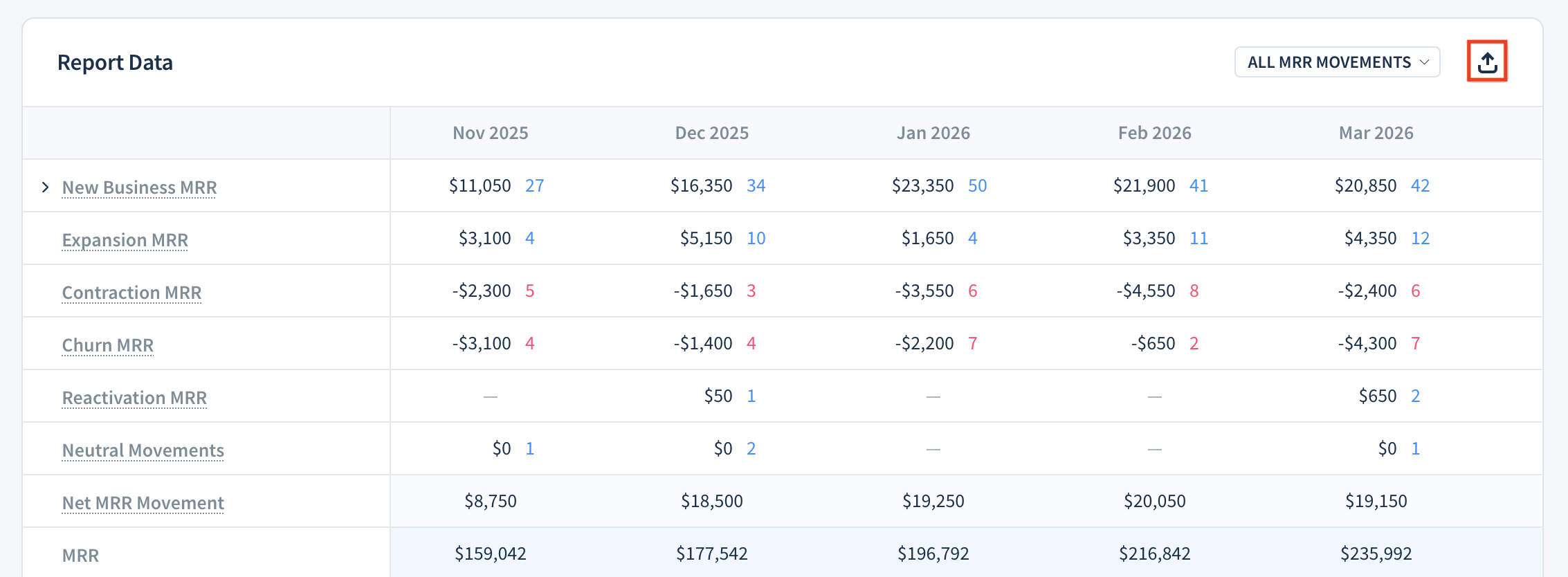
Most reports have a Report Data table, which you can export by selecting the Export as CSV button. Each column in the CSV file corresponds to a Report Data row. Review the article for a specific report to learn about the data included in its Report Data table.
Detailed Export
The Detailed Export CSV lists every line item from all paid invoices in a given period.
Click DETAILED EXPORT (CSV) in the Report Data table to download this report from the following reports:

Cohorts
Cohort exports are available under Data Lab > Cohort Analyses. A cohort analysis groups customers by when they started and tracks their behavior over time. Select a cohort analysis and then the Export as CSV button.
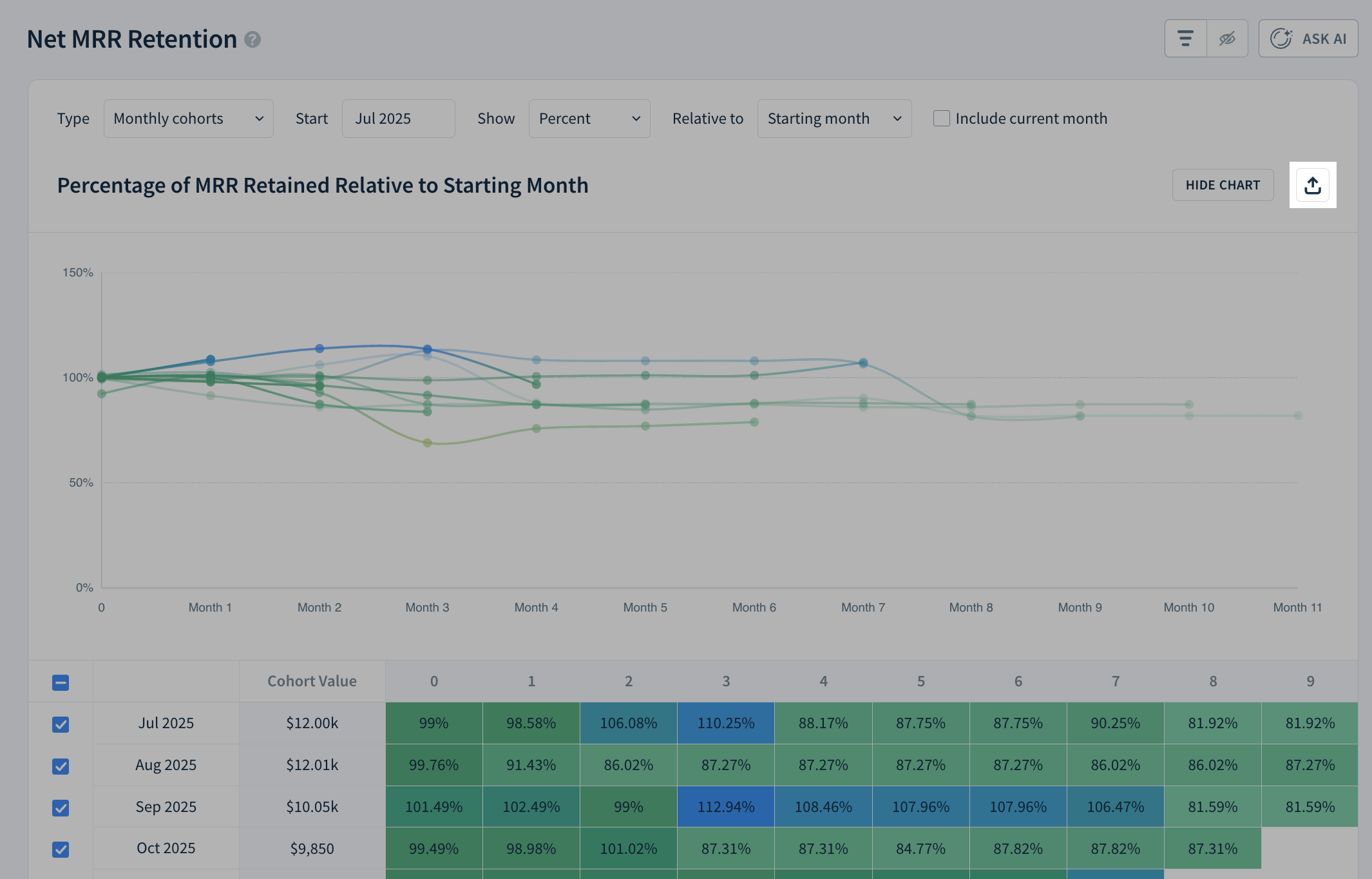
All cohort exports share the same structure with the following columns:
| Column | Description |
| (First column) | The cohort period (month and year) |
| Cohort value |
The initial cohort value, depending on the analysis type:
|
| 0, 1, 2, 3… | Percentage value for each period after the cohort’s start (0 = same period, 1 = one period later, etc.), depending on the analysis type |
| Average | The average value across all cohorts for each period |
Customers
To export customer data, follow these steps:
- Go to Customers.
- Select the Export as CSV button.
- Choose the export type from the list below.
- Customers
- Subscriptions
- MRR per Customer per Month (also available in Exports)
- MRR and Plan per Customer per Month (also available in Exports)
- MRR, Plan, and Quantity per Customer per Month (also available in Exports)
Learn more about exporting CSV reports from customer lists.
Opportunities
Go to Opportunities and select the Export as CSV button to export opportunities with associated customer information. You need the manage opportunities permission to export — if you don't have it, the button is disabled. Choose between exporting Visible information only or All data.
The CSV file contains the following columns:
| Column | Description |
|---|---|
| Customer | The customer associated with the opportunity |
| App Link | A direct link to the customer record in ChartMogul |
| Type | The opportunity type (“MRR”, “ARR” or “One Time”) |
| Value | The opportunity value |
| Currency | The currency symbol for the opportunity value |
| Pipeline | The sales pipeline the opportunity belongs to |
| Stage | The current stage of the opportunity in the pipeline |
| Owner | The name of the team member assigned to the opportunity |
| Close Date | The estimated close date for the opportunity |
| Win Likelihood | The probability of winning the opportunity (as a percentage) |
| Forecast Category | The opportunity’s grouping based on its likelihood of closing (“Pipeline”, “Best Case”, “Committed”, “Won”, or “Lost”) |
| Amount | The total opportunity value in cents (pence, etc.) |
| Created At | The date and time when the opportunity was created |
| Opportunity / [attribute name] (e.g., “Opportunity / Seats”) | Opportunity custom attributes, each in a separate column |
| Customer / Uuid | The customer’s UUID |
| Customer / External ids | A comma-separated list of the customer’s external IDs |
| Customer / Company name | The name when the customer is an organization and not an individual |
| Customer / Owner name | The name of the team member responsible for the customer relationship |
| Customer / Customer name | The full name when the customer is an individual. This is a legacy field. You can now add contacts (each with their own name) to your customer records. |
| Customer / Email | The customer’s email address. This is a legacy field. You can now add contacts (each with their own email address) to your customer records. |
| Customer / Address | The customer’s address |
| Customer / Subscriber since | The Unix timestamp of when the customer became a subscriber |
| Customer / Discount | Discount amount offered to the customer |
| Customer / Subscription quantity | The total number of subscription seats or licenses the customer has |
| Customer / Subscription external | The subscription’s external ID |
| Customer / Data source name | The name of the customer’s source |
| Customer / Lead created at | The Unix timestamp of when the lead was created |
| Customer / Free trial started at | The Unix timestamp of when the free trial started |
| Customer / Next payment | The Unix timestamp of the next scheduled payment |
| Customer / Tags | A comma-separated list of tags applied to the customer |
| Customer / Account currency | The account’s primary currency |
| Customer / Invoice currency | The currency used for invoicing the customer |
| Customer / Website url | The customer’s website URL |
| Customer / Contacts count | The number of contacts associated with the customer |
| Customer / Opportunity count | The number of opportunities associated with the customer |
| Customer / Last active at | The most recent date and time when one of the customer’s contacts was active |
| Customer / Last communication at | The date and time of your most recent communication with one of the customer’s contacts (email or logged call) |
| Customer / Last email sent to customer at | The most recent date and time when you sent an email to one of the customer’s contacts |
| Customer / Last email received from customer at | The most recent date and time when one of the customer’s contacts sent you an email |
| Customer / Churning at | The date and time of a scheduled cancellation of a customer’s last active subscription |
| Customer / Primary contact email | The primary contact’s email address |
| Customer / Last payment | The date and time of the last payment |
| Customer / Churned on | The date and time when the customer churned |
| Customer / Due at | The Unix timestamp of when the next payment is due. This is either the invoice due date, or—if no due date is set on the invoice—the invoice service period end date plus a three-hour buffer. The buffer prevents a customer from being marked past due while payment is processing. |
| Customer / Renewal at | The Unix timestamp of the next renewal date. This is the invoice service period end date plus a three-hour buffer. The buffer prevents a customer from briefly showing as past due while the renewal invoice is still being finalized. |
| Customer / Name | The customer's name as per the preferred customer name setting |
| Customer / Mrr | The customer's current MRR in cents (pence, etc.) |
| Customer / Arr | The customer's ARR in cents (pence, etc.) |
| Customer / Plan name | The name of the customer's plan (“Multiple” if the customer has more than one plan) |
| Customer / Billing cycle | The billing frequency for the customer's subscription(s) (“Multiple” if the customer’s subscriptions have different billing cycles) |
| Customer / Net payments | Total net payments from the customer in cents (pence, etc.) |
| Customer / Country | The customer's region |
| Customer / Paid subscriber since | Unix timestamp of when the customer became a paying subscriber |
| Customer / Status | The customer’s current status (“New Lead”, “Working Lead”, “Qualified Lead”, “Unqualified Lead”, “Active Subscriber”, “Past-due subscriber” or “Cancelled Subscriber”) |
| Customer / Custom / [attribute name] (e.g., “Customer / Custom / Marketing_channel”) | Customer custom attributes, each in a separate column |
Forecasts
Go to Opportunities and find Sales Forecasts under Saved Views in the sidebar. Select Deal Stage Probability or Forecast Category Report. Forecasts project future revenue based on your open opportunities. Select Export as CSV and confirm by selecting OK to receive an email with the forecast data.
Deal Stage Probability
Deal Stage Probability shows estimated new MRR in each month, based on the value of open opportunities and their win likelihood.
| Column | Description |
|---|---|
| Opportunity owner | Name of the team member who owns the opportunities, or “Total” for the aggregate row showing the total value of a given column |
| [Month Year] - amount (e.g., “Dec 2025 - amount”) | Estimated new MRR for the month |
| [Month Year] - count (e.g., “Dec 2025 - count”) | Number of opportunities closing in the month |
| Total amount | Total estimated new MRR across all months |
| Total count | Total number of opportunities closing across all months |
Forecast Category Report
Forecast Category Report is an overview of new MRR in each forecast category by opportunity owner.
| Column | Description |
|---|---|
| Category | Forecast category (“Pipeline”, “Best Case”, “Committed”, “Won”, “Lost”, or "All" for the aggregate row) |
| Opportunity owner | The name of the team member who owns the opportunities, or “Total” for subtotals within each category |
| [Month Year] - amount (e.g., “Dec 2025 - amount”) | Estimated new MRR for the month |
| [Month Year] - count (e.g., “Dec 2025 - count”) | Number of opportunities closing in the month |
| Total amount | Total estimated new MRR across all months |
| Total count | Total number of opportunities across all months |
How to Export Data from a Source
Go to Settings > Data & Integrations > Sources to export all data from a source or a specific dataset (such as customers or transactions). Select a source and a dataset, then select the Export CSV button. See the full guide.

The data contained in each dataset export is documented in the article about importing data using CSV.
Next steps
- Automatically export data using destinations.
- Use our API to retrieve data programmatically.