
Importing lead and trial data using Google Sheets
ChartMogul's Google Sheets app is a non-technical method for importing lead and trial data into ChartMogul — so you can track metrics like Trial-to-Paid Conversion Rate and Average Sales Cycle Length without writing any code.
Here's what we cover in this article:
Before you begin
- Read our guide to getting started with the Google Sheets app.
- Learn about tracking leads and trials.
- To set up the Google Sheets app, create an API key, install the app, and connect it to ChartMogul. Learn more.
How to Format and Send Your Data
Follow the instructions below to add lead and trial dates to existing customer records or add new leads and trialing customers. Each process uses a different template.
The Lead created at and Trial started at dates must be the current date or in the past.
The lead date must always come before the trial date. If it doesn't, ChartMogul will return an error and won't save the date.
When you add a trial date to a customer with a blank lead date, the trial date also becomes the customer’s lead date.
Format lead and trial dates as YYYY-MM-DD or DD-MM-YYYY. Format time as 00:00:00. If you don’t specify the time (as in 2024-02-02 15:21), ChartMogul will set it to midnight (e.g., 2024-02-02 00:00).
How to add lead and trial dates to existing customer records
Add the Lead created at and Trial started at dates to existing customer records to determine the Trial-to-Paid Conversion Rate and the Average Sales Cycle Length.
-
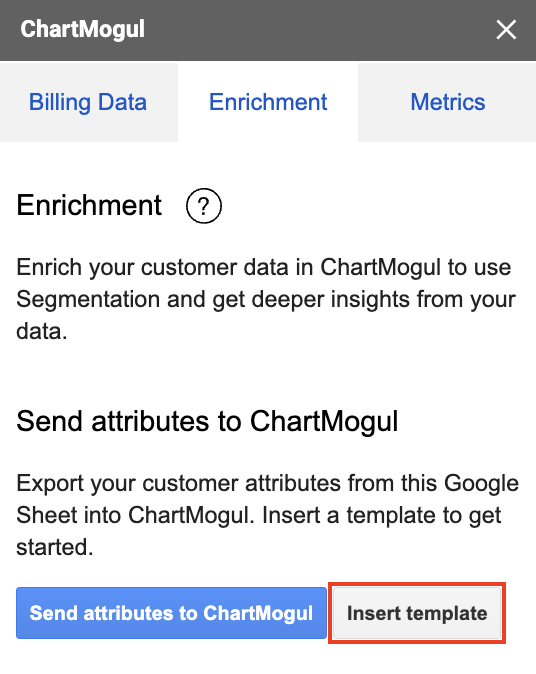
In the Google Sheets app, navigate to Enrichment and click Insert template. This adds a formatted template to the sheet. Learn more.
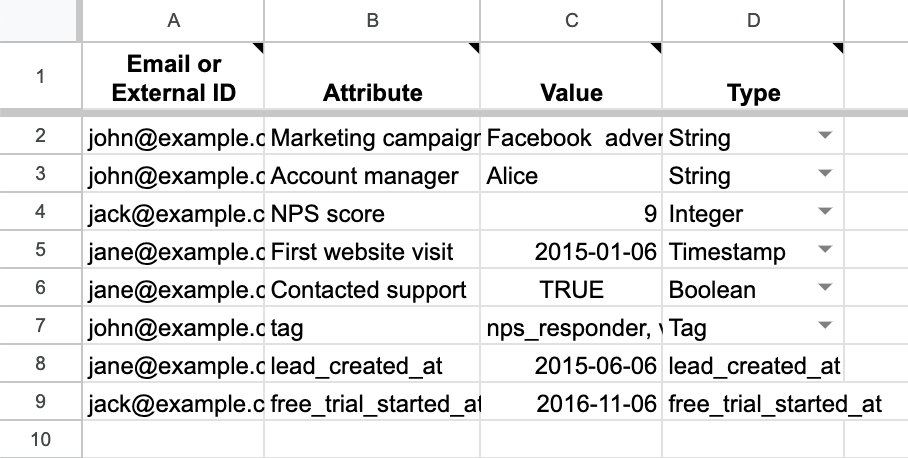
- Replace the template data with the lead and trial you want to import into ChartMogul:
- Email or External ID — Enter the customer’s email address or unique identifier as it appears in ChartMogul
- Attribute — Enter either lead_created_at (the date the customer became a lead, i.e. entered your pipeline) or free_trial_started_at (the date their free trial began)
- Value — Enter the date when a customer became a lead or started a free trial
- Type — Select either lead_created_at or free_trial_started_at from the drop-down
-
-
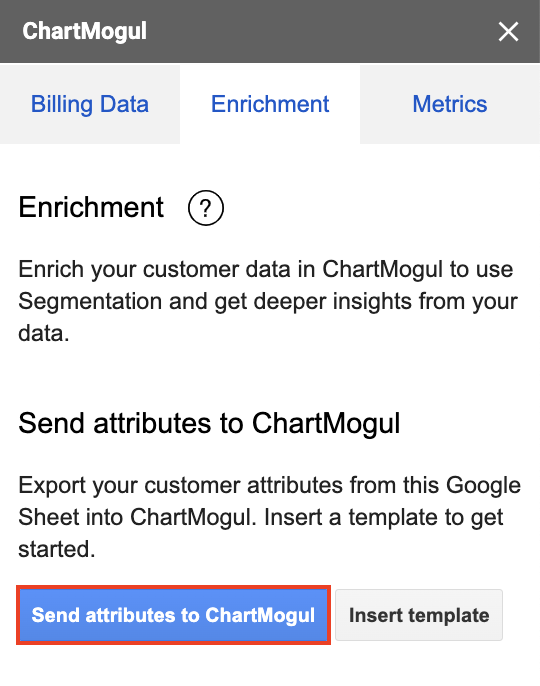
Once you have formatted your data, click Send attributes to ChartMogul to import your lead and trial dates into ChartMogul.
Keep the Google Sheet open while the app is importing attributes. Closing the app or the Google Sheet will cancel the import.
- Imported rows turn green.
- Failed rows turn red. The app shows an error message when one is available.

How to add new leads and trialing customers
Use this method to add brand-new leads and trialing customers — people who haven't yet appeared in your billing system — directly to ChartMogul. A lead is a prospective customer; a trialing customer is someone actively using a free trial. ChartMogul can track them from the moment they sign up, not just after they convert.
- Navigate to Billing Data, select a source from the drop-down, and click Select data source. Or, create a source.
-
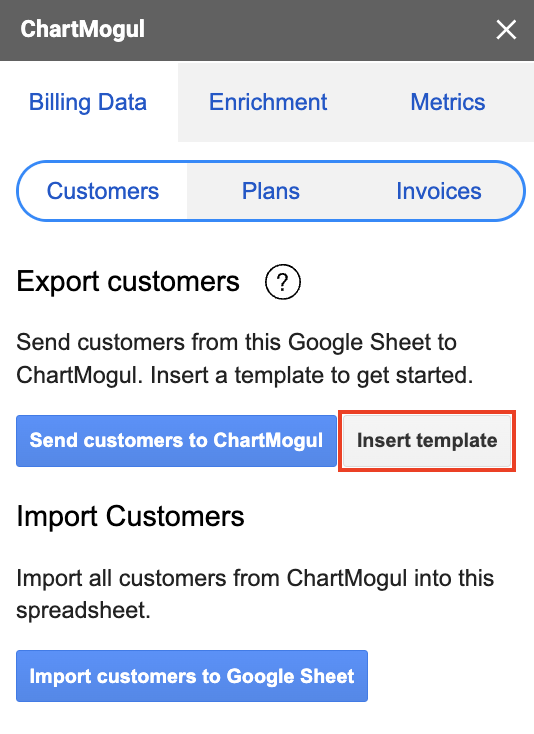
Select the Customers tab and click Insert template. This adds a formatted template to the sheet. Learn more.
-
Replace the template data with your customer data. The only required fields are Name and either Email or External id. If you enter an email (but not an external ID), ChartMogul will use the email as the external ID.

- Enter lead and trial dates in the Lead created at and Free trial started at columns. This way your leads and trialing customers will contribute to metrics such as Trial-to-Paid Conversion Rate and Average Sales Cycle Length.
- Once you've formatted your data, click Send customers to ChartMogul to import your customers into ChartMogul.
Leave the Google Sheet open while the app is importing attributes. Closing the app or the Google Sheet will cancel the import.
Imported rows turn green. Failed rows turn red. When available, the app shows the reason for the failure.
Find your successfully imported customers in Customers.

- Imported rows turn green.
- Rows that failed to import turn red and show an error message.
When a customer converts to paid and is charged in your billing system, this may create a duplicate customer record in ChartMogul. Merge the customer record imported from Google Sheets into the record imported from your billing system for more accurate metrics. You can do this manually, using an automation, or via the API.
What to Do Next
Use the Google Sheets app to: