Webhooks
You’ll need to be a Staff, Admin or Owner in ChartMogul to access destinations.
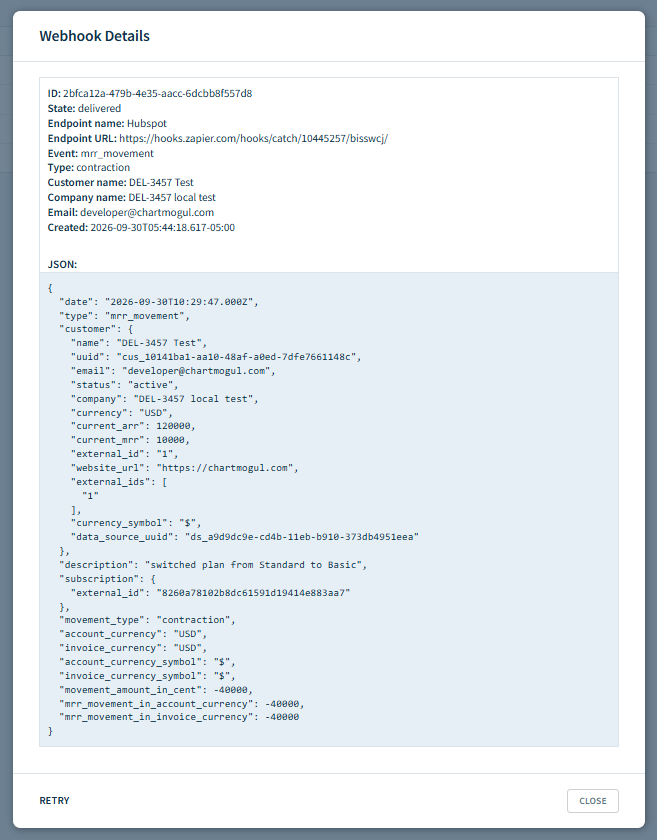
ChartMogul Webhooks let you push subscription data to any URL you choose. When an MRR movement occurs, ChartMogul sends a JSON payload to your endpoint via an HTTP request — so your other tools get updated in real time.
Here’s what we cover in this article:
- How ChartMogul webhooks work
- Registering a webhook
- Viewing the status and history of a webhook
- Retrying a webhook
How ChartMogul webhooks work
Configure webhooks as one of ChartMogul’s standard destinations to send MRR movements as a JSON payload. Real-time MRR movements serve as the events that trigger the webhook.
Learn more about webhooks and data contained in the JSON payload on our Developer Hub.
An MRR movement is the increase or decrease in a subscription’s MRR that results from a change made to the subscription (a subscription event). For example, when a customer upgrades to a higher plan (the subscription event), the increase in the customer’s monthly cost (e.g., $50) is the MRR movement. Learn more.
Real-time MRR movements
ChartMogul generates an MRR movement when it receives data from your integration. When your integration has a delay of one day (or more) importing data, ChartMogul does not consider the MRR movement real-time and does not trigger the webhook.
App Store Connect and Google Play integrations import subscription-related data once every 24 hours. When using these integrations, webhook payloads may not include all MRR movements. MRR movements excluded from webhook updates are still visible in Report Data, customer records and your billing system.
When ChartMogul doesn't trigger a webhook
Webhooks in ChartMogul are not triggered:
- When an MRR movement isn't real-time.
- For App Store Connect, as ChartMogul doesn't receive data in time to generate real-time MRR movements.
- When a change to a subscription doesn’t change its MRR, e.g., when a customer switches to a new plan with the same price.
- When you change a customer’s historical MRR by merging customers, editing MRR or connecting subscriptions. Read more.
- When an MRR movement is below 0.5% of the total MRR or five cents (pence, centavos, etc.).
- When you only provide the date of a subscription event or transaction and the default time (midnight) falls outside of the 12-hour window for the MRR movement to be considered real-time.
- During a reimport. Webhooks are sent after the reimport completes, not while it's in progress. This applies when ChartMogul reimports a customer, e.g., due to a failed invoice or when multiple transactions have failed.
- For certain scheduled events — if a subscription event is due within 24 hours and account reprocessing runs, ChartMogul fires the webhook early. It won't fire again when the event actually occurs. If reprocessing doesn't run, the webhook isn't triggered at all.
IP Allowlisting
ChartMogul webhooks send data from these IP addresses. Allowlisting means telling your receiving application to accept traffic from specific IPs. Add these to your allowlist if your app blocks unknown IP addresses:
3.248.174.4799.80.87.20834.248.167.65
Registering a webhook
ChartMogul does not support HTTP Basic Authentication with webhooks.
Register a webhook in ChartMogul as a destination:
- Navigate to Settings > Data & Integrations > Destinations.
- Click ADD DESTINATION.
- Select Webhook.
- Enter a unique name for your webhook in the Name field.
- Enter the URL for your webhook in the URL field.
- Select Include custom attributes in webhook payload to send customer custom attributes in addition to MRR movements.
- Click SAVE.
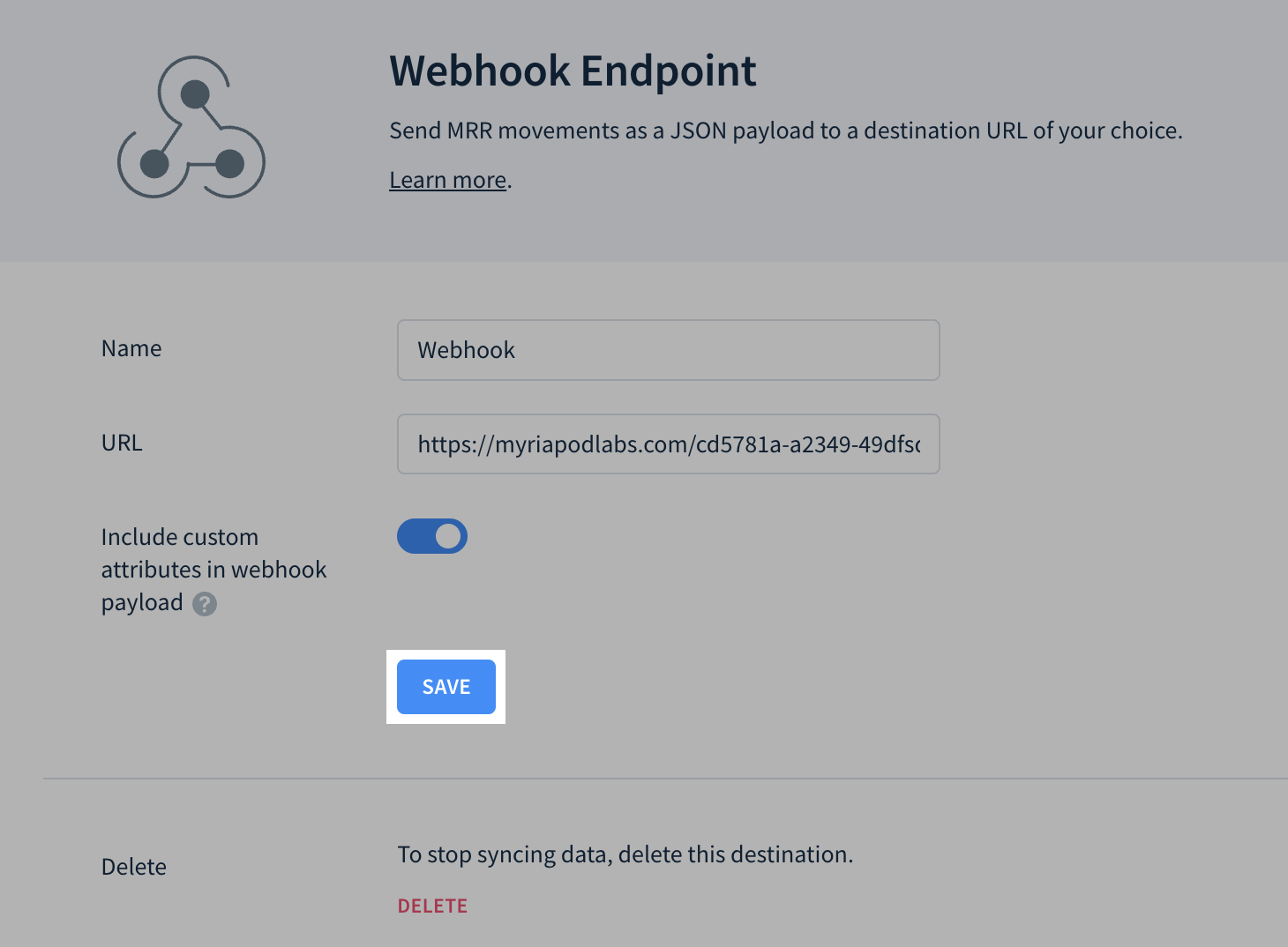
Your new webhook will appear in the Destinations table. Edit or delete it by clicking the Settings icon.
How to View the Status and History of a Webhook
-
Navigate to Settings > Data & Integrations > Destinations.
View a webhook’s status in the Last Export Status column:

- Succeeded — the URL returned an OK status (HTTP code
2xx) - Failed — the URL returned a status other than OK (HTTP codes
1xx,3xx,4xxor5xx)
- Succeeded — the URL returned an OK status (HTTP code
When ChartMogul receives anything other than an OK status (HTTP code 2xx), it retries sending the webhook, up to 17 times. After 17 attempts, if the URL endpoint hasn’t returned an OK status, ChartMogul stops retrying and displays Failed in the webhook’s Last Export Status column. Follow the steps in the next section to retry webhooks manually.
Retrying a webhook
To have ChartMogul retry sending your webhook:
- Navigate to Settings > Data & Integrations > Destinations.
- Find and select your webhook.
-
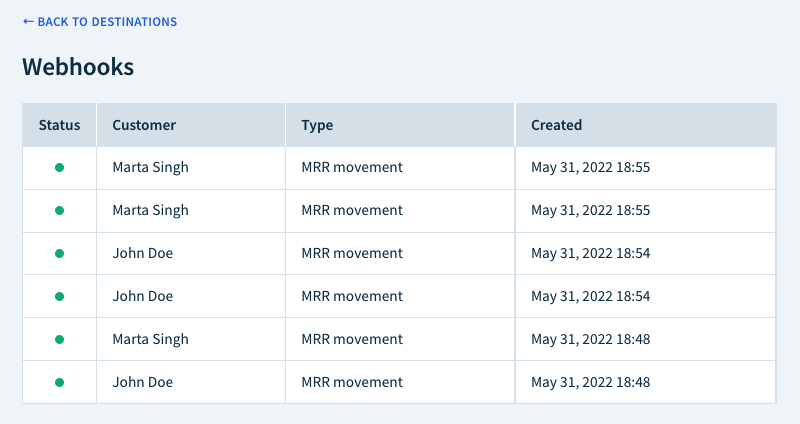
In the Webhooks table, find and select a recent MRR movement ChartMogul has sent or attempted to send to the webhook’s URL.
-
Finally, click RETRY.