
Configuring email as a destination
You’ll need to be an Admin or Staff in ChartMogul to complete the steps outlined in this article. Read more about roles and permissions.
Email as a destination in ChartMogul lets you automatically export your subscription data — MRR movements, customers, custom attributes, and tags — as CSV files sent directly to your team on a scheduled basis. Set it up using ChartMogul's advanced destinations.
Resources and further reading:
Before You Start
Check these requirements before you start.
- Ensure each recipient has been added as a team member in ChartMogul.
- ChartMogul emails download links — not file attachments — to your recipients. Each dataset is a CSV file (comma-separated values — a plain text format readable by Excel and most data tools), and large datasets are split into multiple CSVs with a maximum of 500,000 rows each.
- Download links expire as follows:
- Daily — Two days
- Weekly — Two days
- Monthly — Seven days
How to Set Up Email as a Destination
- Navigate to Settings > Destinations.
- Click ADD DESTINATION and select Email.
- Enter a unique name for your destination in the Name field, then click NEXT.
- Under Frequency, choose how often you’d like ChartMogul to export and email data as CSV:
- Daily (9:00 UTC each day),
- Weekly (9:00 UTC each Sunday) or
- Monthly (9:00 UTC on the first day of each month).
- Choose which datasets you'd like to send:
- Select each recipient’s email address in the Recipients field.
-
Click SAVE to create the destination.
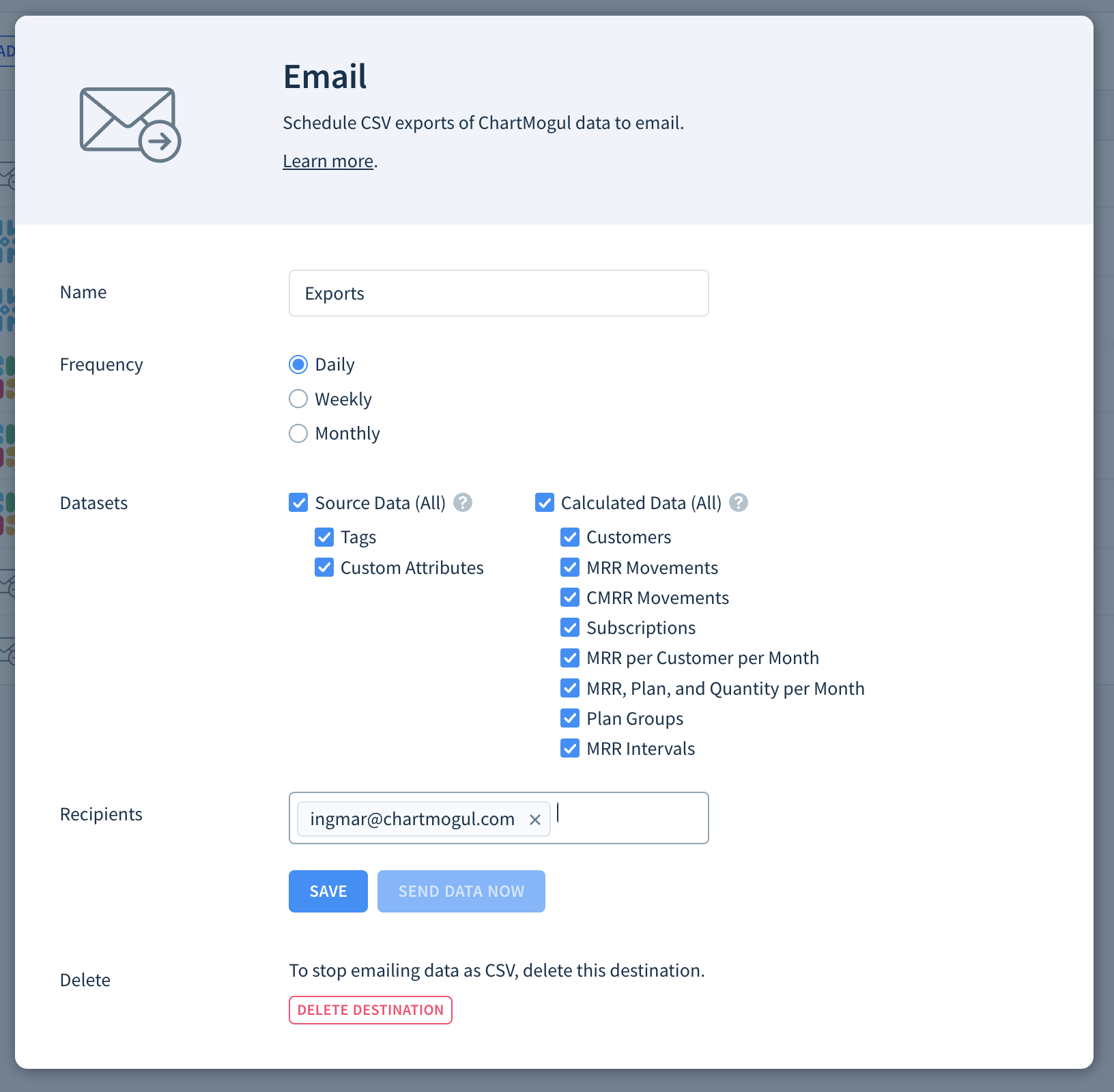
- Click SEND DATA to start the first export.
ChartMogul emails your selected datasets as CSV to your recipients on the Frequency schedule you chose.
Click SEND DATA NOW to trigger an export outside of your scheduled intervals. Learn more.
ChartMogul doesn't send updates for MRR movements (changes in monthly recurring revenue) below 0.5% of your total MRR or five cents (pence, centavos, etc.).