
Adding and managing team members
Only Admins and Owners can add, update and deactivate team members. It’s best practice to grant Admin privileges to more than one ChartMogul team member.
ChartMogul offers six team member roles: Lite, Read-only, CRM-only, Staff, Admin and Owner. Learn more about the permissions granted to each role.
Here's what we cover in this article:
Managing team members
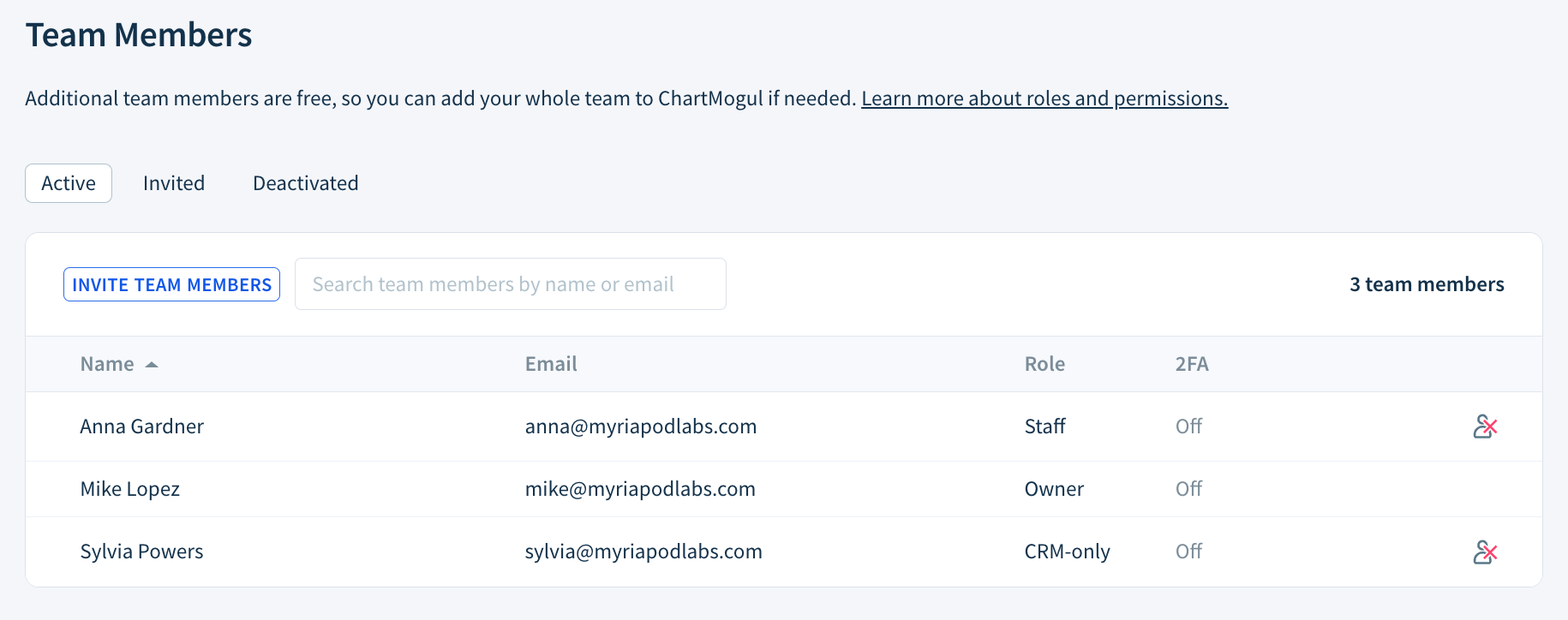
View and manage team members by navigating to Settings > Admin > Team Members.
There, you’ll find the Team Members table with the following details:
- Name — The team member’s name.
- Email — The team member’s account email address.
- Role — The team member’s role.
- 2FA — The team member’s two-factor authentication status, either On or Off. Learn more about two-factor authentication.
How to add team members
- Select INVITE TEAM MEMBERS.
- Enter each team member's email address and select a role.
- Click SEND INVITES.
When a team member accepts their invitation, ChartMogul logs a user_invitation_accepted event in Settings > Activity Log.
How to update team members
Downgrading a team member’s role may impact their API keys. Read more.
To update a team member's role or notification settings, select the team member, choose their new role, then click UPDATE.
How to deactivate team members
To deactivate a team member, click the deactivation icon. Click OK to confirm the deactivation.
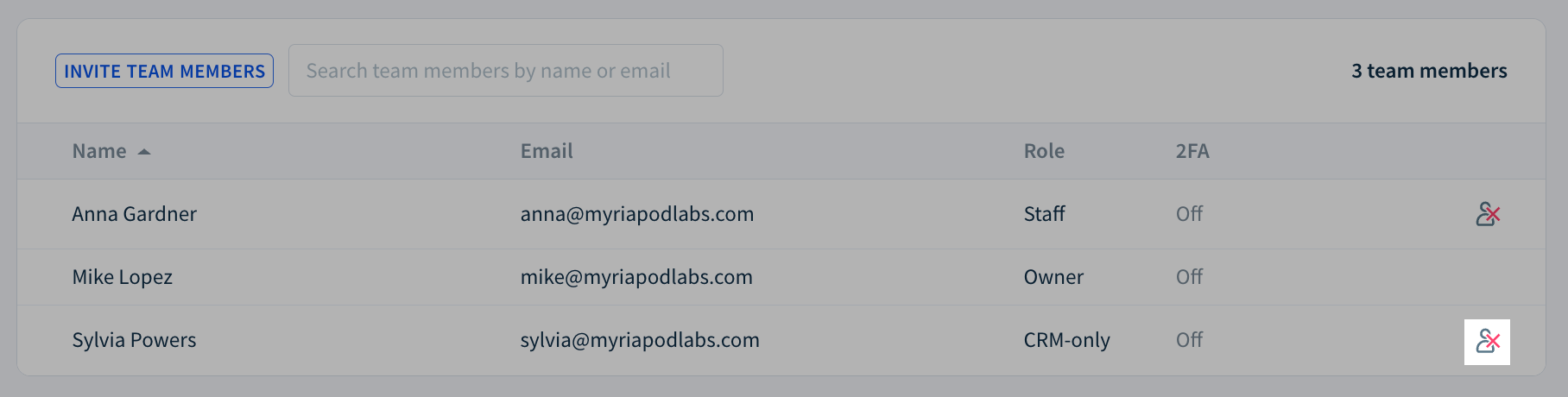
ChartMogul adds the team member to the Deactivated tab and logs them out immediately.
ChartMogul retains the following data:
- The team member’s name when filtering by Owner
- Shared saved reports, customer lists and opportunity lists
- Opportunities and customers assigned to the team member as owner
- Notes, call logs and tasks created by the team member
- The team member’s emails
ChartMogul makes the following changes when a team member is deactivated:
- Deletes their personal saved reports, customer lists and opportunity lists
- Disconnects their email account
- Removes their API keys (credentials used to access ChartMogul data programmatically)
- Stops sending the team member in-app notifications, email notifications or emails configured as part of a destination
- Prevents the team member from being assigned as a customer owner
To anonymize deactivated team members in your ChartMogul account, locate the team member in the Deactivated table. Select the team member to edit their details. Update the team member’s name and email and click Update.
How to reactivate team members
When a team member is reactivated, ChartMogul does not restore their API keys, notification settings, personal saved reports, customer lists or opportunity lists. Learn more.
To reactivate a team member, navigate to the Deactivated tab and click Reactivate. Click OK to confirm the reactivation.
ChartMogul will send an email inviting the team member to join your company’s account.
Changing the ownership of your ChartMogul account
Owners can transfer ownership of the account to any other Admin by navigating to Team Members and clicking Make Owner in the Team Members table.
Next Step
Add an extra layer of account security by requiring team members to set up two-factor authentication (2FA).