
Splitting subscribers per app for App Store Connect
ChartMogul allows you to “split” subscribers — that is, create separate, unique customer records in ChartMogul — when they’ve subscribed to more than one app. Companies that publish multiple apps and want to break down their subscription metrics per app find this useful.
How this setting works
By default, a customer with paid subscriptions to different apps will have all of their subscriptions listed under a single customer record. If they cancel one of their subscriptions, it will generate a contraction event rather than a churn event. The cancellation will impact MRR and Subscription Quantity, but it won’t impact Customer Churn Rate or Customer Lifetime Value (LTV).
Enabling the “Split subscribers by app” setting allows App Store Connect clients with multiple apps to accurately report on Customer Churn Rate and Customer Lifetime Value (LTV) by app. This is achieved by appending the AppAppleID to the customer external ID to create a customer record for each app subscription.
Example
Your company offers a photo editor app and a video editor app. A customer subscribes to the photo editor app on June 11 and the video editor app on September 23. They cancel their subscription to the video editor app on October 4.
With the default setting, there will be one customer with two subscriptions:
| Customer ID | MRR | Subscription quantity | Plan |
|
202010153322114 |
$10 |
2 |
Photo Edit Pro and Video Edit Pro |
Their movement history will look like this:
| Date | Movement Type | Description |
| June 11 | New Business | Purchased Photo Editor Pro subscription |
| September 23 | Expansion | Purchased Video Editor Pro subscription |
| October 4 | Contraction | Cancelled Video Editor Pro Subscription |
If you add the filter “Plan > is one of > Video Editor Pro” to the Customer Churn Rate report, the customer won’t contribute to the customer churn rate in October.
When you enable the Split subscribers per app setting, the customer will have two records:
| Customer ID | MRR | Subscription quantity | Plan |
| 202010153322114_2919274837 |
$5 |
1 |
Photo Edit Pro |
| 202010153322114_2917385777 |
$5 |
1 |
Video Edit Pro |
Their movement history will look like this:
| Date | Movement Type | Description |
| June 11th | New Business | Purchased Photo Editor Pro subscription |
| September 23rd | New Business | Purchased Video Editor Pro subscription |
| October 4th | Churn | Cancelled Video Editor Pro Subscription |
If you add the filter “Plan > is one of > Video Editor Pro” to the Customer Churn Rate report, the customer will contribute to the customer churn rate in October.
Enable “split subscribers by app”
Splitting subscribers per app is not activated by default when you create a new App Store Connect source, but enabling it is easy. Here’s how:
- Within ChartMogul, navigate to Settings > Sources.
-
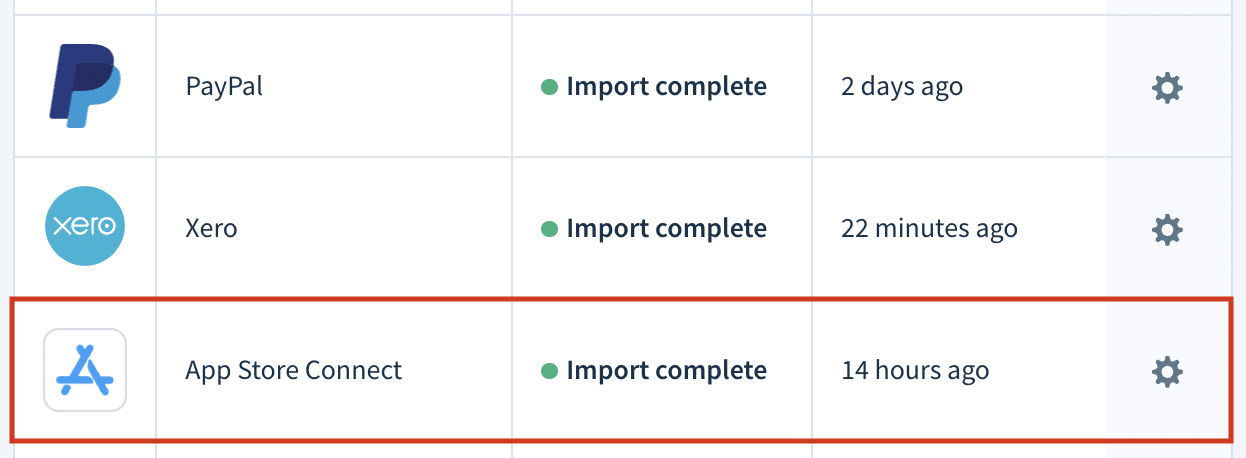
Select App Store Connect from the Sources list and click the cog icon.
-
Under Data Settings, check Split subscribers per app.

- Click SAVE AND REIMPORT DATA to apply the changes. Learn more.
To learn about the data ChartMogul preserves during a re-sync, review the App Store Connect integration guide.