
Report: Paid Subscription Quantity
The Paid Subscription Quantity report tracks the total number of seats, licenses, or individual subscription units your customers hold over time.
Use it when you sell per-seat or multi-component plans—it gives you a more precise growth signal than counting subscriptions alone, because one customer can hold many units. It also shows you the impact of expansions and contractions across your customer base.
If you’re new to ChartMogul, get to know how reports work.
This report is called Paid Subscription Quantity for accounts with free subscription support. Learn more.
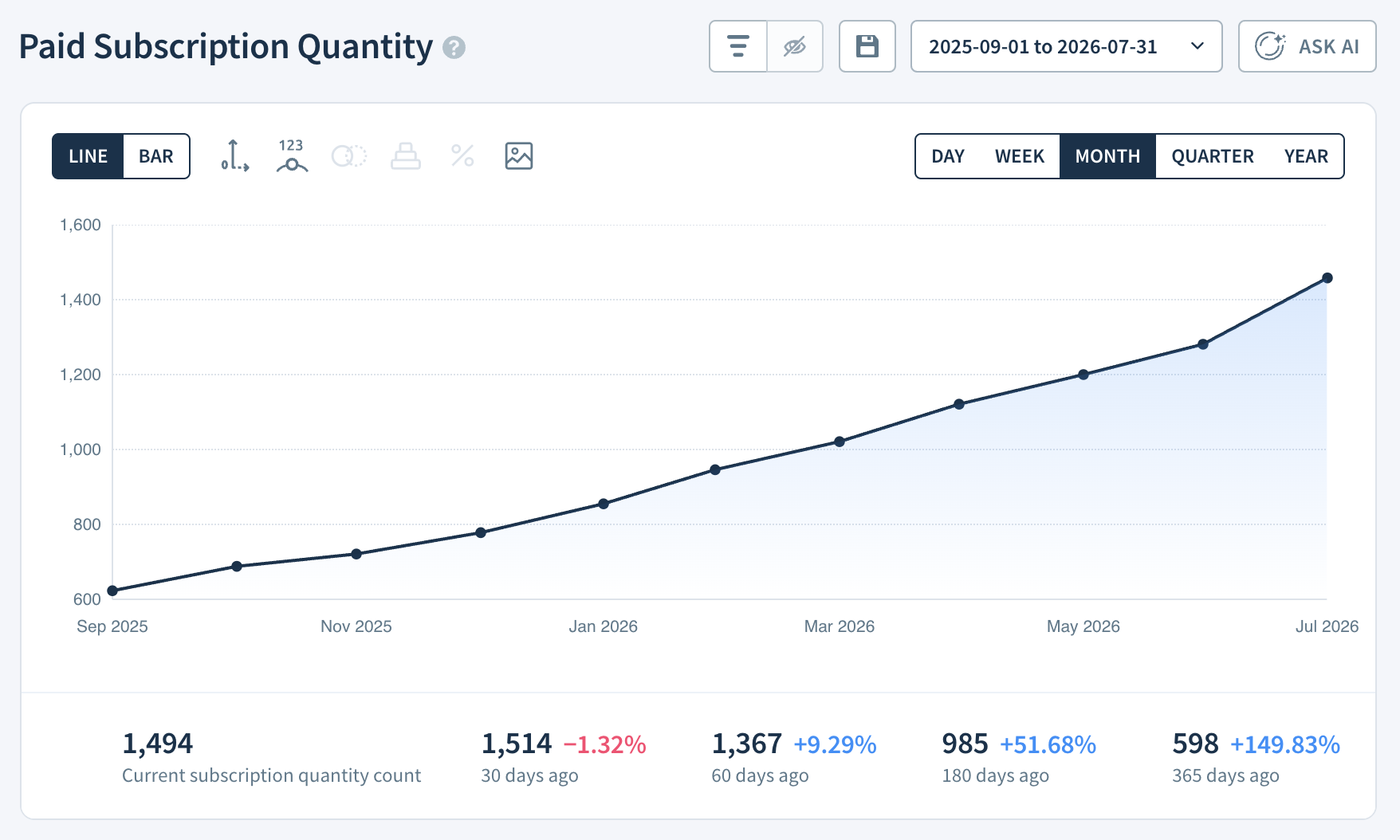
If you don’t sell subscriptions with licenses, seats or add-ons (or your billing system doesn’t support subscription quantities), this report will appear the same as Subscriptions.
Subscriptions vs. Subscription Quantity
If you sell individual licenses, seats, or subscriptions with multiple components (such as base plans with add-ons), you need to know the difference between Subscriptions and Subscription Quantity.
Subscriptions are specific instances of plans or subscription sets a customer holds. Subscription Quantity is the total count of units across those subscriptions.
For example, Tetoko subscribes to four Gold plans and five Silver plans. They have two subscriptions (1 × Gold + 1 × Silver) with a subscription quantity of nine (4 × Gold + 5 × Silver).
Another example: Myriapod Labs has purchased a Premium Support add-on to their base Diamond plan. ChartMogul reports this as one subscription (1 × Diamond with Premium Support) with a subscription quantity of two (1 × Diamond + 1 × Premium Support). Learn more about subscriptions with multiple components.
If your company doesn’t sell licenses, seats or add-ons (or your billing system doesn’t support subscription quantities), then Quantity Churn Rate will represent the rate at which you lose whole subscriptions.
What to Know About This Report
- ChartMogul uses
Quantityfrom an invoice line item to define a subscription’s quantity. -
Only active, past due, and paused subscriptions contribute to this chart. Learn more about subscription statuses.
- Subscriptions remain active until either they are canceled in your billing system or churn as a result of the Handling Past-due Subscriptions setting.
- The number of subscriptions can be higher than your number of subscribers, as a subscriber can have multiple subscriptions.
- The Free Customer Handling setting determines whether ChartMogul continues to classify subscriptions downgraded from a paid to a free plan as Active.
How ChartMogul Calculates Paid Subscription Quantity
ChartMogul calculates Subscription Quantity as the total number of active or past due subscriptions multiplied by their quantities for each report interval (the time period each data point on the report represents — day, week, month, or quarter).
How to Read the Report Data Table
The Report Data table — the detailed data grid below the report — works differently for Subscription Quantity than for other reports. It provides the following breakdown:
- Quantity Increase – The number of subscription licenses or seats added in the report interval.
- Quantity Increase from NewBiz – The number of subscription units gained from brand-new business during the selected period.
- Quantity Increase from Reactivation – The number of subscription units added from previously cancelled subscriptions that were reactivated during the selected period.
- Quantity Increase from Expansion – The number of subscription units added when existing customers increased their subscription quantity during the selected period.
- Quantity Decrease – The number of subscription licenses or seats lost in the report interval.
- Quantity Decrease from Contraction – The number of subscription units lost when existing customers reduced their subscription quantity during the selected period.
- Quantity Decrease from Churn – The number of subscription units lost due to customers cancelling their subscriptions during the selected period.
- Net Change – Quantity Increase minus Quantity Decrease.
- Subscriptions Quantity – The total number of subscription units you had at the end of the selected period.
- Change – The increase or decrease in Subscriptions Quantity from the previous report interval, shown as a percentage.
Select any cell in the table to see individual subscription activities for that reporting period.
Next Steps
- Track the number of free trials.
- Report the number of subscribers.
- See the rate at which you lose subscription licenses or seats with Quantity Churn Rate.