
Report: MRR Movements
The MRR Movements report breaks your Monthly Recurring Revenue (MRR) down by movement type — New Business, Expansion, Reactivation, Contraction, and Churn — so you can see exactly where revenue is being gained and lost each period. Use it to pinpoint what's driving growth or causing loss.
If you're new to ChartMogul, get to know how reports work.
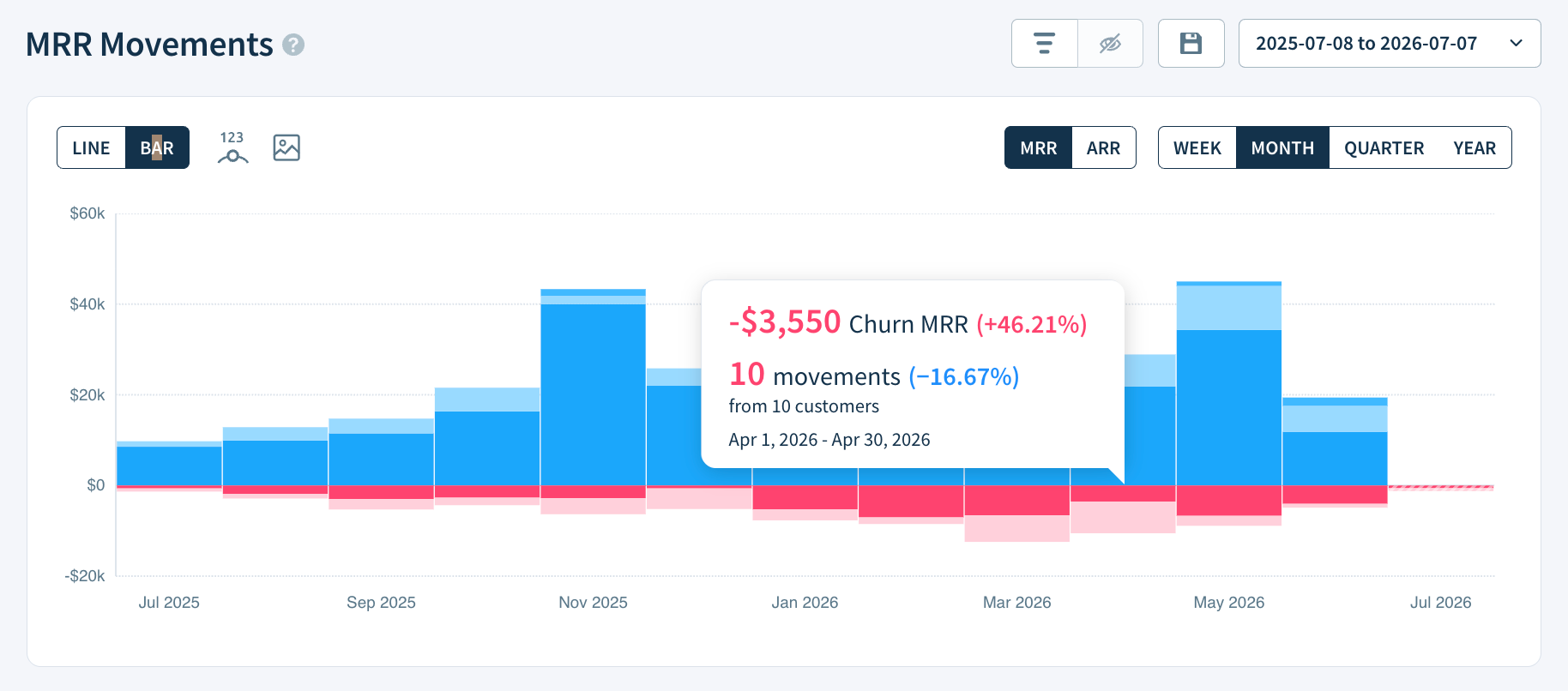
What to Know About This Report
- Each vertically-stacked band represents one MRR movement type. New Business, Expansion, and Reactivation appear in blue above $0 — these represent MRR growth. Contraction and Churn appear in pink below $0 — these represent MRR loss. MRR grew in a period when the combined height of the blue bands exceeds the pink.
- Diagonally-striped bars include the current period and are an estimate until the period ends.
- Toggle between the default (MRR) and annualized (ARR) view. The report title and Report Data values update accordingly. Learn more.
How ChartMogul Calculates MRR Movements
ChartMogul adds up all MRR movements — changes in recurring revenue caused by new subscriptions, upgrades, downgrades, cancellations, and reactivations — for each movement type within the selected period.
How to Isolate Individual Movements
Use the eye icon in the Report Data table to show or hide individual MRR movements. For example, here's how to show only New Business, Expansion and Reactivation:
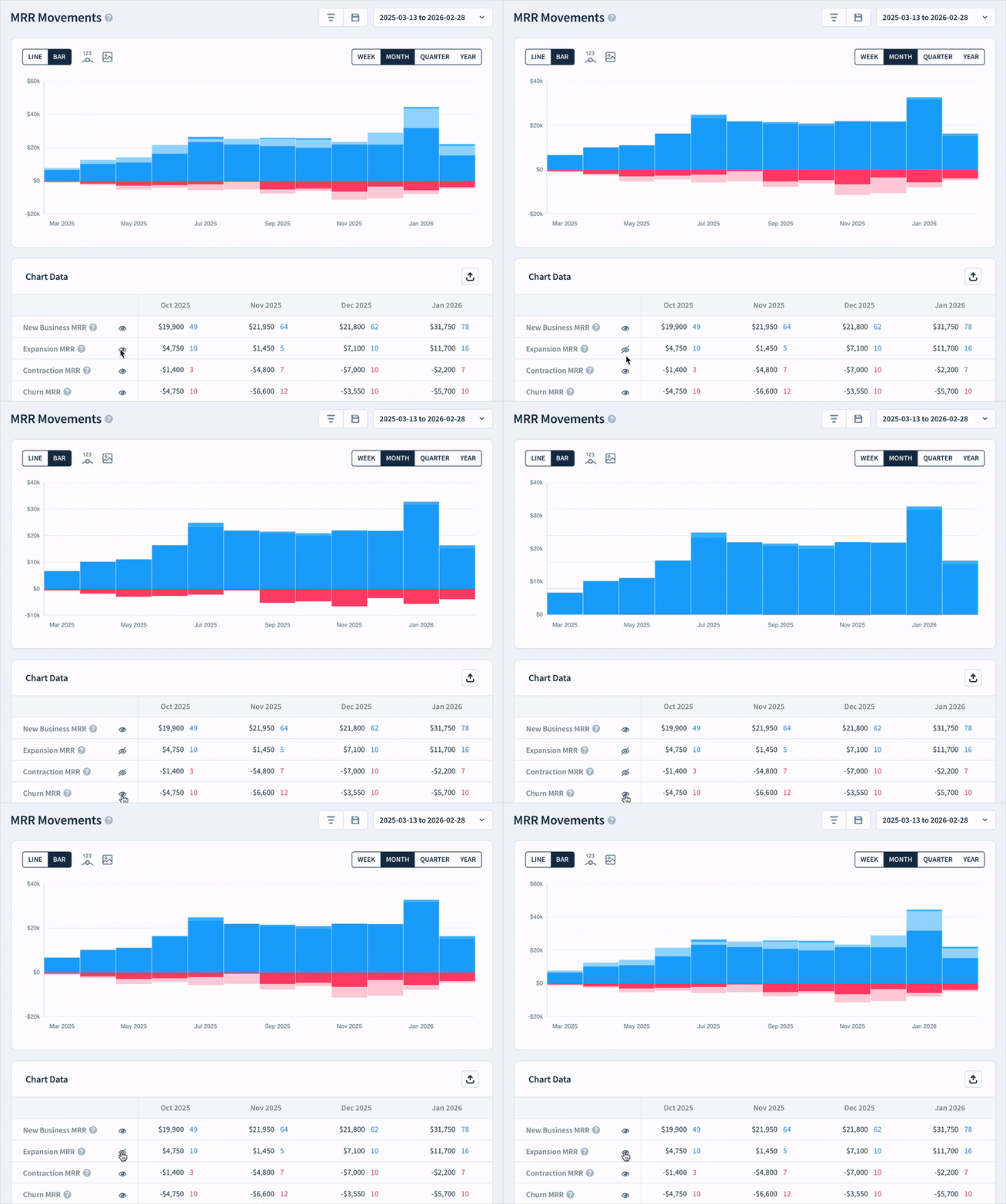
- Click the :font-invisible~gray: eye icon next to any movement type in the Report Data table to hide it from the report.
- Click Save this report to save a saved version of your customized report.
How to Read the Report Data Table
- Click any cell in the Report Data table to see the subscription activities behind that movement.
- Click a Net MRR Movement cell to see every movement for that period.
- In the drilldown view, click the Explain this button to open the AI Assistant — ChartMogul's built-in tool that gives you a plain-language summary of the movements in that period.
Learn more about Report Data.
Next Steps
- Learn more about MRR Movements.
- Read our blog on Understanding and Benchmarking Your MRR Movements.
- Improve the accuracy of MRR Movements with reclassification of subscription activity.