
Setting up sales pipelines
If you’re new to managing sales in ChartMogul, review our setup guide.
You’ll need to be an Admin or Owner to create, edit and delete pipelines. Learn more about roles and permissions.
Sales Pipelines in ChartMogul let you track opportunities — potential deals with a customer — through each stage of your sales process, from first contact to closed deal. Your team can visualize and manage their opportunities, and sales leadership can ensure everyone follows a consistent process. Learn more about managing sales opportunities in ChartMogul on our blog and in our sales team guide.
Here’s what we cover in this article:
- Default sales pipelines
- Adding a sales pipeline
- Adding a stage
- Deleting a sales pipeline
- Deleting a stage
Before you begin
Before setting up your first sales pipeline, you’ll need to:
-
Set up lead tracking. A lead is a potential customer who hasn’t yet been qualified for a sales opportunity. You’ll need to track leads before you can manage them in a pipeline.
Define your qualification process for leads — When does a lead become worth pursuing? Only when a lead is qualified by your team, should you create an opportunity.
- Review the default pipelines — ChartMogul provides two default pipelines: New Business and Renewals. Review these pipelines and their stages to see if they’re suitable for the needs of your business before adding a pipeline.
How to Review the Default Sales Pipelines
To review the default pipelines, navigate to Settings > Workspace > Sales Pipelines. ChartMogul provides two default pipelines: New Business and Renewals. Learn more.
New Business
The New Business pipeline includes the following stages:
| Stage Name | Default Win Likelihood | Default Forecast Category |
| Discovery | 10% | Pipeline |
| Evaluation | 50% | Best Case |
| Negotiation | 80% | Committed |
| Closed Won | 100% | Won |
| Closed Lost | 0% | Lost |
Renewals
The Renewals pipeline includes the following stages:
| Stage Name | Default Win Likelihood | Default Forecast Category |
| Negotiation | 80% | Best Case |
| Verbal Commit | 95% | Committed |
| Closed Won | 100% | Won |
| Closed Lost | 0% | Lost |
Adding a sales pipeline
Each pipeline defines the stages your team follows when pursuing an opportunity. Set up one pipeline for new customers and another for renewals — or use a single pipeline if your process doesn't change.
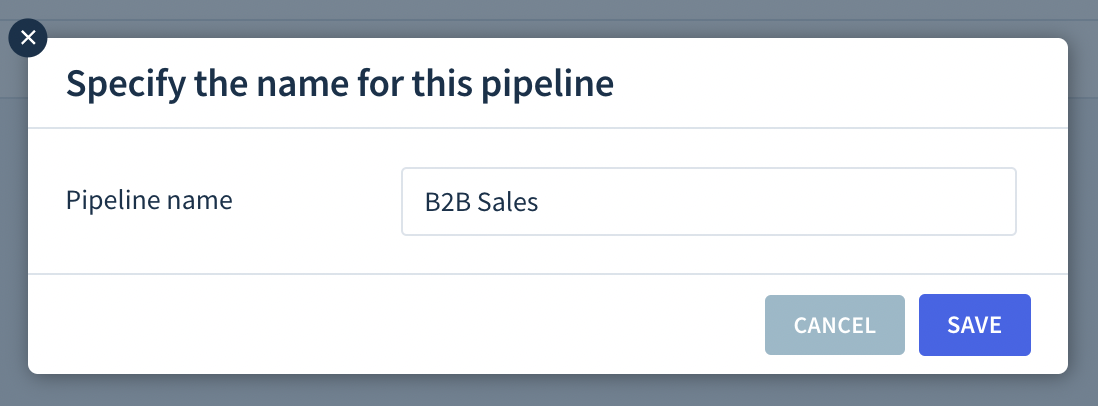
To add or update a pipeline, navigate to Settings > Workspace > Sales Pipelines. Then:
- Click ADD PIPELINE.
- Enter a unique name.
- Click SAVE.
Adding a stage
Deal stages are the steps your team follows as they pursue each opportunity — a qualified lead your team is actively working to close — from first contact through close. Define clear entry and exit criteria for each stage so your team follows a consistent process. For example:
- Qualification — Verifying that the customer has a need for your product or service. When a lead is qualified, move them to the next stage.
- Assessment — Providing information about your product or service and demonstrating how it will solve the customer’s pain points, such as a demo. When the prospective customer wants to discuss a contract and billing, move them to the next stage.
- Proposal — Offering a solution to the relevant decision makers, such as a contract. When a contract is signed or confirms their billing details, the deal is won.
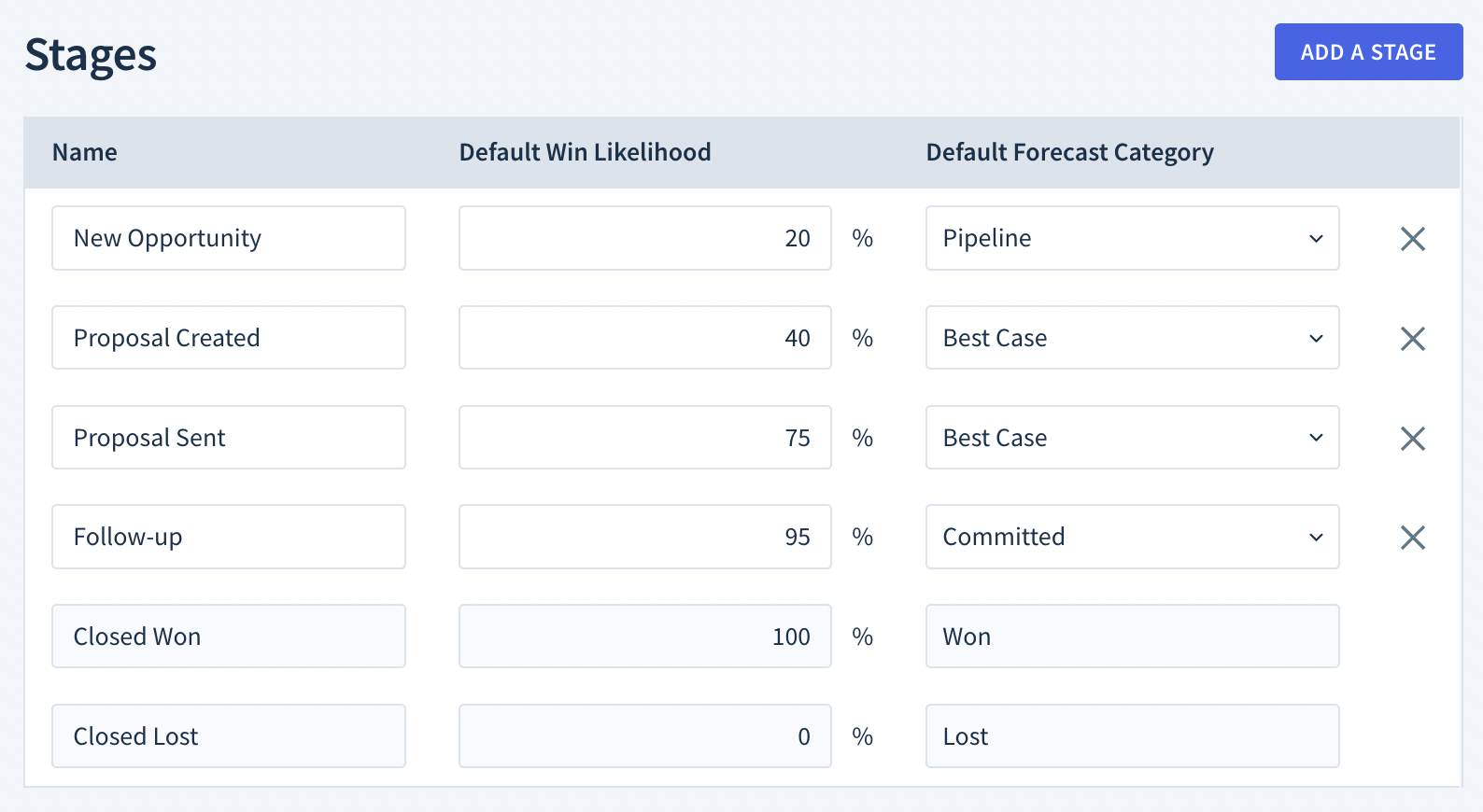
In addition to the stages you add, ChartMogul provides two standard stages: Closed Won and Closed Lost. To add a stage:
- Click ADD A STAGE.
- Enter a unique name in the Name field, e.g., Assessment.
- Enter a number between 1–99 in the Win Likelihood field. This is the probability that an opportunity closes at this stage. Base it on historical data or your team's best estimate. ChartMogul multiplies this percentage by the opportunity's Value to calculate the Deal Stage Probability Forecast.
- Select a Default Forecast Category — a label that groups opportunities by how likely they are to close — then choose one:
- Pipeline — early-stage opportunities with a low likelihood of closing in the current forecast period.
- Best Case — opportunities with a demonstrated need for your product or service that have a good chance of closing by their close date.
- Committed — highly qualified opportunities with a high chance of closing by their close date.
- Click SAVE.
Deleting a sales pipeline
Deleting a sales pipeline permanently removes all opportunities in it. You can't undo this action.
- Select the pipeline you want to delete.
- Click DELETE THIS PIPELINE.
Deleting a stage
Deleting a stage permanently removes all opportunities in it. You can't undo this action.
To delete a stage, click the :trash-stroke~gray: Delete icon. Then, click SAVE.
Next Steps
- Track sales activities and manage your pipeline by creating an opportunity.
- Track forecasted MRR for each member of your team by month with the Deal Stage Probability Forecast.
- Track forecasted MRR for each forecast category with the Forecast Category Report.
- Manage leads using default saved customer lists.