
ChartMogul sales workflow guide
ChartMogul CRM is a sales workflow tool that moves leads — potential customers you're tracking — from first contact to a closed deal. It uses lists, customer records, opportunities, and tasks to keep your pipeline organized. This guide walks you through each step.
What you need before you start
- Connect email to your ChartMogul account
- Ensure your admin has set up customer lists and lead routing
- Ensure you’re familiar with your company’s sales process and when to use each stage
- (Optional) Set up automations for routine tasks like adding opportunities and tasks
- (Optional) Create sequences for lead engagement
1. Review your customer list
Use customer lists to review your assigned leads.
- If your company assigns leads by geography, ask your account admin to set up an automation for lead routing based on territory.
- Open the My new leads default list to see your current leads.

ChartMogul updates lists with customers who match the defined filters. Use this list to start reviewing your new leads each day.
2. Research your customer
From the list, select a customer to open their record. Check any custom attributes — such as industry, last login, or company size — that your team has added. Visit their LinkedIn profile or website to fill in any gaps.

Use what you find to decide whether the lead is a good fit for your product or service.
3. Contact qualified leads
If you’ve determined the lead is not qualified, proceed to step 4.
When your research has determined that a lead is a good fit to buy your product or service, contact them by:
- Sending an email — Compose an email or use an email template.
- Calling them — Contact the lead by phone and log the call.
- Enrolling them into a sequence — Automatically send emails and assign tasks to maintain engagement.
4. Update the lead status
If a lead isn't a good fit, update their status to Unqualified Lead. No further action is needed.
When a lead is qualified and you’ve contacted them, update their status to Working Lead.
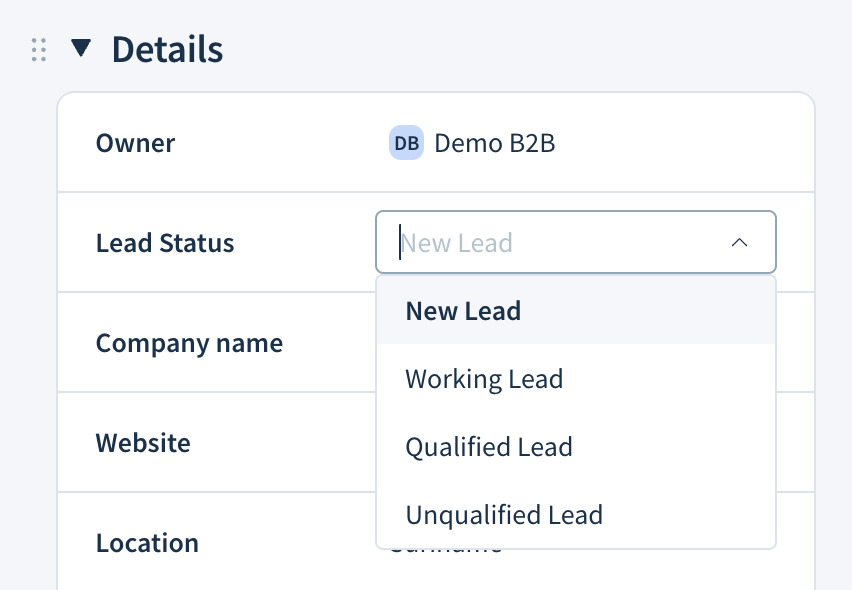
Tip: Update statuses for multiple leads with bulk editing.
5. Follow up on leads using My Working Leads
Use the My working leads list — a saved view of leads you've already contacted — to manage qualified leads who haven't responded to your initial outreach.
When communicating with many leads at once, use tasks to stay organized. Create tasks manually or via automation for things like:
- Follow-up calls
- Scheduling product demos
- Connecting on LinkedIn
- Sending an email before a trial expires

If a lead says they're not interested, or you get no response after a set period (for example, 30 days), update their status to Unqualified Lead.
6. Create an opportunity
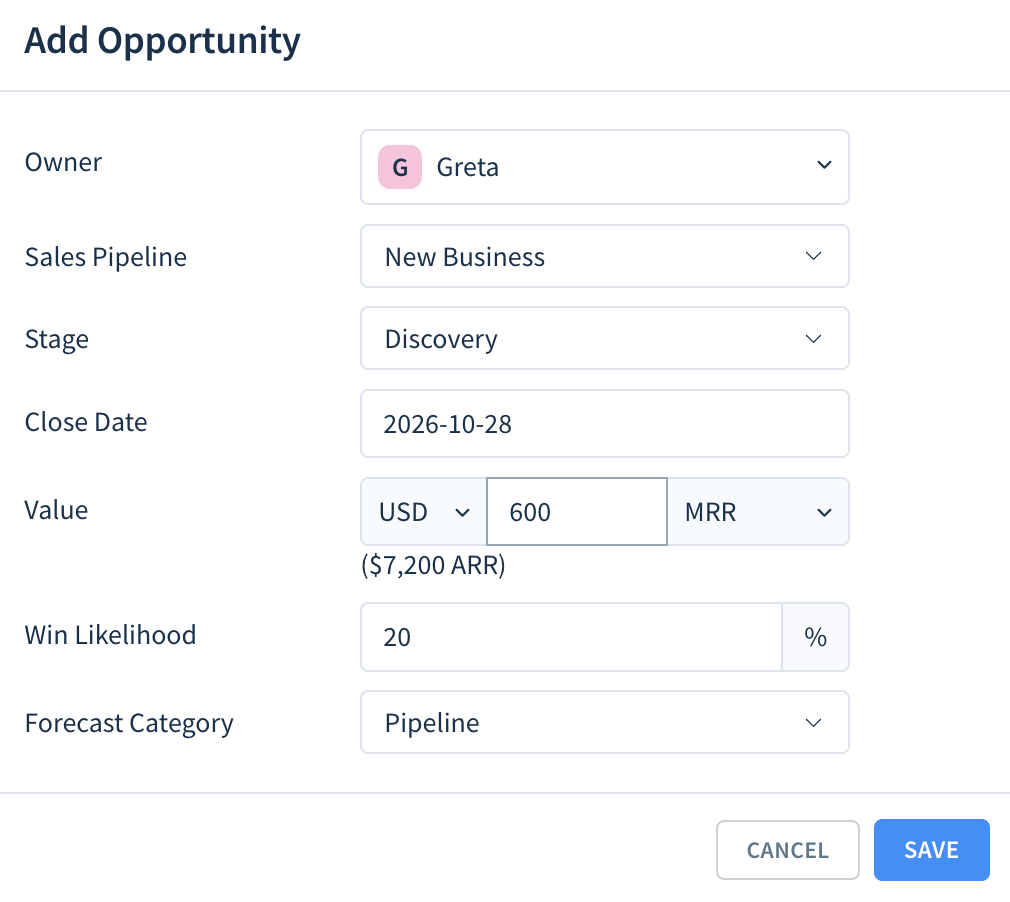
When a lead says they want to evaluate your product or service — for example, by scheduling a demo — add an opportunity (a record that tracks a potential deal) and update their status to Qualified Lead. You can also set up an automation to add opportunities automatically.
7. Update an opportunity
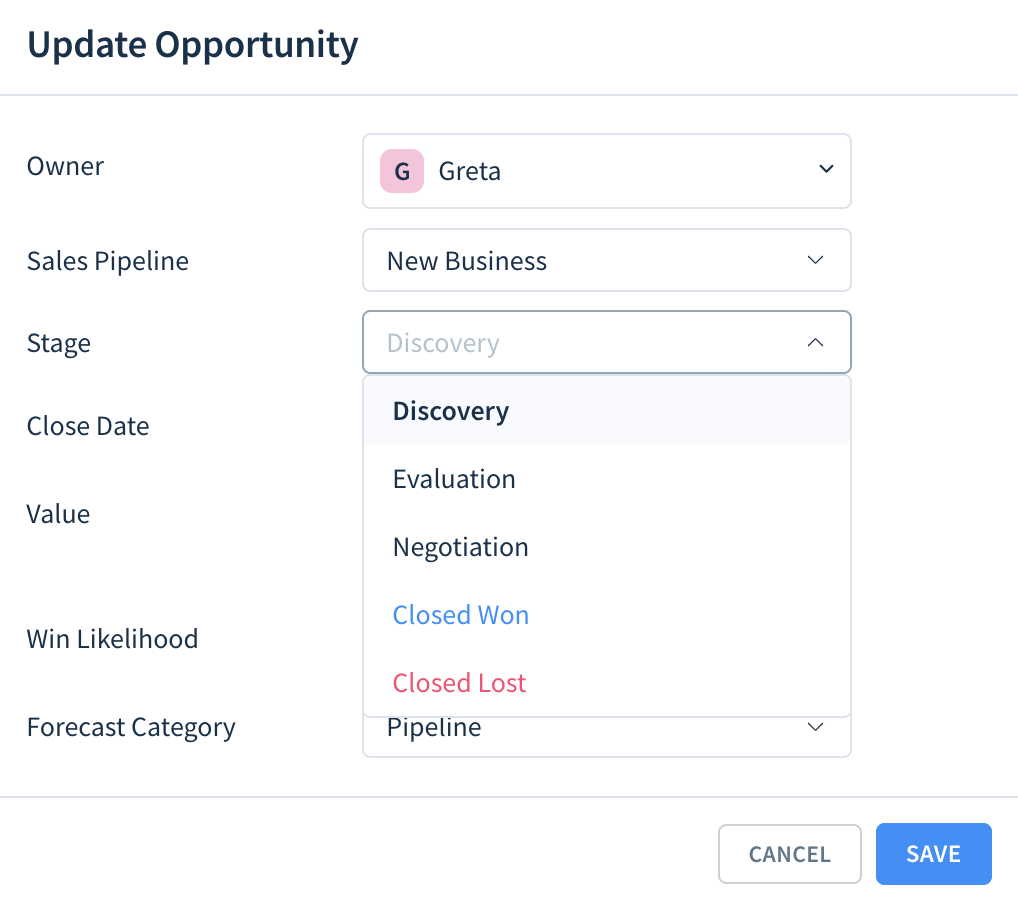
As you move a lead through your pipeline, update their opportunity at each stage — a milestone like Demo Scheduled or Proposal Sent. Use opportunity lists — saved views that filter by criteria you define — to stay organized.
8. Close the opportunity
When you’ve completed all the required steps to bill the customer for your product or service, mark the opportunity as Closed Won.
When an opportunity does not result in a new subscriber, mark it as Closed Lost and update the lead’s status to Unqualified Lead.
Alternatively, you can set up an automation to close opportunities.

When ChartMogul receives an invoice showing a paid subscription — or a manual subscription starts — it marks the customer as an Active Paid Subscriber. That's the final status in the workflow.