
Working with Placeholders
Placeholders allow you to dynamically insert team member, customer and contact data stored in ChartMogul into your emails and email templates. When you’ve added a placeholder, ChartMogul populates email drafts with data from your account.
For example, this is how placeholders appear in an email template compared to a drafted email:

Here’s what we cover in this article:
Before you begin
Review the list of available placeholders.
Using placeholders in an email template
Use placeholders in an email template to save time and ensure consistent messaging:
-
Navigate to Settings > Content & Communication > Email Templates.
-
Select a template or create one by clicking ADD TEMPLATE.
-
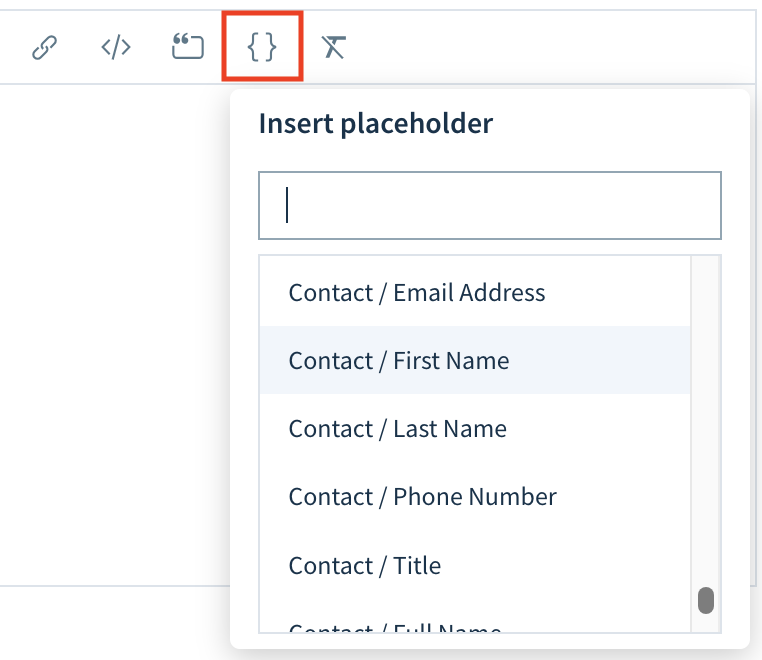
Click Add Placeholder (curly brackets icon) and select a placeholder from the list.
-
ChartMogul inserts the corresponding placeholder code into your template. For example,
{{ customer.country_name }}for the customer’s country or region. -
Optionally, type a default statement after "fallback=" for ChartMogul to use when the corresponding information is missing. For example,
{{ customer.country_name,fallback=your country }}.

Let’s say your template uses the Contact / First Name placeholder to address a recipient by their first name with “Customer” as the fallback:
Dear {{ contact.first_name, fallback=Customer }},
When you select this template to email Samantha Smith, ChartMogul replaces the text with:
Dear Samantha,
When sending emails to multiple contacts, ChartMogul populates the template with the first recipient’s data.
When ChartMogul can’t find the contact’s first name, it uses the fallback:
Dear Customer,
Using placeholders when drafting an email
To use a placeholder when composing an email:
-
Navigate to a customer record.
-
Click Email to draft an email.
-
Click Add Placeholder (curly brackets icon) and select a placeholder from the list.
-
ChartMogul inserts the placeholder data. For example, it replaces the Customer / Name placeholder with the company’s name.

Available placeholders
ChartMogul provides placeholders for team members, customers, contacts and custom attributes.
Team member
|
Placeholder |
Code |
Description |
|---|---|---|
|
User / Name |
{{ user.name }} |
The sender’s full name. |
|
User / Email Address |
{{ user.email }} |
The sender’s email address. |
Customer
|
Placeholder |
Code |
Description |
|---|---|---|
|
Customer / Name |
{{ customer.name }} |
The name of the company (when the customer is a business). |
|
Customer / City |
{{ customer.city }} |
The company’s city. |
|
Customer / State Abbreviation |
{{ customer.state }} |
The company’s state abbreviation in the US. |
|
Customer / State Name |
{{ customer.state_name }} |
The company’s state in the US. |
|
Customer / Postal Code |
{{ customer.zip_code }} |
The company’s postal code. |
|
Customer / Country Code |
{{ customer.country }} |
The company’s country or region code |
|
Customer / Country Name |
{{ customer.country_name }} |
The company’s country or region. |
Contact
|
Placeholder |
Code |
Description |
|---|---|---|
|
Contact / First Name |
{{ contact.first_name }} |
The recipient’s first name. |
|
Contact / Last Name |
{{ contact.last_name }} |
The recipient’s last name. |
|
Contact / Full Name |
{{ contact.name }} |
The recipient’s full name. |
|
Contact / Title |
{{ contact.title }} |
The recipient’s title. |
|
Contact / Email Address |
{{ contact.email }} |
The recipient’s email address. |
|
Contact / Phone Number |
{{ contact.phone }} |
The recipient’s phone number. |
Custom attributes
|
Placeholder |
Code |
Description |
|---|---|---|
|
Customer / Marketing_channel |
{{ customer.custom.Marketing_channel }} |
A custom attribute you’ve added to the company. |
|
Customer / hubspot.industry |
{{ customer.hubspot.industry }} |
A custom attribute imported from an integration. |
|
Contact / NPS_score |
{{ contact.custom.NPS_score }} |
A custom attribute you’ve added to the contact. |
Next Steps
Review our user guide for managing sales using CRM.