
Excluding customers from being reimported
You can exclude customers from being reimported after you delete them from your ChartMogul account. This is useful when you don’t want a customer’s data to reappear automatically the next time data comes in from your billing system. Review and re-include excluded customers anytime from the Excluded Customers list.
Common use cases include test customers, incorrectly billed customers, and customers imported by mistake or as duplicates. Exclusions are stored in ChartMogul only and persist through reimports and webhook updates, so your billing system data is never affected.
You’ll need to be an Owner, Admin, or Staff to exclude customers, or to review and re-include excluded customers.
Learn about other ways you can correct data in ChartMogul:
- Editing MRR data
- Merging customers
- Adding subscriptions manually
- Updating data imported from a billing system
Here’s what we cover in this article:
- Reasons for excluding customers
- How excluding customers works
- Excluding a customer
- Viewing excluded customers
- Re-including an excluded customer
When to exclude a customer
Here are some common cases when you may want to exclude customers from being reimported:
- Test customers – You added customers for testing purposes and don’t want them affecting your metrics or appearing in reports.
- Incorrectly billed customers – A customer was billed incorrectly, and you want to exclude them from metrics while you manually recreate their billing data with correct information. This can also be achieved by updating the incorrect billing information.
- Duplicate customers – You accidentally created duplicate customer records and want to exclude one while keeping a record of the exclusion for audit purposes.
- Customers imported by mistake – A customer was imported in error, and you want to prevent them from being reimported the next time your billing system sends updates.
What happens when you exclude a customer
Excluded customers are removed from your ChartMogul account. They no longer contribute to metrics or appear throughout the app.
Once a customer has been added to the Excluded Customers list, ChartMogul rejects any new data imported for that customer. This applies to data imported through integrations, the API, and webhooks.
Any attempt to import data for an excluded customer is rejected until the customer is removed from the Excluded Customers list.
Excluding a customer
To exclude a customer:
- Navigate to their customer profile.
- Click the :dots~gray: dots next to the customer name and choose Delete customer.
-
Tick the Prevent from being reimported checkbox.
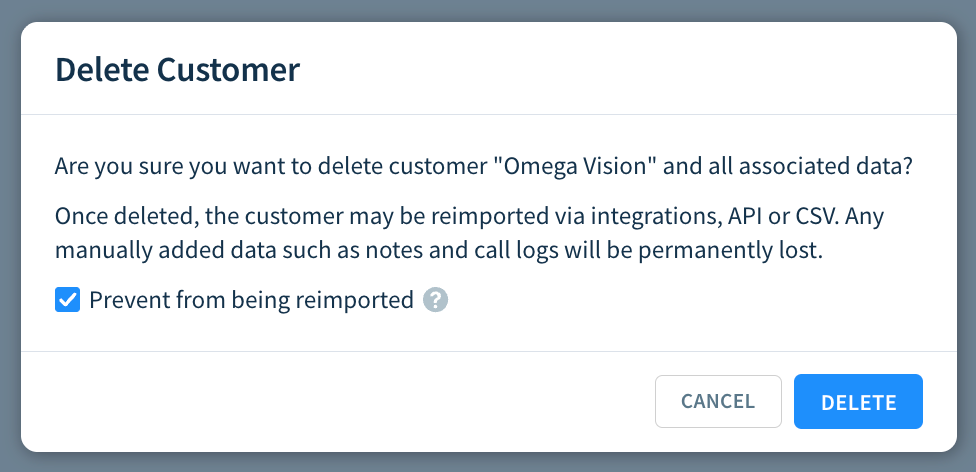
- Click DELETE to confirm the deletion.
The customer is deleted from your ChartMogul account and added to the Excluded Customers list.
Viewing excluded customers
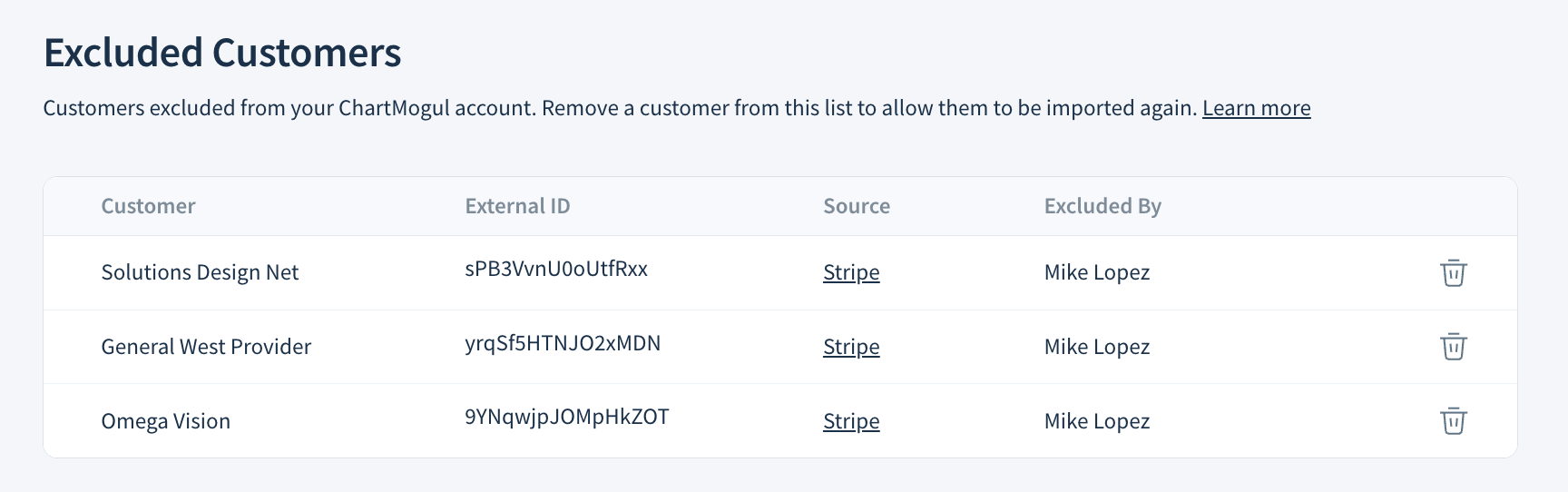
To view excluded customers, go to Settings > Data & Integrations > Excluded Customers.
The Excluded Customers list contains all customers who have been excluded from your account, with the following details for each:
- Customer – the customer’s name.
- External ID – the customer’s unique ID imported from an integration, added manually, or provided using the API.
- Source – the source where the customer’s data is stored.
- Excluded By – the name of the team member who excluded the customer.
Re-including an excluded customer
Removing a customer from the Excluded Customers list allows their data to be imported again.
To re-include a previously excluded customer, go to Settings > Data & Integrations > Excluded Customers and click the :trash-stroke~gray: trash can icon next to the customer.
If your billing system integration supports reimporting historical data, the customer is reimported automatically. Otherwise, you’ll need to import the customer’s data again using your integration or the API.