
Integrating ChartMogul with n8n
The ChartMogul n8n node lets you automate ChartMogul actions — without writing code — by connecting it to hundreds of other apps and services through the ChartMogul API.
In this article:
How n8n Works with ChartMogul
n8n is a workflow automation platform. It connects individual nodes — each one representing an app, service, or action — into automated workflows that pass data between steps. This lets apps that don't normally talk to each other work together.
Before You Begin
- Create a read & write API key in ChartMogul.
- Learn how to create workflows in n8n.
Adding a ChartMogul node
The ChartMogul n8n node is a verified node that you can use directly within n8n.
To add a ChartMogul node to your n8n workflow:
-
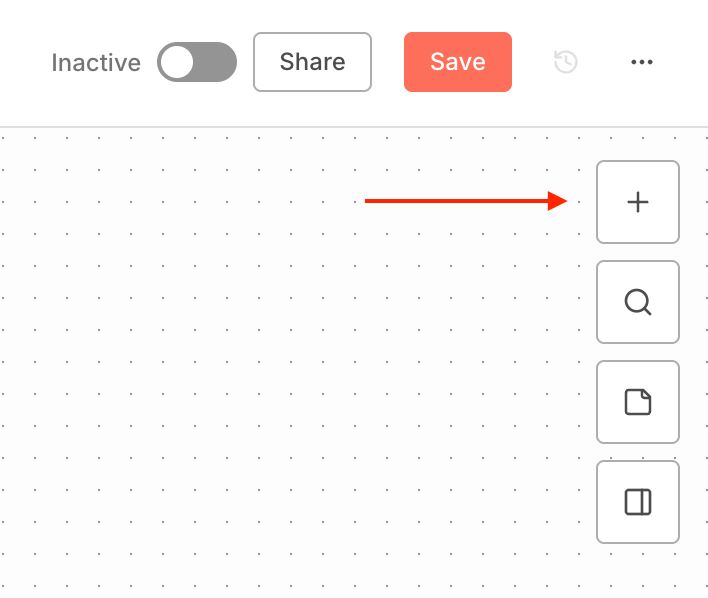
Click the plus sign button to open the nodes panel.
- Search for ChartMogul and select the node from the list.
- Select one of the listed Actions. Each action corresponds to a specific API endpoint.
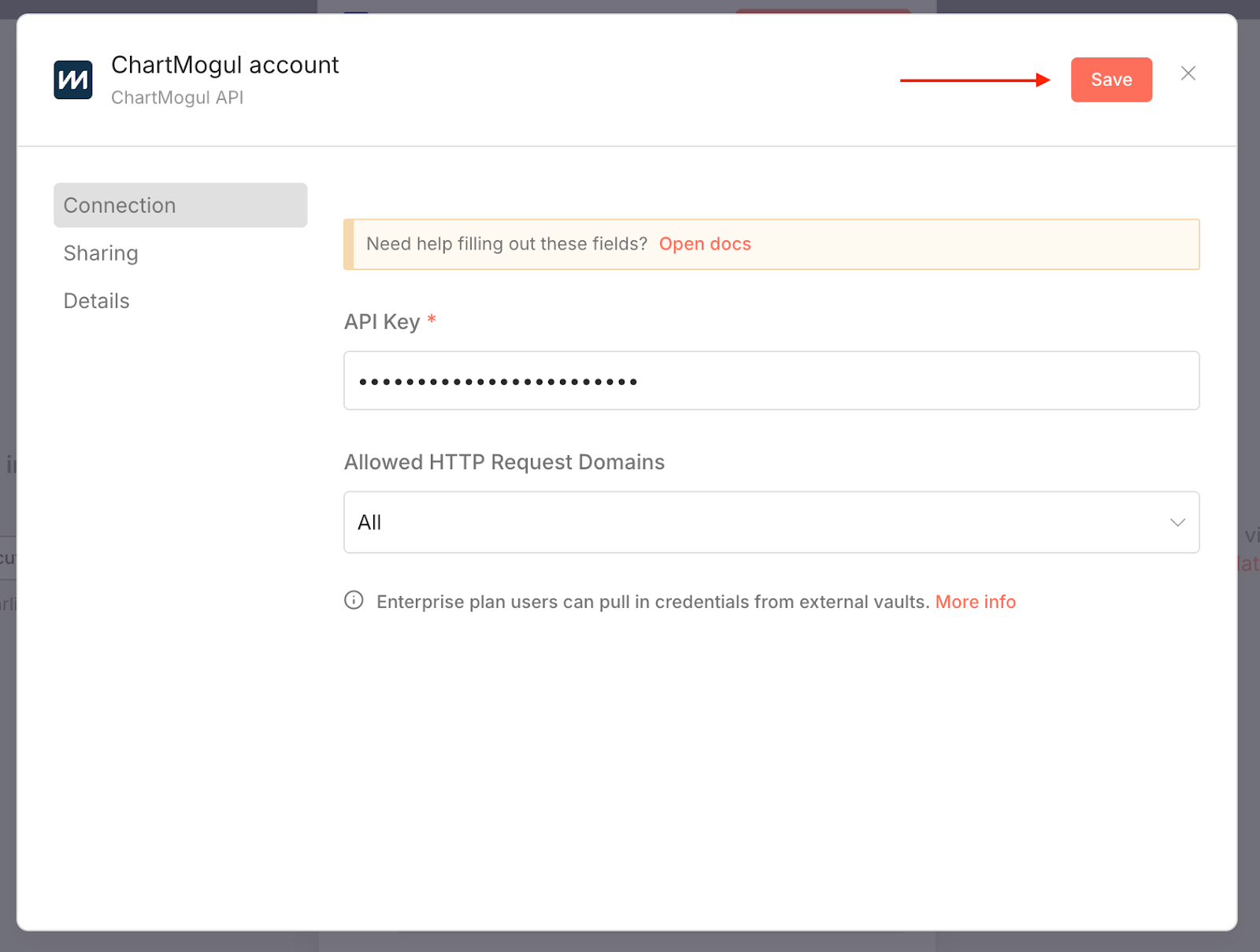
- Under Credential to connect with, select a previously added credential or choose + Create a new credential.
-
If creating a new credential, paste your ChartMogul read & write API key in the API Key field and select Save.
- Complete the fields for your selected action:
- Enter values manually or use inputs from previous nodes.
- Click Add Field to configure additional fields.
-
Find the required and optional fields for each action in our API documentation.
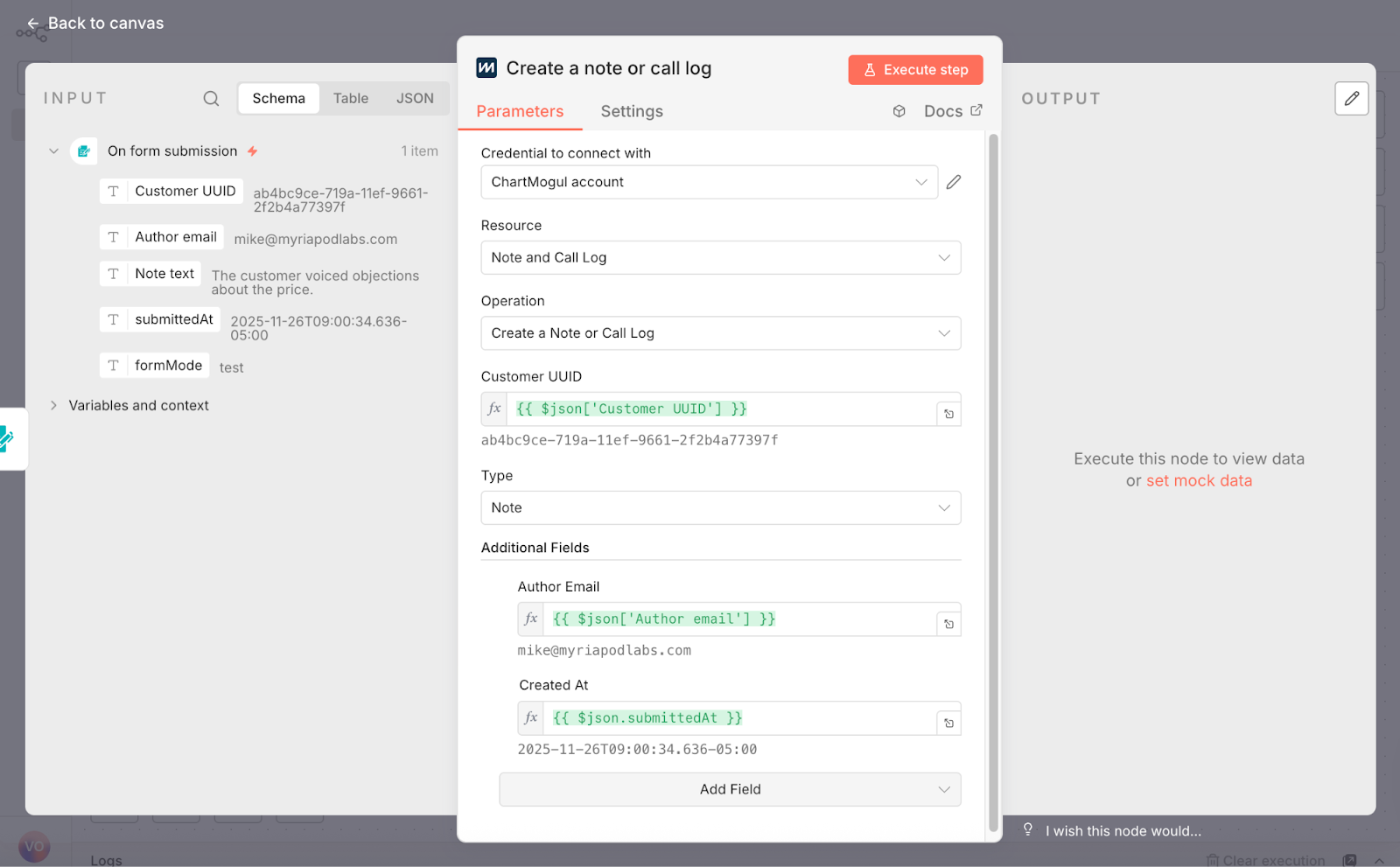
- Click Execute step to test your step and view the data it outputs. Use the output data in subsequent nodes.
What You Can Do with the ChartMogul Node
The ChartMogul n8n node focuses on actions that help you work with ChartMogul CRM. Each action maps to a specific endpoint in our API — meaning it reads from or writes to one specific part of ChartMogul's data.
Here’s a list of the available node actions with links to the corresponding API documentation:
Account actions
Contact actions
Customer actions
- Add a contact to a customer
- Create a customer
- Delete a customer
- List activities of a customer
- List invoices of a customer
- List all customers
- List customers by email
- Merge customers
- Retrieve a customer
- Unmerge customers
- Update a customer
Enrichment actions
- Add custom attributes to a customer
- Add custom attributes to a customer by email
- Add tags to a customer
- Add tags to a customer by email
- Remove custom attributes from a customer
- Remove tags from a customer
- Retrieve tags and attributes of a customer
Notes and call log actions
- Create a note or call log
- Delete a note or call log
- List notes and call logs
- Retrieve a note or call log
- Update a note or call log
Opportunity actions
- Create an opportunity
- Delete an opportunity
- List opportunities
- Retrieve an opportunity
- Update an opportunity
Source actions
Task actions
Example Workflows You Can Build
Here are some examples of what you can build with the ChartMogul n8n node.
Track newsletter subscribers in ChartMogul
When someone subscribes to your Mailchimp newsletter, create a ChartMogul customer and add an opportunity to their record:
- Add a Mailchimp “On subscribe” trigger and set User as the Source.
- Add a ChartMogul “Create a customer” step. Use data from the previous step as customer credentials.
- Add a ChartMogul “Create an opportunity” step, using the Customer UUID from the previous step.

Feedback documentation
When a customer leaves feedback through Typeform, add it as a note to their ChartMogul record:
- Add a Typeform trigger and select your form in the Form Name or ID field. In addition to feedback, your form should also collect the customer’s email.
- Add a ChartMogul “List contact” step. Under Filter options, provide the customer’s Email from the previous step.
- Add a ChartMogul “Create a note or call log” step:
- Provide the Customer UUID from the previous step.
- Add feedback from the Typeform trigger to the Text field.

Demo request management
When someone books a demo through Calendly, create a customer and add a pre-demo research task:
- Add a Calendly “On event created” trigger.
- Add a ChartMogul “Create a customer” step. Use data from the previous step as customer credentials.
- Add a ChartMogul “Create a task” step:
- Use the Customer UUID from the previous step.
- Use the Calendly event time as the Due Date for the task.
