
Creating and managing tasks
Tasks let you create, assign and track action items in ChartMogul, such as follow-up calls, product demos or email outreach, for your leads, opportunities and customers.
You can also automate task creation with automations or our API, and set up email notifications to get alerted when tasks are due or assigned to you.
Watch a video about creating and managing tasks:
Here’s what we cover in this article:
Adding a task
Navigate to the Tasks section in a customer profile.
Tasks are sorted chronologically by due date in your local time zone. Overdue tasks appear in red.
Tasks are visible to all roles except Lite, a read-only role.
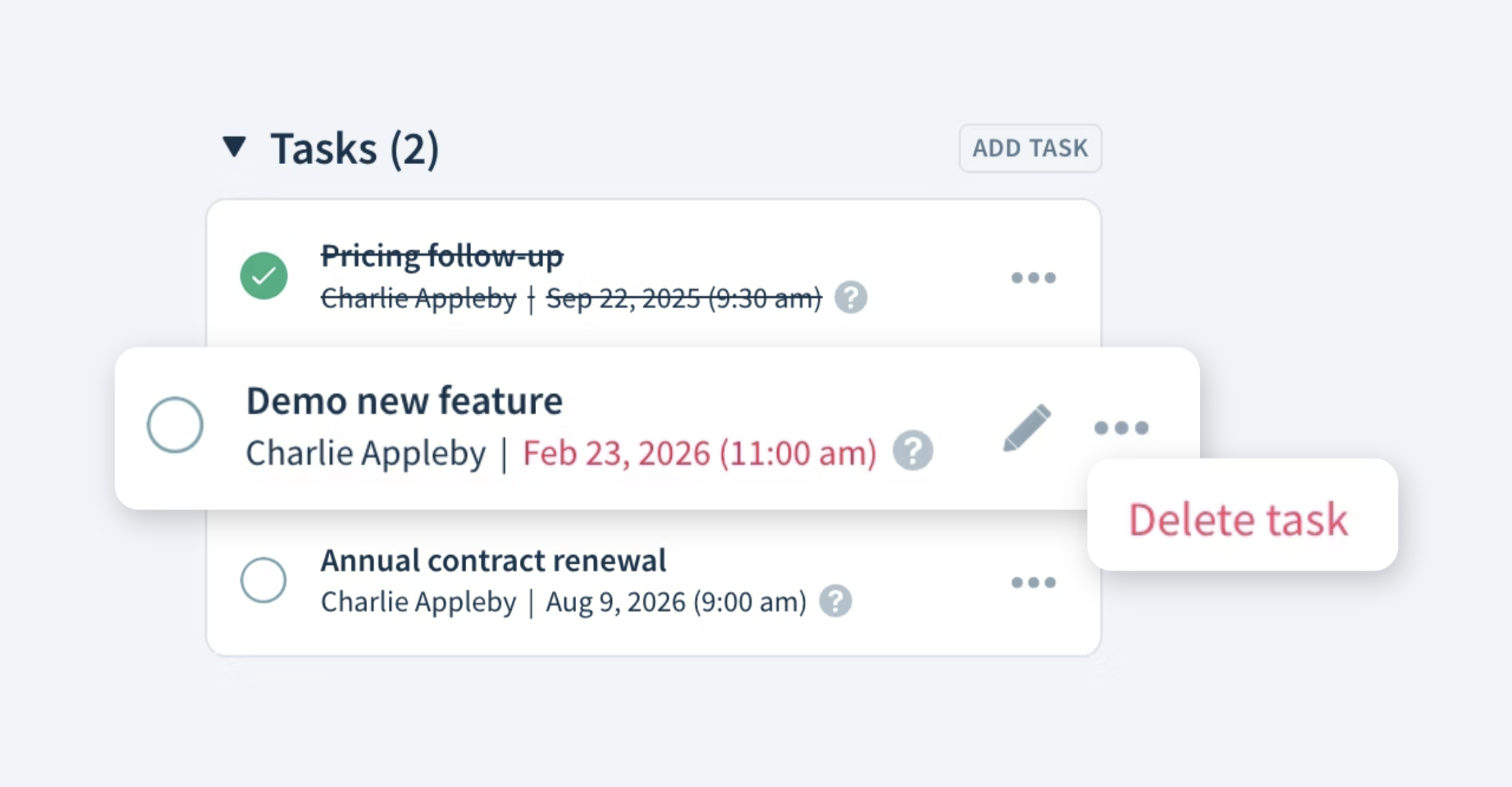
To add a new task:
- Click ADD TASK.
- Enter Task Details and select an Assignee.
- Under Due Date, enter the date and time when the task is due (in your local time zone). ChartMogul uses this due date for task notifications.
- Click SAVE.
ChartMogul creates your task and adds it to the list.
Completing a task
To mark a task as completed, click the :circle-checked~green: checkbox next to the task. To undo your action, click the :circle-checked~green: checkbox again.
The completed task appears as an Event — a timestamped activity entry — in the customer profile.
Editing a task
To edit a task:
- Click the :edit~gray: pen icon.
- Adjust the Task Details, Assignee or Due Date.
- Click SAVE.
Deleting a task
To delete a task:
- Click the :dots~gray: dots icon and select Delete task from the drop-down.
- Click OK to confirm.
Viewing all tasks
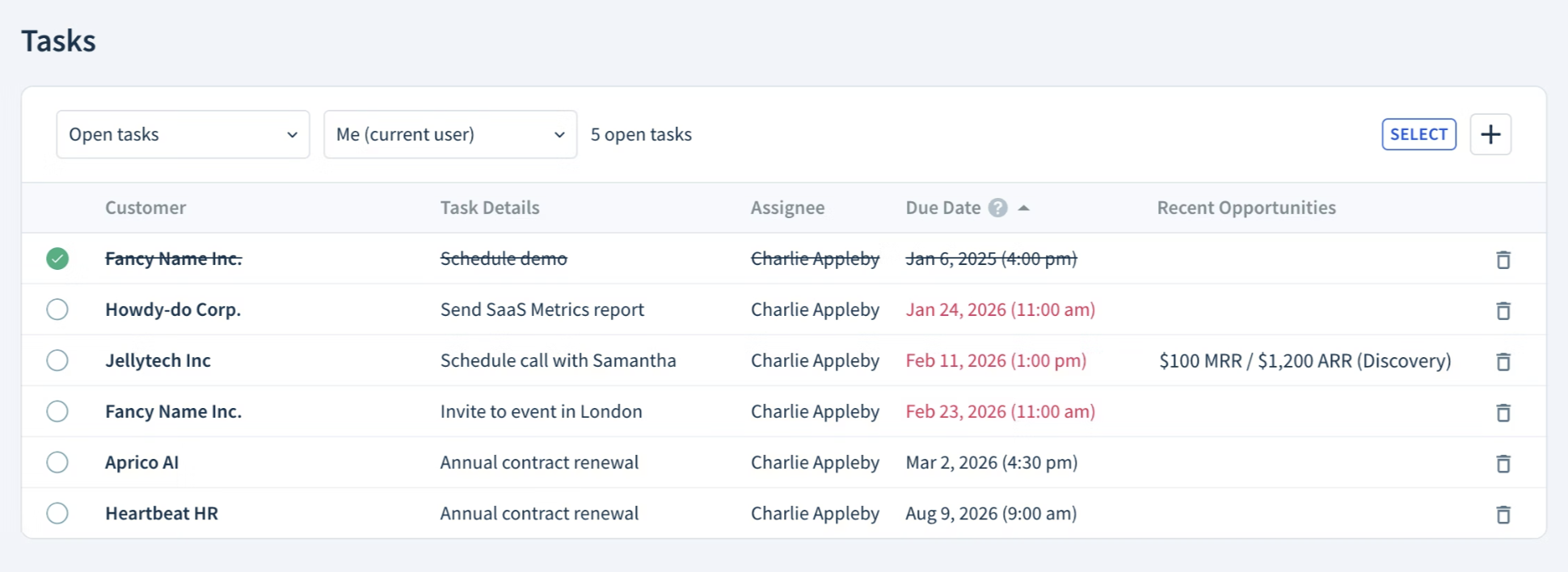
Access your tasks by navigating to Tasks. The table shows Customer, Task Details, Assignee, Due Date (in your local time zone), and Recent Opportunities for each task.
Adding tasks
To add a task:
- Click the :add-item~gray: Add a task icon.
- Select a Customer, enter Task Details, and select an Assignee.
- Under Due Date, enter the date and time when the task is due (in your local time zone). ChartMogul uses this due date for task notifications.
- Click SAVE.
Sorting tasks
Sort tasks by Task Details or Due Date by clicking the header of each column. Click again to reverse the sorting order.
Filtering tasks
By default, the Tasks page shows open tasks assigned to you. Use the status drop-down to display All tasks, Open tasks, or Completed tasks. Use the assignee drop-down to filter by team member.
Completing tasks
Click the :circle-checked~green: checkbox next to a task to toggle its status to completed or open.
Deleting tasks
To delete a single task:
- Click the :trash-stroke~gray: trashcan icon next to the task.
- Click OK to confirm.
To delete multiple tasks at once:
- Click SELECT.
- Select the tasks you want to delete and click DELETE TASKS.
- Click OK to confirm.
Next Steps
- Keep track of your open tasks with the My Tasks dashboard report.
- Create automated workflows for tasks, for example, to engage with customers before a scheduled cancellation.
- Connect ChartMogul to your existing apps and automate task creation using our API.