
Working with notes and call logs
Notes and call logs in ChartMogul let you document customer interactions directly on a customer record. Use notes to capture key details from conversations, and call logs to record the outcome and duration of calls. Notes and call logs appear on the Activity tab and on the Customer Profile page timeline. They can also be imported via the API—for example, from an AI notetaker.
To discuss something with your team instead of keeping a record, use comments.
You’ll need to be an Owner, Admin, Staff or CRM-only team member in ChartMogul to create and manage notes and log calls.
Here’s what we cover in this article:
How to add a note or call log
Create, update, and delete notes and call logs using our API, such as those from an AI notetaker. Customer records may include a note with a summary of details imported using AI enrichment.
To add a note or call log to a customer record:
- Go to Customers and select a customer to view their record.
-
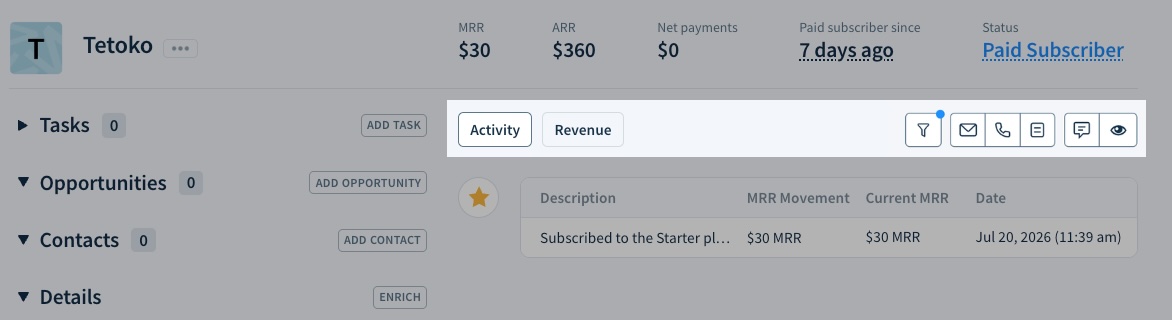
On the Activity tab, click the :outline-note~gray: Note or :outline-call~gray: Log a call button.
- Enter the content of your note or call log, using a selection of rich formatting tools. Insert templates with text blocks and mention team members.
- Log the duration of a call in the Minutes field.
- Click SAVE to save your note or call log.
Mentioning team members
Type @ and select or type a team member's name to mention them in a note or call log. A mention sends that team member an email with the note text, its timestamp, and the names of both the customer and the person who made the mention. Mention notifications are on by default for all non-Lite users (Lite is ChartMogul's read-only plan) — you can turn them off in your email notification settings.

How to edit a note or call log
To edit a note or call log:
- Hover over a note or call log and click the :edit~gray: Edit icon.
- Adjust the content.
- Click SAVE to apply your changes or Cancel to discard them.
How to pin a note
Click the :unpin~gray: Pin icon on a note to pin it to the top of the Activity feed. To unpin it, click the :pin~gray: Pin icon again. You can also pin or unpin a note while creating or editing it.
How to delete a note or call log
To permanently delete a note or call log:
You have two ways to delete:
- Hover over a note or call log and click the :trash-stroke~gray: Delete icon.
- Click DELETE when editing a note or call log.
Confirm by clicking OK.