
Report Data
If you’re new to ChartMogul, get to know how reports work.
Report Data is a table in ChartMogul that breaks down MRR movements — the changes to your Monthly Recurring Revenue — by movement type. It appears under select reports. If you don’t see it, check the notes section of that report’s article for details.
For each MRR movement type — the category of change that affected your MRR, such as New Business, Expansion, Contraction, Churn, Reactivation, or Neutral — ChartMogul shows the total MRR amount and the customer count for that type. MRR (Monthly Recurring Revenue) is the normalized monthly value of all active subscriptions in your account.
The Report Data table has an additional row for Neutral Movements (movements with no MRR impact). The row is available for accounts with free subscription support.
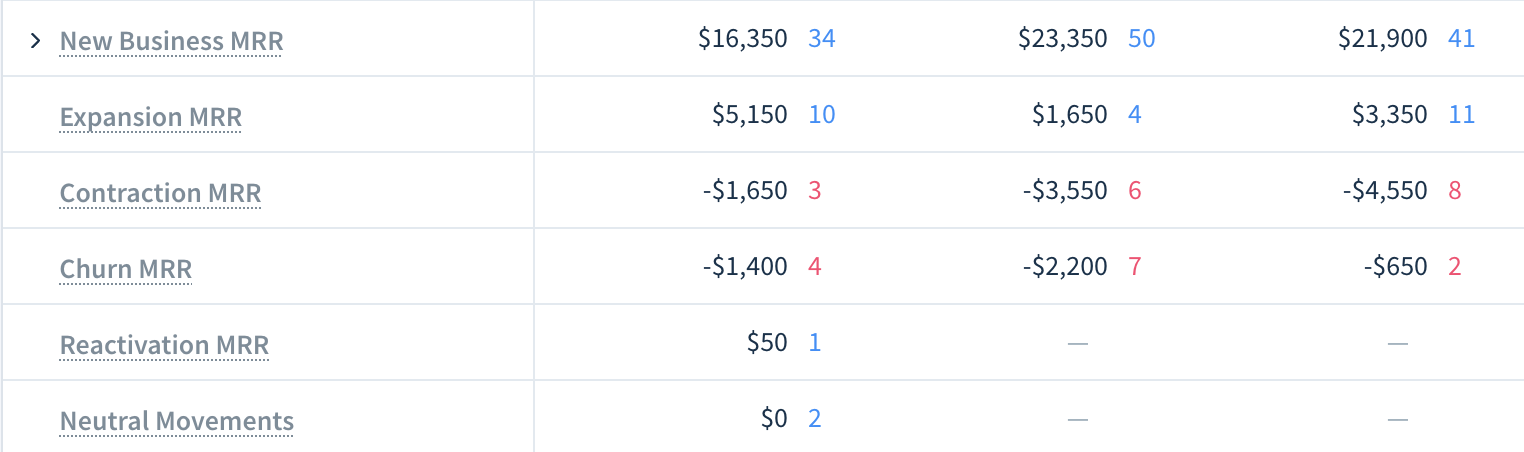
How to Drill Down Into Your Data With Report Data
The Report Data table helps you quickly drill down into your metrics and see which type of customer activity resulted in a particular change.
To drill down into a movement type:
- Click the cell in the Report Data table to list subscription activities for that movement.
- Click an activity to open the customer's record in a new tab.
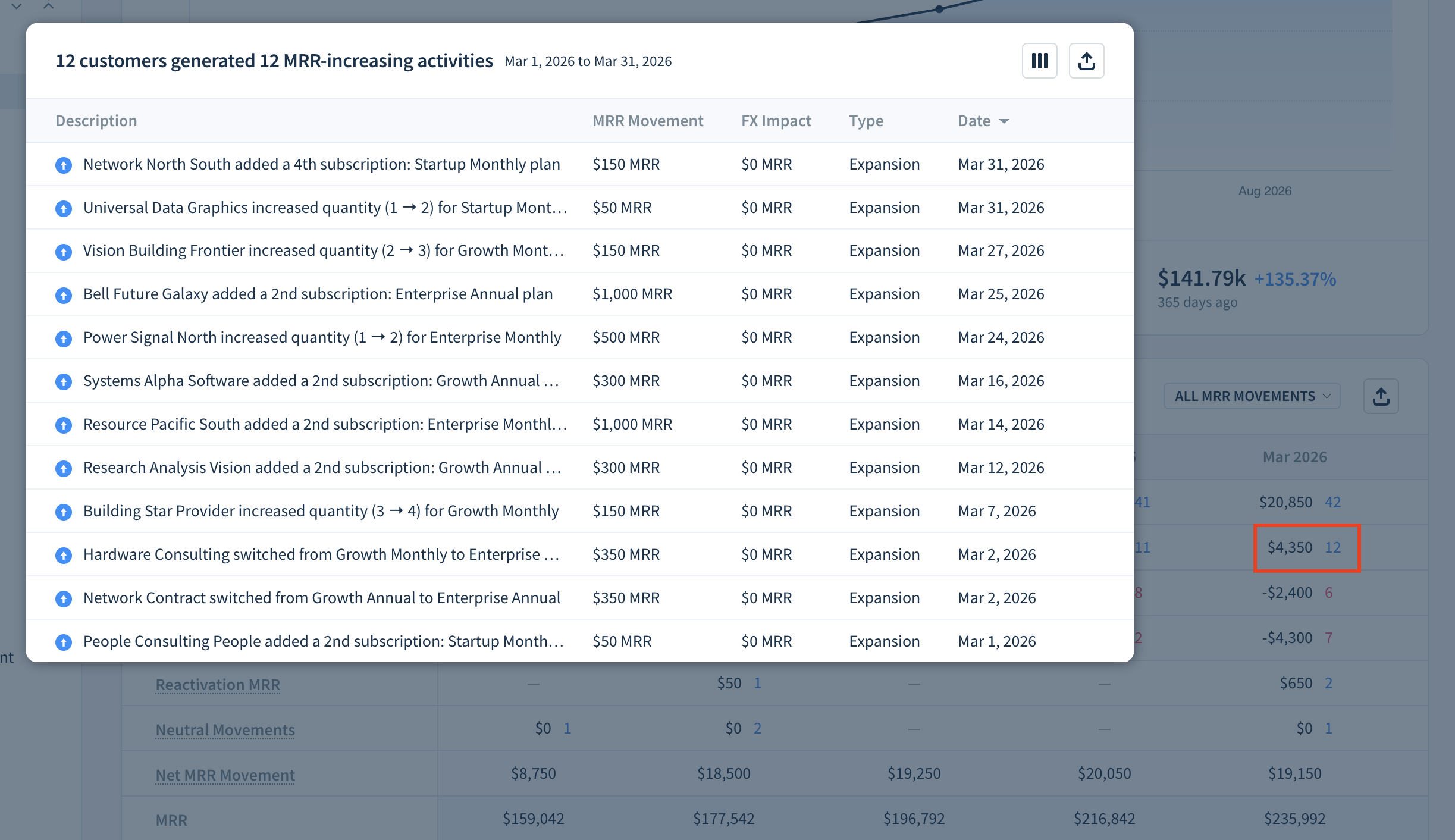
By default, the breakdown of subscription activities contains the following columns:
- Description — A short description containing the customer name, plan name, and subscription quantity (e.g., “Speed East West subscribed to the Growth Annual plan (x2)”).
- MRR Movement — The value of the MRR movement in your account’s primary currency.
- Date — The date the MRR movement took place.
- Type — MRR movement type.
To customize visible columns:
- Click the Configure table columns (three vertical bars) button.
- Choose from customer properties (such as Owner, MRR, and Status) or custom attributes.
- Click APPLY to save your selection.
You can include your selected columns in CSV exports.
To get an AI explanation of an MRR movement:
- Hover over a row in the activity breakdown.
- Select Ask AI to explain this. ChartMogul AI explains the movement inline.
Customer count vs. activity count
On January 31, 2025, we changed how the Report Data table displays customer and activity counts.
Now, the value next to each MRR movement amount represents the number of customers associated with that movement type in a given report interval. Previously, it was the number of subscription activities.
How Plan Filters Affect Report Data
When you filter the data to see MRR for a particular plan, the MRR breakdown only shows activities where a customer ends up on that plan. For instance, if you filter by Plan A and a customer switches from Plan A to Plan B, you won't see this activity in Contraction MRR — because the customer is no longer on Plan A after the switch.
You'll see those plan switches in the MRR Entering Segment and MRR Leaving Segment rows instead. These rows show the subscription's total value before it left or entered your filtered segment. For example, a customer who switches from Plan A ($50 MRR) to Plan B ($30 MRR) appears in MRR Leaving Segment at $50.

ChartMogul shows these rows when you use the Plan > is one of filter and MRR movements enter or leave your filtered segment. This also works for plan groups — for example, you can track customers moving into an annual plan group.
When you click a cell in these rows, ChartMogul shows the activities that changed the plan on a subscription. Note that the activity size doesn't equal the subscription value before the change.
The breakdown includes neutral movements — subscription changes that don’t affect the customer’s MRR, such as switching between equally priced plans.

How Currency Fluctuations Affect Your Report Data
Learn more about how ChartMogul handles subscriptions billed in foreign currencies.
When you receive payments in currencies other than your account's primary currency, exchange rate shifts cause your MRR to vary. Because the customer pays the same amount in their local currency, ChartMogul doesn't record this as a subscription activity — it appears in the Exchange Rate Impact row instead. The Exchange Rate Impact row tracks MRR changes caused purely by currency movements, not by changes to what customers pay.

The Exchange Rate Impact row shows the net MRR change caused by exchange rate shifts between your customers' payment currencies and your account's primary currency. It doesn't reflect any change in what customers actually pay.
In the drill-down, you'll see a list of fluctuations. If there was also an activity on that date (e.g., an expansion), ChartMogul shows the size of the movement.
Note: If a subscription's quantity changes multiple times in a day, the numbers in the table may not align fully.
For accounts with free subscription support, the Exchange Rate Impact row only includes MRR changes from exchange rate movement where there was no underlying subscription change and no change to MRR in the invoiced currency. You can also expand the Expansion MRR and Contraction MRR rows to see how much of each movement came from the subscription change versus the exchange rate impact.
Exporting Report Data
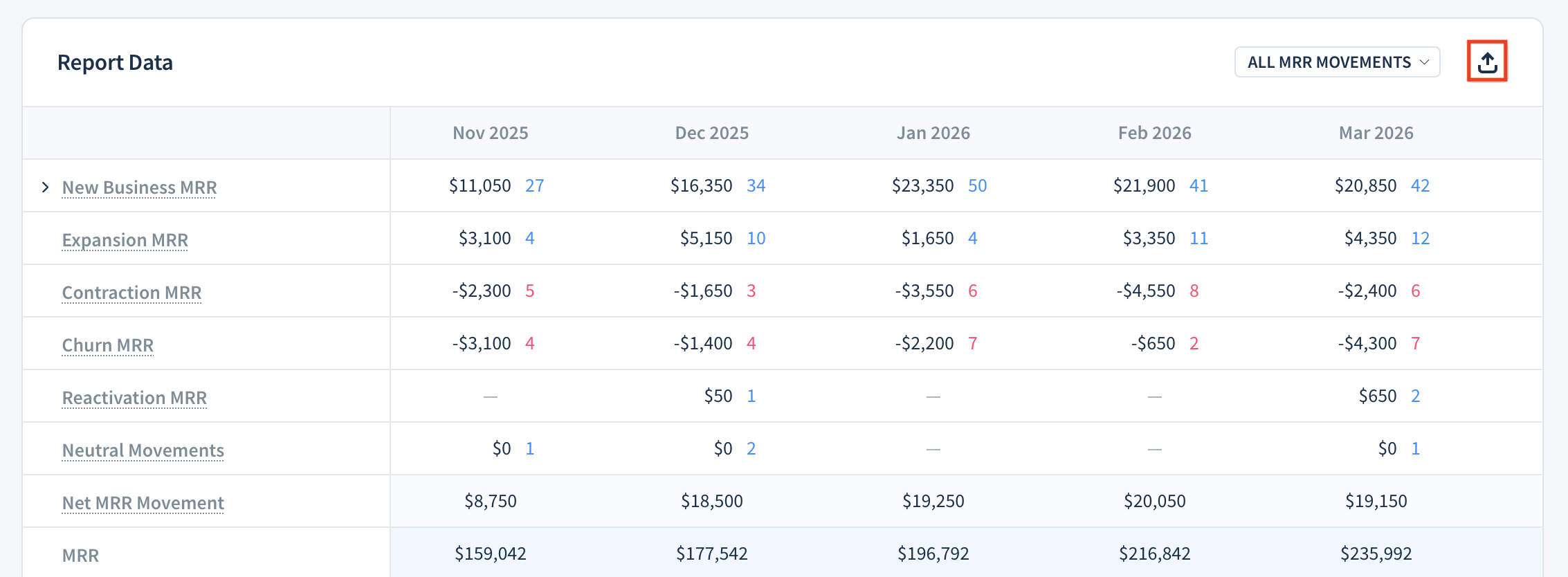
To export Report Data as a CSV file:
-
Click the Export as CSV (box with outgoing arrow) button.
- When comparing segments with Show detailed breakdown for each segment selected, choose one of the options:
- EXPORT COMPARISON DATA — includes a comparison of the metric selected in the Compare drop-down
- EXPORT DETAILED SEGMENT DATA — includes a detailed breakdown for each segment
- Name your file and click Save.
To export an activity breakdown as a CSV file:
- Click the Export as CSV (tray with an upward arrow) button in the activity breakdown table.
- Select one of the options:
- Visible columns only — Only includes currently visible columns.
- All data — Includes the whole set of data, including hidden columns.
- Click EXPORT.
ChartMogul emails you a link to a CSV file with the requested data.