
Working with text blocks
Text blocks in ChartMogul are reusable snippets of content you can insert into emails, notes, and call logs using a custom shortcut. For example, typing "/pricing" can expand into a full pricing breakdown, or "/demo" into a calendar invite. Create and manage text blocks under Settings > Content & Communication > Text Blocks.
You’ll need to be an Owner, Admin or CRM-only team member in ChartMogul to create and manage text blocks.

Here’s what we cover in this article:
Creating and managing text blocks
Access your text blocks by navigating to Settings > Content & Communication > Text Blocks.
Adding a text block
To add a text block:
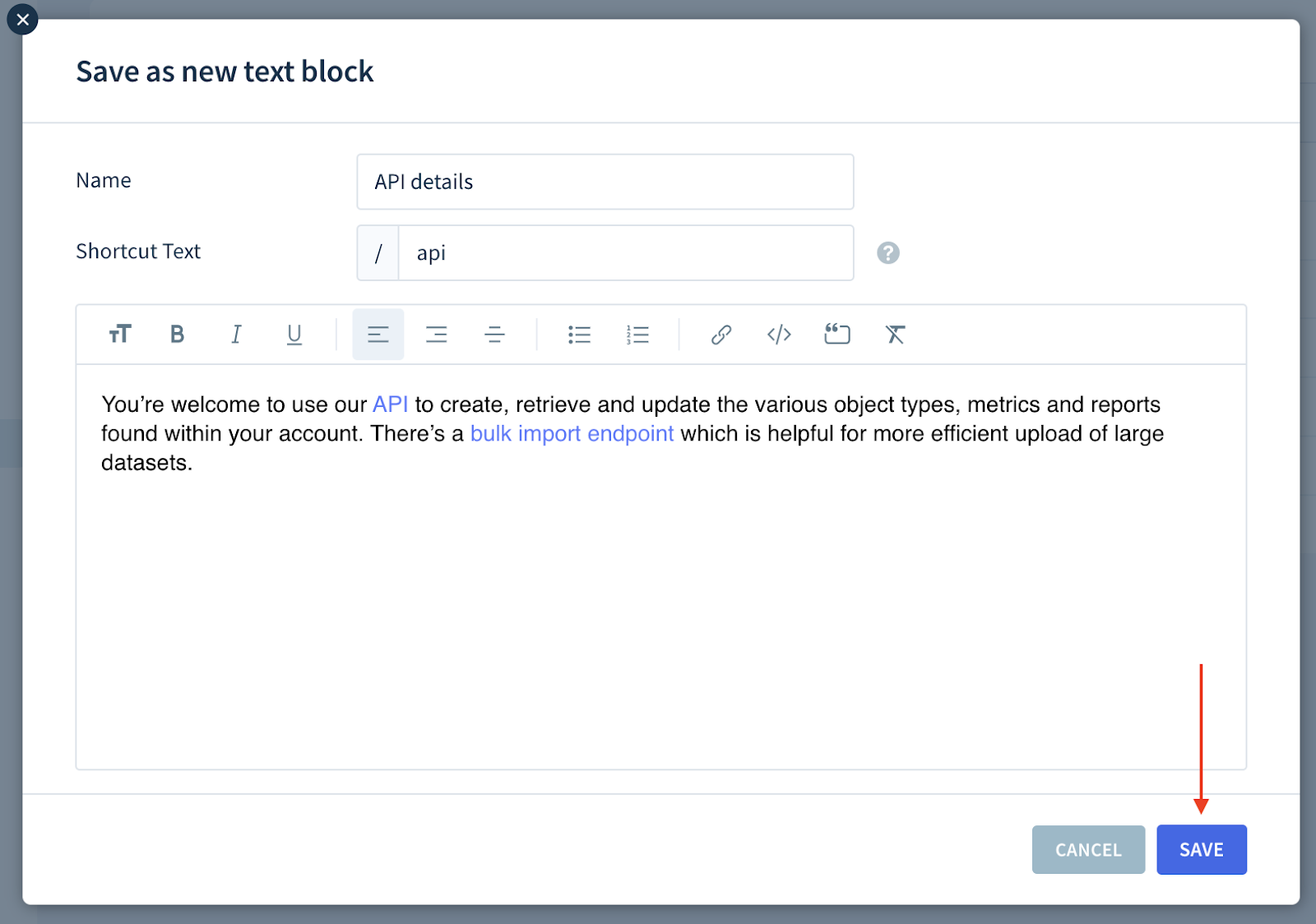
- Click ADD TEXT BLOCK.
- Enter a unique Name for your text block.
- Under Shortcut Text, enter a unique keyword. To use the text block in an email, note or call log, type "/" followed by the keyword. For example, "/noreply" or "/thankyou."
- Compose your text block using rich formatting tools as needed.
-
Click SAVE.
Editing a text block
To edit a text block:
- Click the text block you want to modify.
- Adjust the text block’s name, shortcut text and content.
- Click SAVE to apply your changes.
Deleting a text block
Deleting a text block is permanent and cannot be undone.
To delete a text block:
- Click the text block you want to delete.
-
Click DELETE.
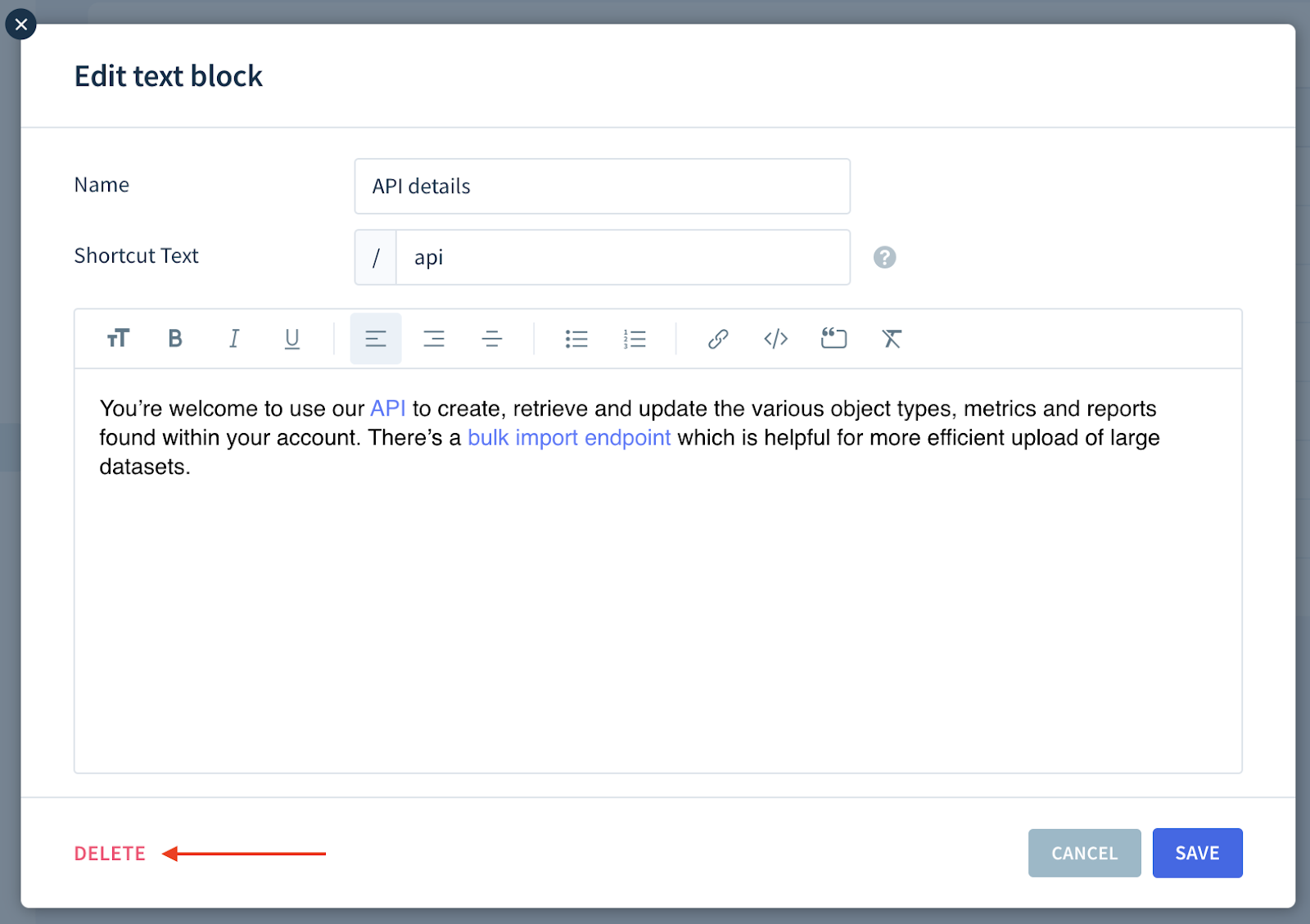
- Confirm by clicking OK.
Inserting text blocks
To add a text block to an email, note or call log, click the Add Text Block icon and select a text block from the list.

Or, type “/” followed by the shortcut text defined when creating the text block (e.g., “/discovery” or “/demo”) and click the corresponding text block name in the drop-down.

Type “/” without a keyword to see a list of all available text blocks.

Text block examples
Here are some ideas for text blocks with example names and shortcut texts.
Notes and call logs
| Name | Shortcut | Content |
|---|---|---|
| Competitor | /comp | Mention of a competitor with key comparison points |
| Discovery call | /dcall | Summary of a discovery call, including attendees, identified needs, objectives, concers, next steps, etc. |
| Decision-makers | /dmakers | Details of key decision-makers |
| Did not pick up | /dnpu | Note that a prospect didn’t show up to a call |
| Lost opportunity | /lost | Explanation of a lost opportunity with common reasons to choose from |
| Next steps | /next | Next steps in the sales process |
| Objections | /obj | Identified objections and concerns |
| Pain points | /painpts | Identified pain points |
| Trial extended | /extended | Details of an extended trial |
| Upsell discussion | /upsell | Summary of an upsell discussion with new identified needs, level of interest, etc. |
Emails
| Name | Shortcut | Content |
|---|---|---|
| API details | /api | Introduction to your API with a link to documentation |
| Closing lines | /close | Closing lines of an email |
| Demo | /demo | Invitation to a demo call with a link to your calendar |
| Feedback | /feedback | Request for feedback |
| Kick-off call | /kickoff | Invitation to a kick-off call with a link to your calendar |
| Late reply | /late | Apology for a delayed response |
| Opening lines | /open | Opening lines of an email |
| Pricing | /pricing | Breakdown of your pricing options |
| Reminder | /remind | Reminder of an upcoming meeting |
| Thank you note | /thankyou | Thank you note after a meeting |
Next Steps
- Connect your email to communicate with leads and customers.
- Learn more about working with notes and call logs.