
Working with filters
Filters in ChartMogul let you narrow your analysis to a specific subset of your data by combining an attribute, an operator, and a value. They work with dashboards, reports, maps, cohort analyses, forecasts, and customer lists. They’re also core to segmentation.
Here are some examples of what you can do with filters:
- Tracking MRR (Monthly Recurring Revenue) growth for a specific plan over time
- Calculating ARPA (Average Revenue Per Account) for a particular region
- Analyzing churn rates (the rate at which customers cancel) by industry segment or vertical
- Prioritizing your sales activities by identifying leads with open tasks
- Comparing the average sales cycle length across sales representatives
Here’s what we cover in this article:
How filters work
Each filter consists of three parts: an attribute (the data field you're filtering on), an operator (the condition, such as "is" or "is less than"), and a value (the threshold or selection you set). ChartMogul uses these parts together to narrow your analysis to matching data.
Here are a few examples:
| Attribute | Operator | Value(s) |
|---|---|---|
| Region | is one of | Canada |
| MRR (Current) | is less than | $100 |
| Subscriber since | is within | 2022-04-01 to 2022-06-30 |
How Attributes Work
Attributes are data fields ChartMogul stores for each customer — beyond the core customer, subscription, and billing data it pulls from an integration (a connected billing system like Stripe or Chargebee).
There are two main types of attributes in ChartMogul:
- Standard attributes that complement and extend your subscription data for use with filtering and segmentation.
- Custom attributes you create or those ChartMogul may create to store additional data imported from your billing system.
See the full reference on ChartMogul filters and their behaviors for detailed descriptions of every filter.
Standard Attributes
ChartMogul offers the following attributes out of the box.
Click an attribute name in the table below to open a page with its detailed description. Note that the table includes some new filters that aren’t available to all customers yet.
The Filter level column shows whether a filter applies at the customer or subscription level. Learn more.
| Attribute | Type | Filter level |
|---|---|---|
| # of active subscriptions | Number | Customer |
| # of Contacts | Number | Customer |
| Average order value | Number | Customer |
| Cancellation scheduled for | Date | Customer or subscription |
| Churned | Date | Customer or subscription |
| Currency | Currency | Customer or subscription |
| Customer | Customer | Customer |
| Customer since | Date | Customer |
| Didn’t cancel within N days of purchase | Number | Customer |
| Free subscriber status | Customer status | Customer |
| Free trial started at | Date | Customer |
| Has discount | Boolean | Customer or subscription |
| Has open task | Boolean | Customer |
| Has opportunity | Boolean | Customer |
| Last active at | Date | Customer |
| Last communication at | Date | Customer |
| Last email received from customer at | Date | Customer |
| Last email sent to customer at | Date | Customer |
| Last payment | Date | Customer |
| Lead created at | Date | Customer |
| Lead status | Customer status | Customer |
| MRR (at time of purchase) | Number | Customer |
| MRR (Current, or at time of cancellation) | Number | Customer |
| MRR (Current) | Number | Customer |
| MRR contracted | Date | Customer or subscription |
| MRR expanded | Date | Customer or subscription |
| Net payments | Number | Customer |
| Next payment | Date | Customer |
| Number of successful payments | Number | Customer |
| Owner | Team member | Customer |
| Paid subscriber since | Date | Customer |
| Paid subscriber status | Customer status | Customer |
| Paid subscription quantity | Number | Customer or subscription |
| Paid subscription quantity before churn | Number | Customer or subscription |
| Past due date | Date | Customer or subscription |
| Plan | Plan | Subscription |
| Plan (at subscription start) | Plan (at subscription start) | Subscription |
| Plan (at time of first purchase) | Plan (at time of first purchase) | Customer |
| Plan (during trial) | Plan during trial | Subscription |
| Plan (including all items in subscriptions set) | Plan (including all items in subscriptions set) | Subscription |
| Reactivated | Date | Customer or subscription |
| Region | Region | Customer |
| Renewal date | Date | Customer or subscription |
| Source | Source | Customer or subscription |
| Subscriber since | Date | Customer |
| Tags | Tag | Customer |
| Trial status | Customer status | Customer |
| Trial-to-conversion in days | Number | Subscription |
| Trial-to-paid in days | Number | Subscription |
| Website | String | Customer |
New filters
On October 2, 2025, we introduced new filters and are making them gradually available to all customers:
- Plan (during trial) — Customer’s plan during their trial.
- Plan (at subscription start) — Customer’s plan at the start of their free or paid subscription. Unlike Plan (at time of first purchase), the filter isn’t fixed to the customer’s first subscription purchase.
- Trial-to-conversion in days — Number of days between trial start and the start of a paid or free subscription.
- Subscriber since — Date when the customer became a free or paid subscriber for the first time.
The filters are part of an update that improves subscription and trial handling. Other changes include a new “trial” line item type and improvements to the Subscriptions and Subscription History tables on customer records.
Past due date and renewal date buffer
Invoices can take a couple of hours to finalize in the billing system. ChartMogul adds a three-hour buffer in certain cases so a customer’s or subscription’s status doesn’t change prematurely before the invoice has had time to process.
- Past due date is either the invoice due date, or—if no due date is set on the invoice—the invoice service period end date plus the three-hour buffer. This prevents a customer or subscription from briefly showing as past due while payment is processing.
- Renewal date is always the invoice service period end date plus the three-hour buffer. This prevents a customer or subscription from being marked past due before the renewal invoice is finalized.
If the service period ends late in the day, the three-hour buffer can push the date used for filtering to the next calendar day.
Custom Attributes
You can create custom attributes to store extra data for each customer, contact, opportunity, or subscription. ChartMogul also creates custom attributes to store additional data imported from certain integrations. You can filter by customer and subscription custom attributes.
Learn more about custom attributes.
How Operators Control Filter Logic
The operator controls how ChartMogul applies your chosen attribute and value to limit which data appears in your analysis.
The operators available depend on each attribute’s type:
- Boolean — is true, is false, is present, is not present, is true or not present, is false or not present
- Date — is on, is after, is before, is on or after, is on or before, is within, is present, is not present
- Number — equals, does not equal, is less than, is more than, is less than or equal to, is more than or equal to, is between, is present, is not present
- Currency, Source — is one of, is none of, has all of
- Customer, Customer status — is one of, is none of
- Has discount, Has open task, Has opportunity — is true, is false
- Owner, Region — is one of, is none of, is present, is not present
- Plan — see plan filters
- Plan (during trial), Plan (at subscription start) — was one of, was none of, was any plan
- Plan (including all items in subscription set) — is one of, is none of, has all of, is present, is not present
- Plan (at time of first purchase) — was one of, was none of
- String — is, is not, contains, does not contain, is present, is not present, is one of, is none of
- Tags — is one of, is none of, has all of, is present, is not present
How to Choose a Filter Level
Filters can apply at the customer or subscription level, determining what data are included in your reports:
- Customer level – targets entire customers. If a customer matches the filter criteria, all of their subscriptions are included.
- Subscription level – returns only the subscriptions that match the filter criteria. When used with customer reports, a customer is included if any of their subscriptions match the filter.
For some filters, you can choose whether to apply them at the customer or subscription level — customer level includes all of a customer's subscriptions, while subscription level targets only matching subscriptions. When a filter supports both levels, a drop-down appears at the top of the filter panel. Click it to switch between Customer Level and Subscription Level.
Check the standard attributes table to see which levels each filter supports.
Adding a filter
To add a filter to your dashboard, report, map, cohort analysis, forecast, or customer list:
-
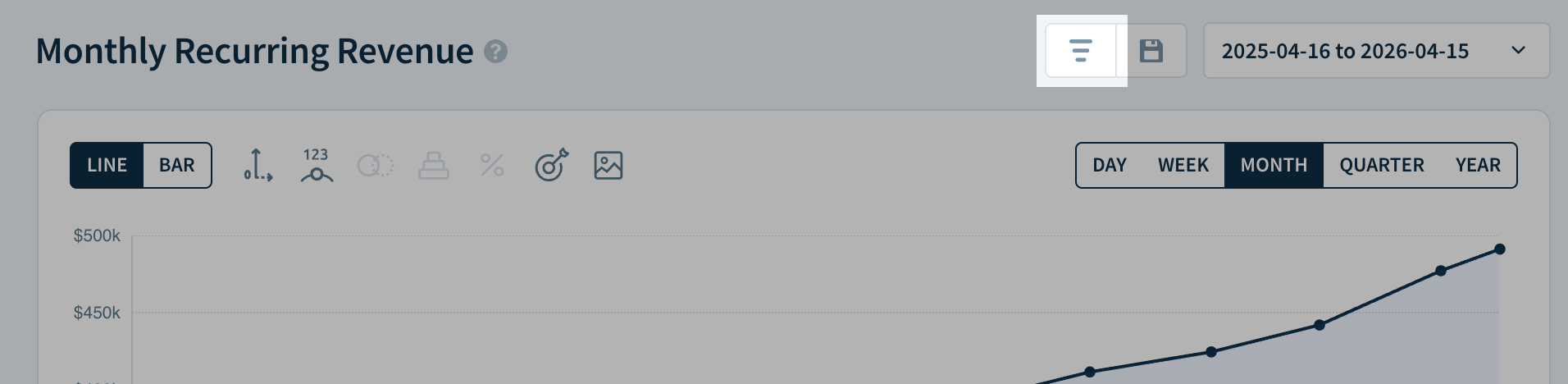
Click the Apply a filter or saved segment button.
-
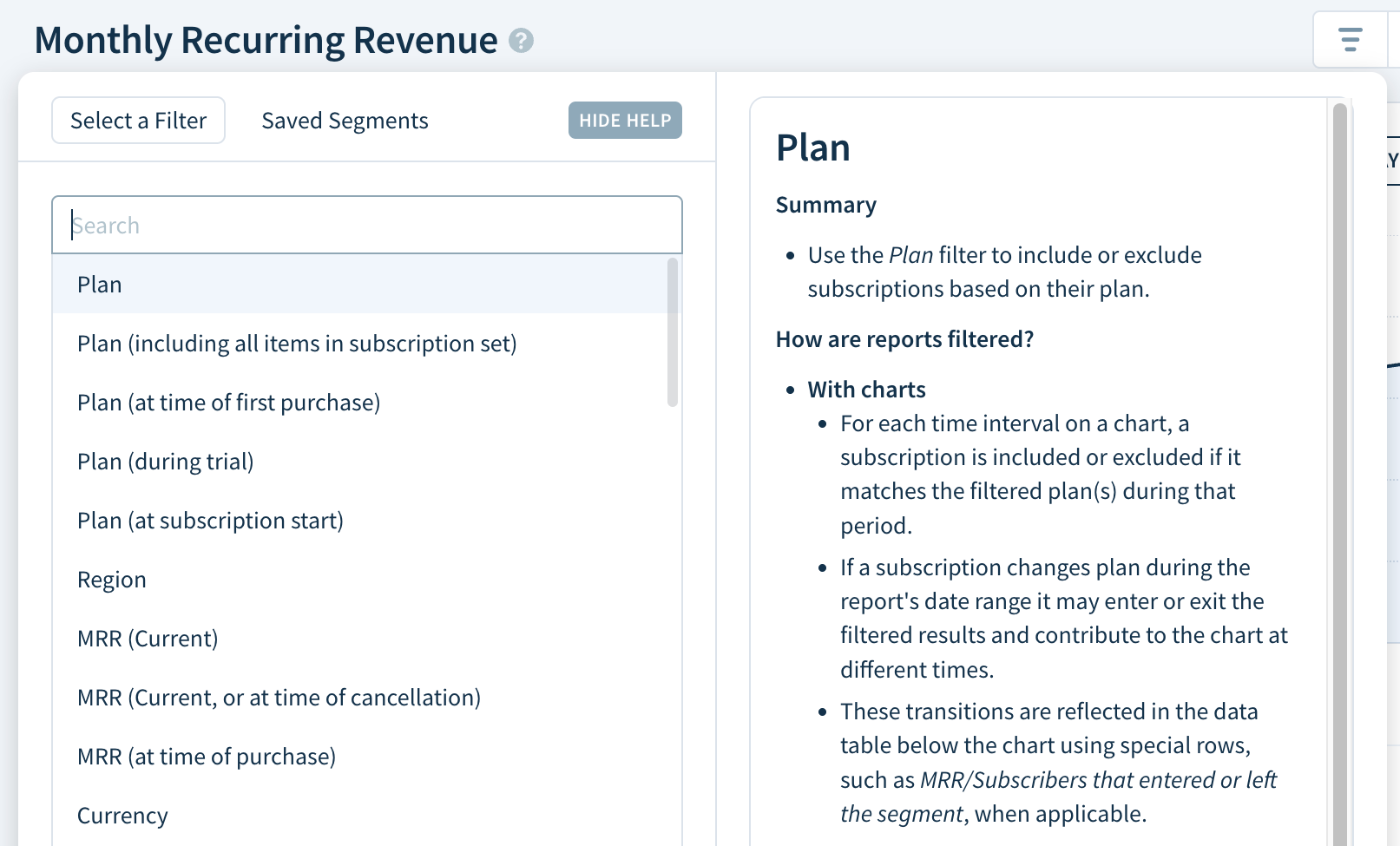
Select an attribute from the list. Hover over an attribute to see its detailed description. Click CHANGE FILTER to change your selection.
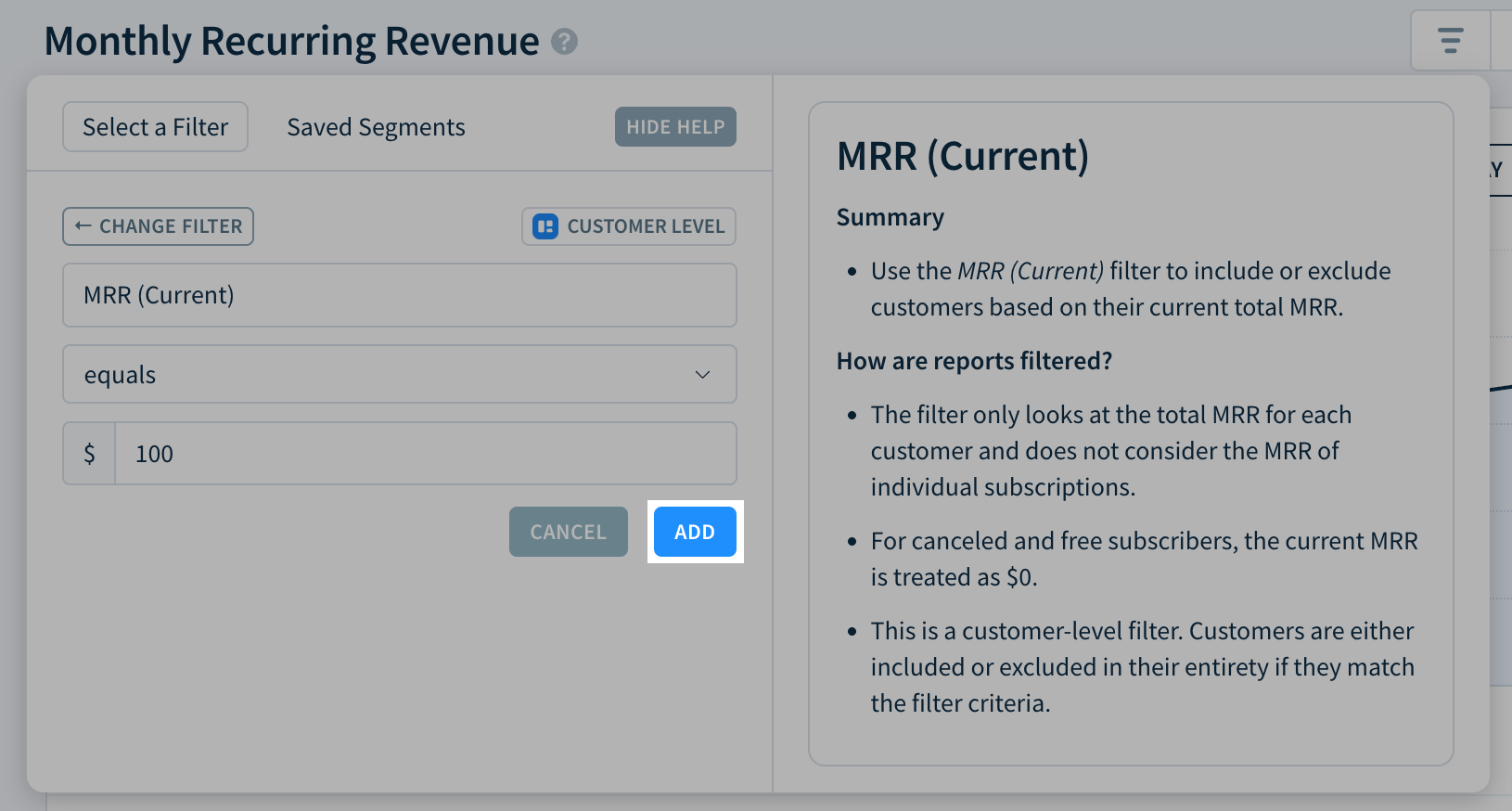
- If the filter supports it, use the drop-down to choose between Customer Level and Subscription Level. Learn more.
- Select an operator from the drop-down.
- Enter an appropriate value (or range of values) in the field provided.
- Click ADD to apply your filter.
-
To narrow your results further, click the plus sign button and repeat the steps above to add more filters.
By default, ChartMogul connects filters using the AND operator. To switch to OR, hover over the plus sign button and select OR from the dropdown. To change an existing operator, click it and select a new one. ChartMogul automatically adds parentheses where needed to prevent ambiguity.

Filters remain active across ChartMogul until you remove them.
How to Update a Filter
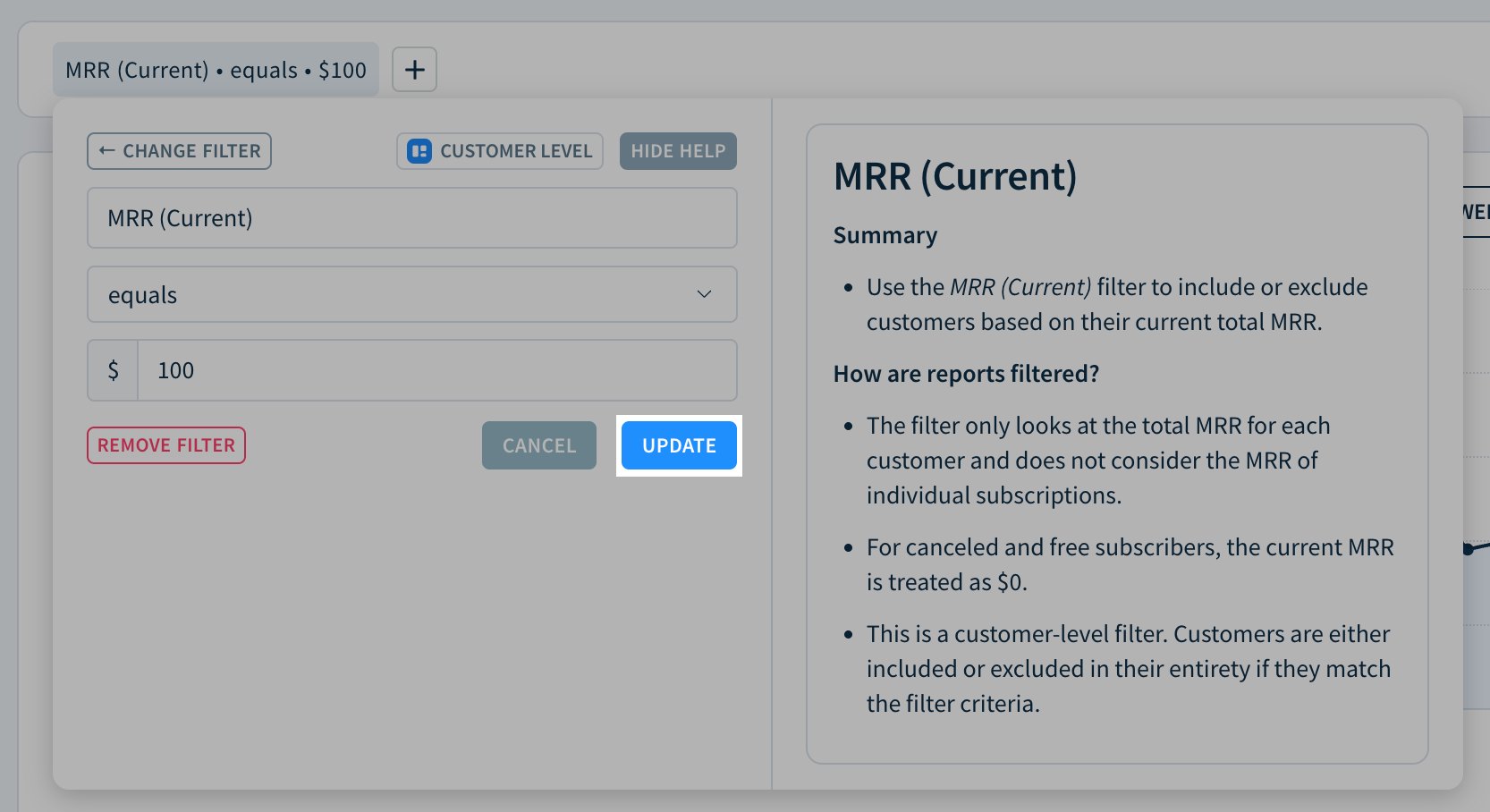
- Click the filter you’d like to update.
- Adjust the filter’s level, attribute, operator, and/or values.
-
Click UPDATE.
How to Remove a Filter
- Click the filter you’d like to remove.
- Click REMOVE FILTER.
Next Steps
- Use filters to segment a report by region, currency, or plan.
- Create a plan group.