
Forecast Growth Scenarios
Scenarios in ChartMogul let you project Annual Run Rate and paid subscriber count under different conditions. Projections are based on your historical averages and are deterministic, meaning they model a single defined outcome rather than a range of probabilities. Use Scenarios to evaluate how potential business changes would affect your metrics over time, or to set a baseline forecast for planning purposes.
Here’s what we cover in this article:
How Scenarios work
Scenarios display projected Annual Run Rate and Paid Subscribers as interactive reports, allowing you to visualize how these metrics may change over time under different conditions. Projections are based on your recent historical averages and update dynamically as you adjust your inputs.
Scenarios use your historical averages and trends to project future outcomes, allowing you to explore how potential changes — such as increased new subscriber volume, pricing adjustments or shifts in churn — would affect your metrics.
Each scenario can be fine-tuned by setting the direction (increase or decrease), percentage change and timing (immediate or phased over several months).
The projections are deterministic and don’t have any probabilistic elements. This means they help you answer questions like “Assuming the future looks exactly like the last six months, what will our ARR be over the next five years if we increase prices by 10%?” rather than estimate the likelihood of different outcomes.
Learn how ChartMogul calculates Scenarios.
To open Scenarios, go to Data Lab > Forecast Growth Scenarios in the main navigation, or go directly to Scenarios.
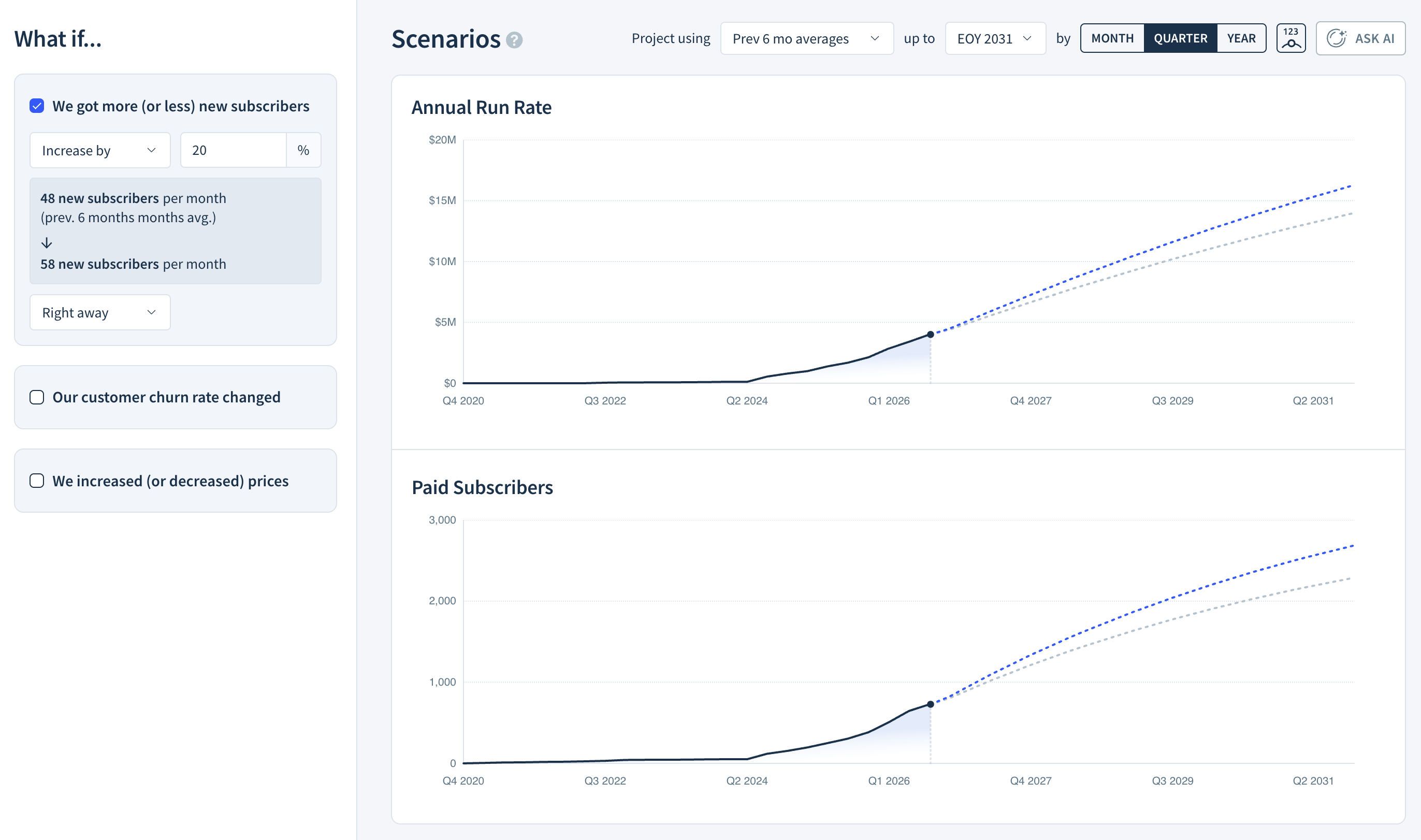
How to configure your scenario inputs
In the What if… section, select one or more scenarios to simulate:
-
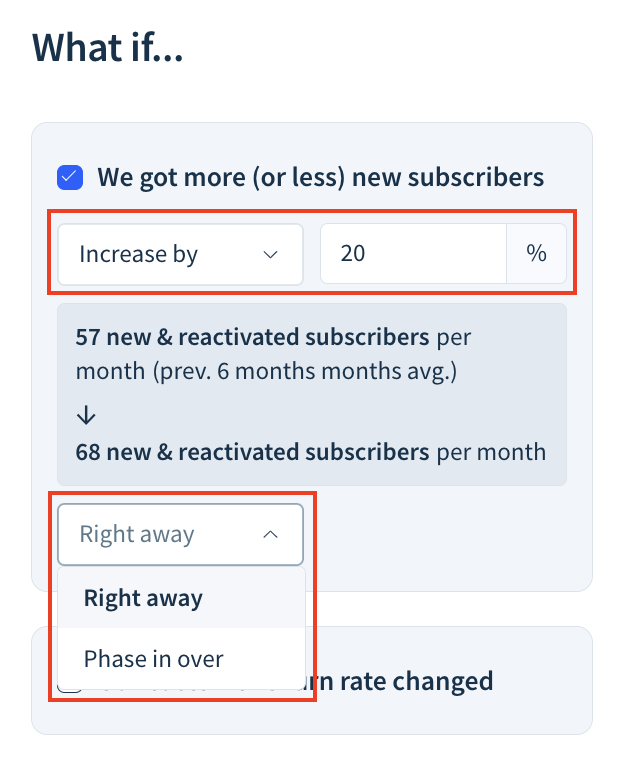
Choose a scenario: We got more (or less) new subscribers, Our customer churn rate changed, or We increased (or decreased) prices.
-
Choose whether to Increase or Decrease the value, then enter a percentage.
-
Choose when to apply the change: Right away or Phase in over a set number of months.
Let’s say you’re currently getting 500 new subscribers per month and want to test a scenario where the number increases by 10% to 550 new subscribers per month.
If you apply the change right away, the number of new subscribers per month jumps by 50, reaching 550 in month 1.
If you phase the change over 10 months, the total increase of 50 new subscribers per month is spread evenly across the period, growing by 5 each month. This way, the number of new subscribers per month reaches 550 only in month 10.
|
|
Month 0 |
Month 1 |
Month 2 |
Month 3 |
… |
Month 9 |
Month 10 |
Month 11 |
|---|---|---|---|---|---|---|---|---|
|
Right away |
500 |
550 |
550 |
550 |
… |
550 |
550 |
550 |
|
Phase in over 10 months |
500 |
505 |
510 |
515 |
… |
545 |
550 |
550 |
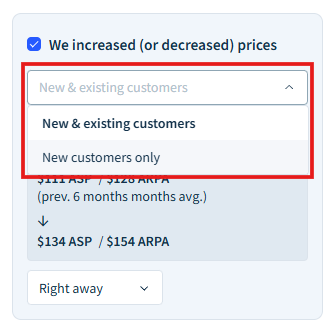
For the We increased (or decreased) prices scenario, you also have the option to analyze New & existing customers or New customers only.
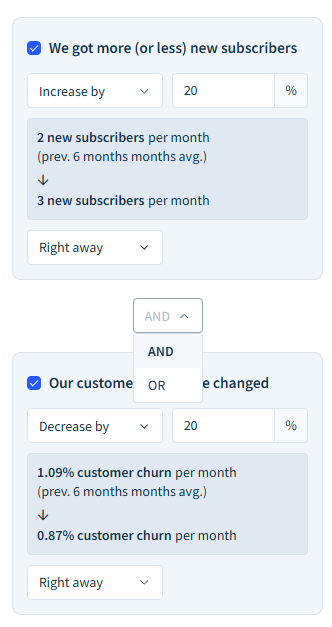
When you select multiple scenarios, choose AND from the drop-down to apply all conditions at the same time, or OR to evaluate each scenario on its own — useful for side-by-side comparisons.
How to analyze your projections
The projected Annual Run Rate and Paid Subscribers reports update dynamically depending on the selected “What if…” scenarios.
Use the Project using drop-down to base simulations on the last three, six, or nine months of averages. Use the up to drop-down to set your projection end date — for example, EOY 2030.
Select MONTH, QUARTER or YEAR to change the interval.
Select the Show Labels button to show numerical values on the plots.
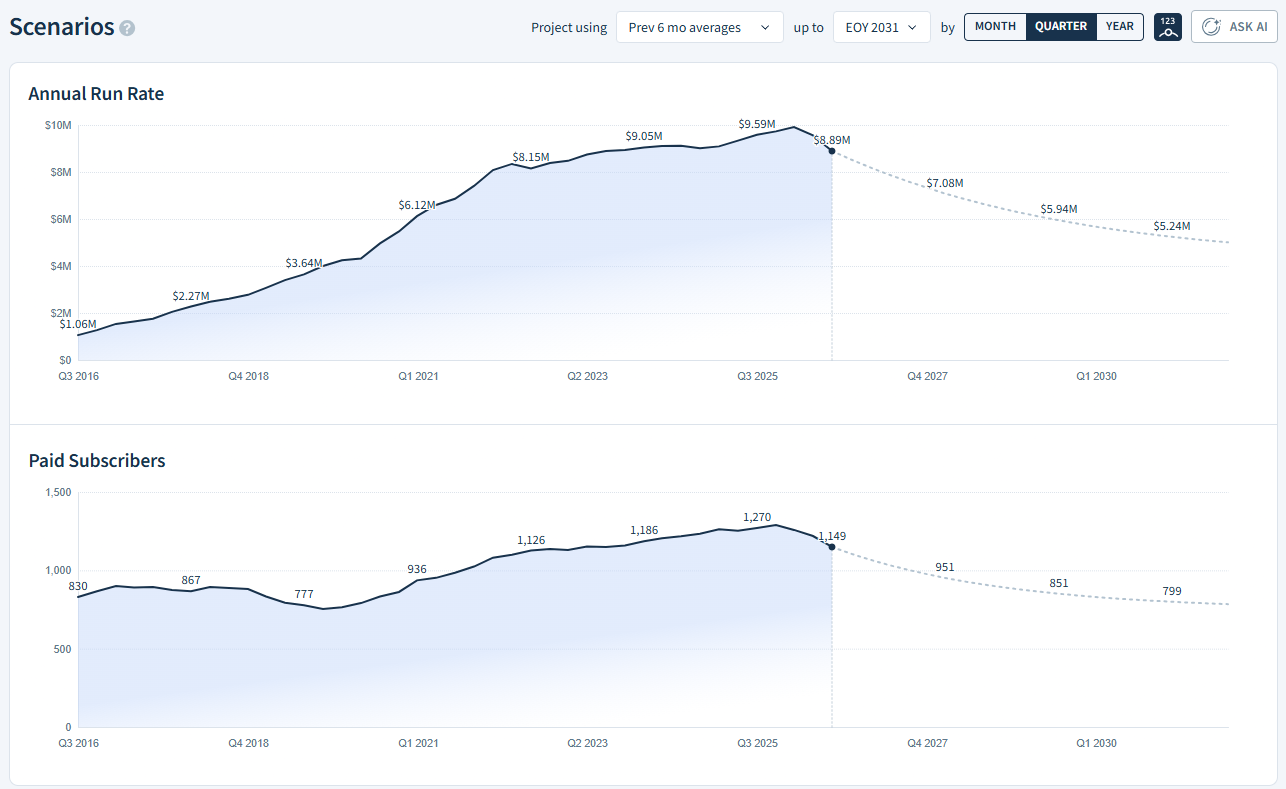
The gray plot represents the baseline projection, which predicts future values based solely on historical averages, without any “What if…” conditions applied.
The color-coded plots represent the scenario-based projections, i.e., what the future might look like if the selected “What if…” conditions are applied.
Next steps
-
Use Benchmarks to see how your business compares to industry peers.