
Report: Monthly Recurring Revenue (MRR)
The Monthly Recurring Revenue (MRR) report shows your total recurring subscription revenue each month. Each month includes every subscription that was active or past due in that month, including customers who have since cancelled. For example, a customer who subscribed in January and churned in August adds to your MRR from January to August, but not to today's MRR.
MRR is the core metric for any SaaS business. It tells you how much predictable revenue you're generating and how that number changes over time.
If you're new to ChartMogul, get to know how reports work.
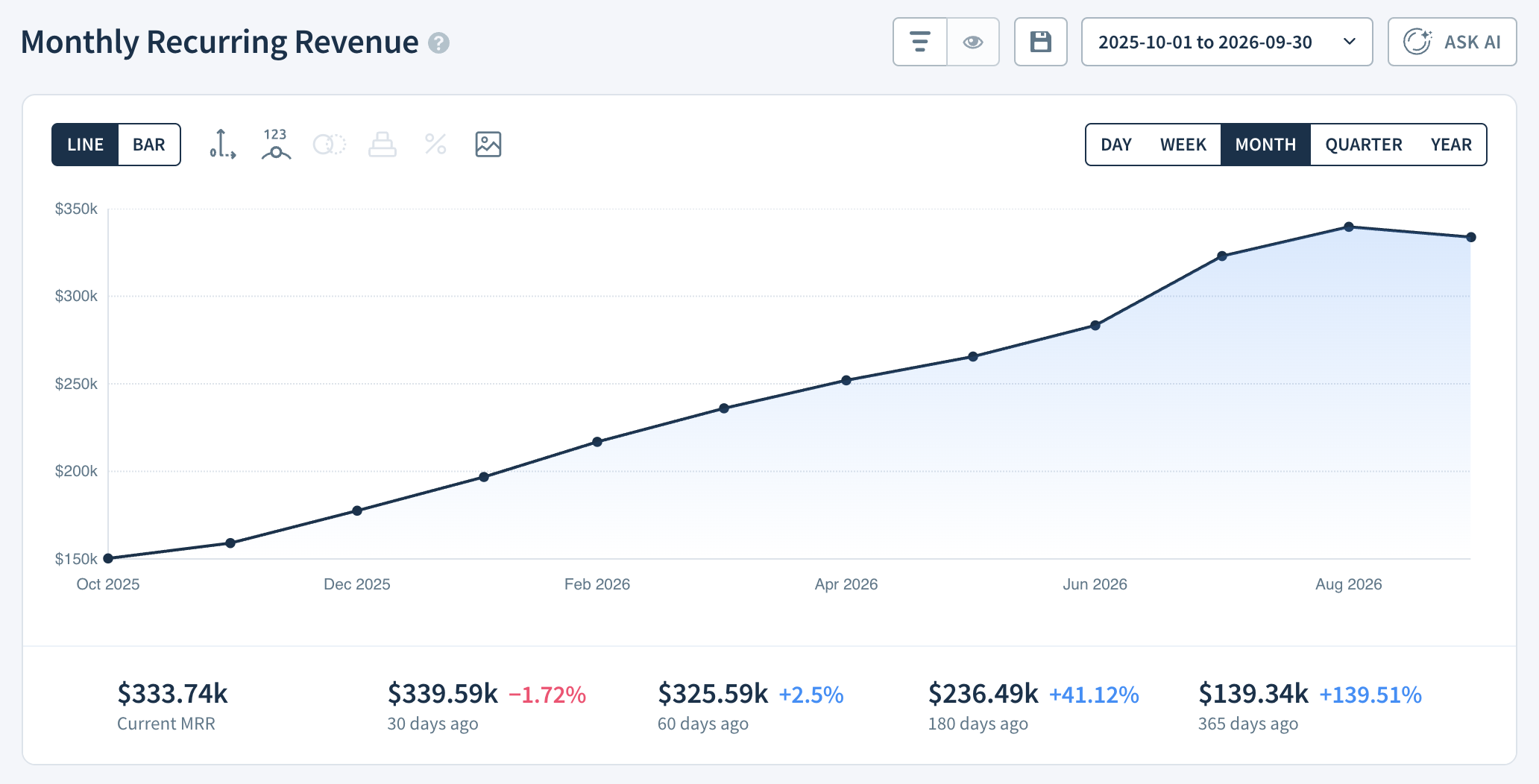
What insights can I gain from MRR?
SaaS is all about the steady growth of predictable, monthly recurring subscription revenue. As such, MRR is arguably the most important SaaS metric.
Tracking and analyzing your MRR is central to understanding and growing your business. It allows you to see how you’ve performed up until now and—due to its predictable nature—helps you forecast where you’ll be next month, quarter or year.
Compare your growth to industry peers with Benchmarks. Once you’ve established your month-over-month baseline growth, set sales and expansion targets to meet total revenue goals for the next year.
Best-in-class SaaS businesses double their revenue each year. Learn more in our SaaS Growth Report.
How ChartMogul Calculates Monthly Recurring Revenue (MRR)
ChartMogul calculates MRR for each subscription and adds up the MRR of all active and past due subscriptions in the period.
MRR = (Amount paid for the subscription − discounts − tax) ÷ number of months in the plan’s billing interval
For monthly plans, MRR is simply the amount paid each month. ChartMogul only uses the subscription’s service period when a payment is pro-rated (see Pro-rated payments).
Example: A customer buys an annual plan priced at $1,200 and gets a $200 discount. MRR = ($1,200 − $200) ÷ 12 = $83.33.
What counts toward MRR
- Only subscription payments count toward MRR. This includes manual subscriptions. One-time (non-recurring) charges, such as setup fees, don’t count. You can see them in Non-Recurring Cash Flow.
- Discounts are deducted before ChartMogul calculates MRR, when your billing system provides discount data.
- Taxes are excluded from MRR. Depending on your integration, read more about how we handle sales tax and VAT.
- Transaction fees aren’t deducted from MRR by default. Your Transaction fee handling setting controls this.
Pro-rated payments
When a customer changes their subscription partway through a billing period, for example by upgrading, downgrading or adding seats, your billing system usually charges or credits a pro-rated amount for the rest of the period. ChartMogul scales that pro-rated amount up to the full billing interval to work out its MRR.
Depending on how your billing system bills the change, ChartMogul does one of two things with that amount:
- If the charge covers the full new price, its MRR replaces the subscription’s previous MRR. This is how Stripe, Braintree and PayPal bill pro-rated changes.
- If the charge covers only the difference, for example just the extra seats, its MRR is added to the subscription’s existing MRR.
Either way, the subscription’s new MRR reflects what the customer will pay for a full billing interval after the change.
Example: A customer on a $100/month Bronze plan upgrades to the $250/month Gold plan halfway through the month. You charge them $125 for the remaining 15 days. ChartMogul scales the $125 to a full month, so the new MRR is $250. This creates an Expansion MRR movement of $150.
If you import data through a custom source or the API, you can control this behavior with the line item’s proration type. Learn more about pro-rated invoice line items.
Open, paid and refunded invoices
Your Invoice Handling settings control when an invoice starts or updates MRR:
- New and reactivated subscribers: By default, MRR starts only when the first subscription invoice is fully paid. You can choose to start MRR when the invoice is partially paid or issued instead.
- Existing subscribers: By default, MRR updates when a new invoice is issued.
- Written-off, voided and fully refunded invoices: You can exclude any of these from MRR. An invoice is fully refunded when its refunds equal or exceed the payments made on it. When you exclude fully refunded invoices, ChartMogul removes the MRR from that invoice from the subscription’s history.
Partial refunds never affect MRR. They’re reflected in your cash flow reports instead.
Invoice Handling settings are available for Braintree, Chargebee (latest version), Google Sheets, Recurly, Stripe, third-party and custom sources. For App Store Connect, Google Play and other integrations, review your integration guide to see how ChartMogul creates subscriptions.
Other data settings that affect MRR
- Churn recognition controls when a cancelled subscription stops contributing to MRR. It can stop when the subscription is cancelled in your billing system, or at the end of its final service period.
- Past due handling controls whether and when ChartMogul automatically cancels past due subscriptions, which removes their MRR.
Foreign currencies
ChartMogul converts subscriptions billed in foreign currencies to your primary currency. It uses the exchange rate on the service period start date, which is the first day of the billing period the invoice covers.
Because exchange rates change, a subscription’s MRR can go up or down with each new invoice even when the customer hasn’t changed anything. ChartMogul doesn’t count these changes as Expansion or Contraction. Instead, it shows them in the Exchange Rate Impact row of the report data table.
For manual subscriptions, ChartMogul uses the MRR movement date for conversion, and MRR stays fixed until you record a new movement.
Learn more about how ChartMogul handles foreign currencies.
How to Read the Report Data Table
Use the Report Data drop-down to choose how to display MRR movements:
- All MRR Movements—shows every MRR movement type broken out individually.
- Net MRR Movements—shows the net change in MRR for the period.
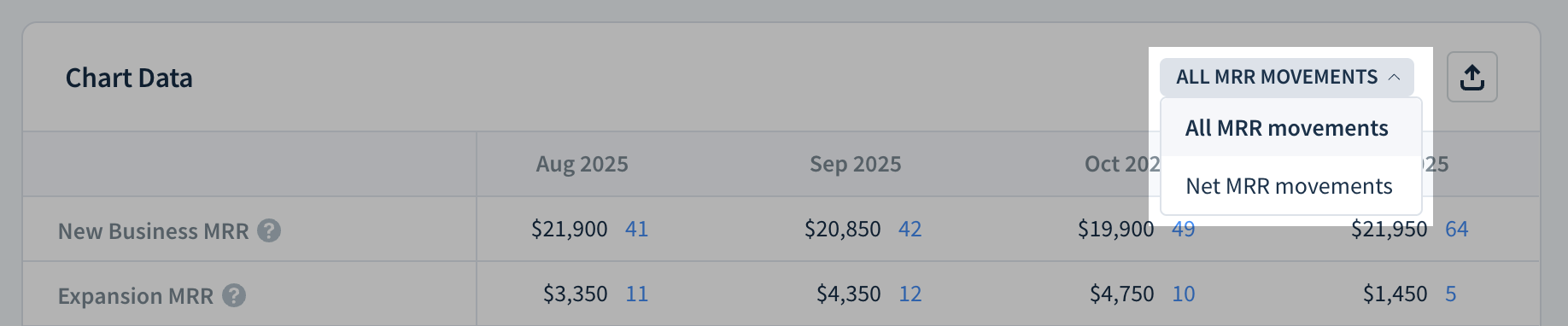
Learn more about Report Data.
Next Steps
- Analyze MRR by movement type.
- Use segmentation to analyze the MRR contributed by specific groups of customers.
- Set a goal for MRR and create a target to share progress with your whole team.
- Track this metric from your phone with the ChartMogul mobile app.
- See future changes to MRR with Committed Monthly Recurring Revenue (CMRR).